
Save a preset
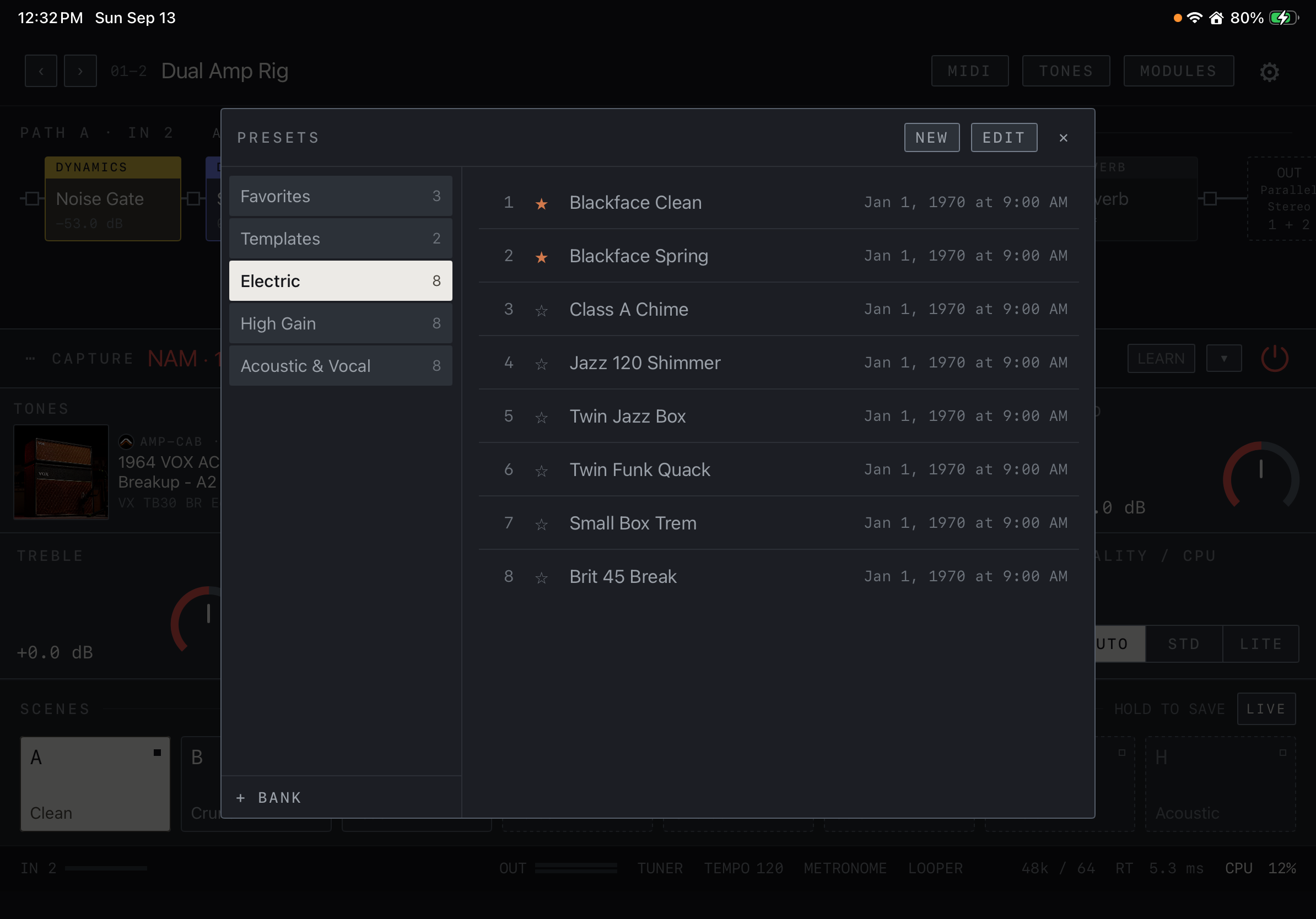
A preset stores a rig: chain structure, parameters and tone references. Open the bank and preset browser from the top name and use NEW to create an entry. Use SAVE when changes are present. Check the unsaved-change indicator before switching presets.
Find it on screen
- Select a bank on the left, then a preset on the right. Use the stars to manage favorites.
- Create a preset with NEW, organize the list with EDIT and add a bank with + BANK.
Name and organize
Use the preset browser’s editing controls to rename and organize banks and presets. On iPad or iPhone, finish text entry and dismiss the keyboard after renaming. Favorites give quick access to frequently used rigs.
Scenes A–H
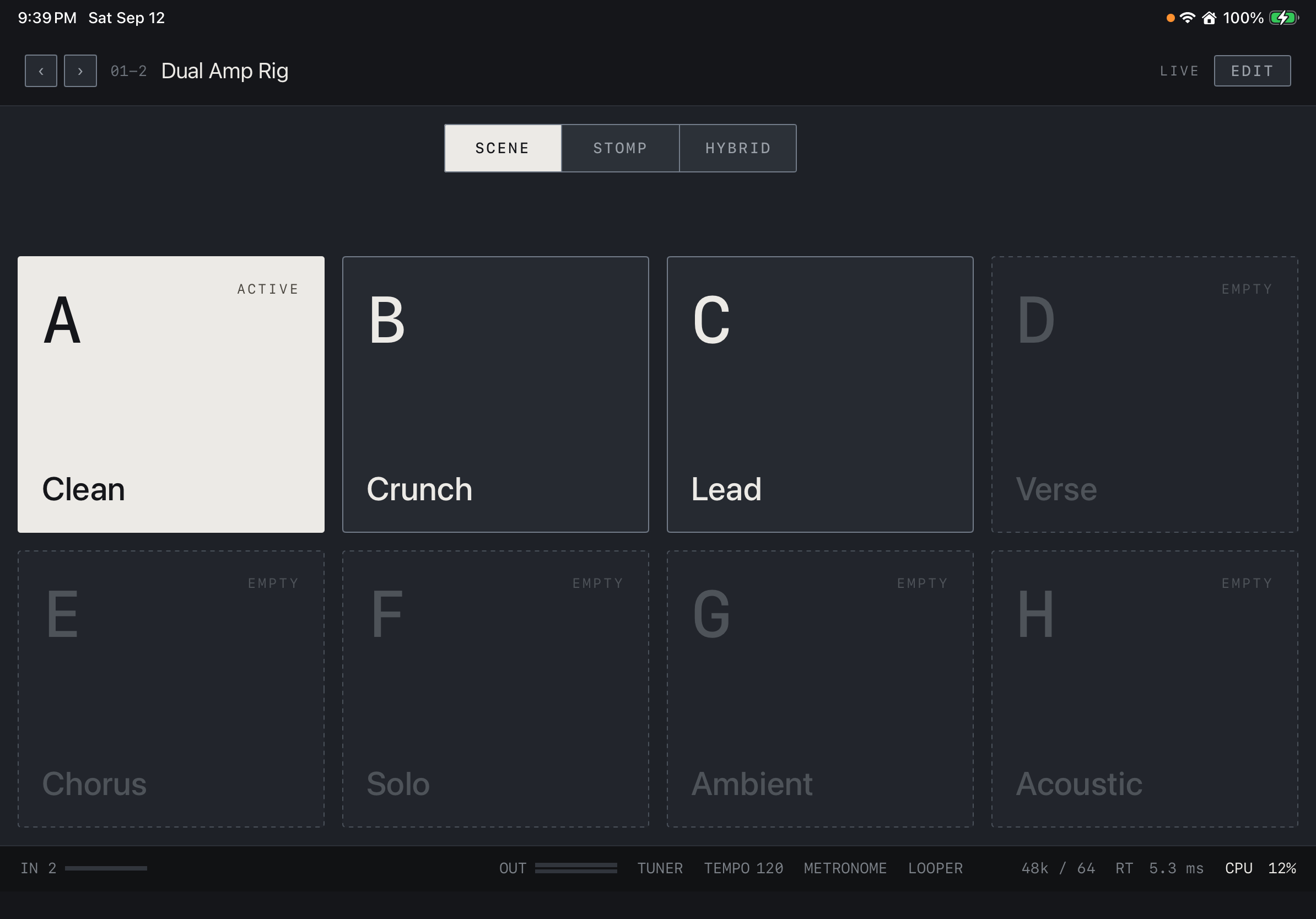
Each preset has eight scene slots, A–H. Scenes change block On/Off states, parameter values and path settings within the same chain. They suit variations such as Clean, Crunch and Lead within a song. An empty slot has no stored scene. Hold a scene button in the editor to store the current state. You can edit its name; save the preset after storing or renaming scenes.
Find it on screen
- A–H are scenes within one preset. ACTIVE and EMPTY distinguish the current scene from unstored slots.
Switching behavior
Scene changes apply values without rebuilding the chain. Preset changes may need model and chain preparation. Use scenes within one rig for frequent changes while playing, and test transitions between complex rigs on your actual device.