Add and arrange effects
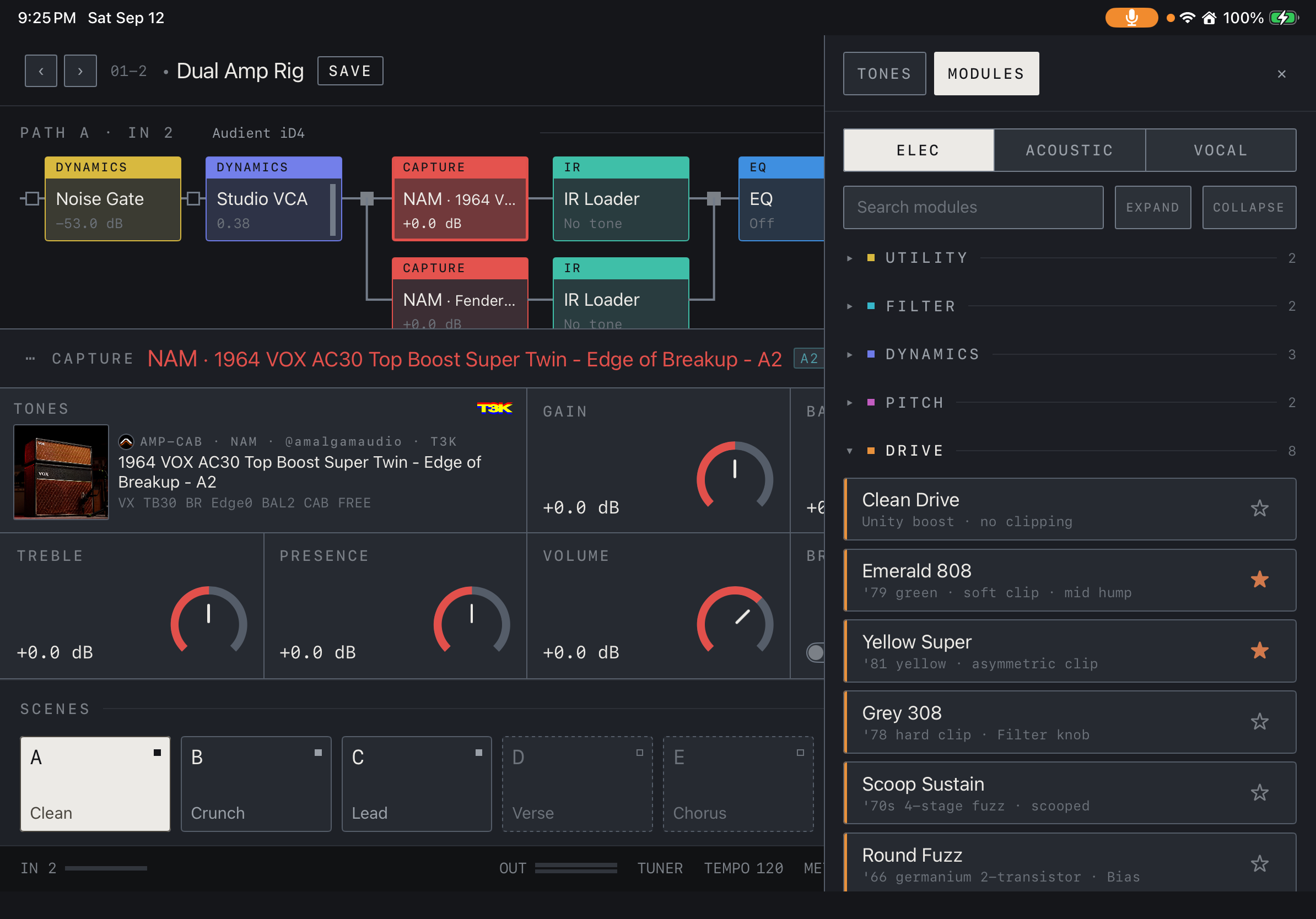
Find an effect in MODULES and drag it into the chain. Drag chain blocks to change their order. A starting example is Gate → Compressor → Drive → NAM → IR Loader → Delay → Reverb. Adapt this order to your instrument and sound.
Find it on screen
- Expand a category in MODULES and drag the effect into the chain.
Parallel branches and merge
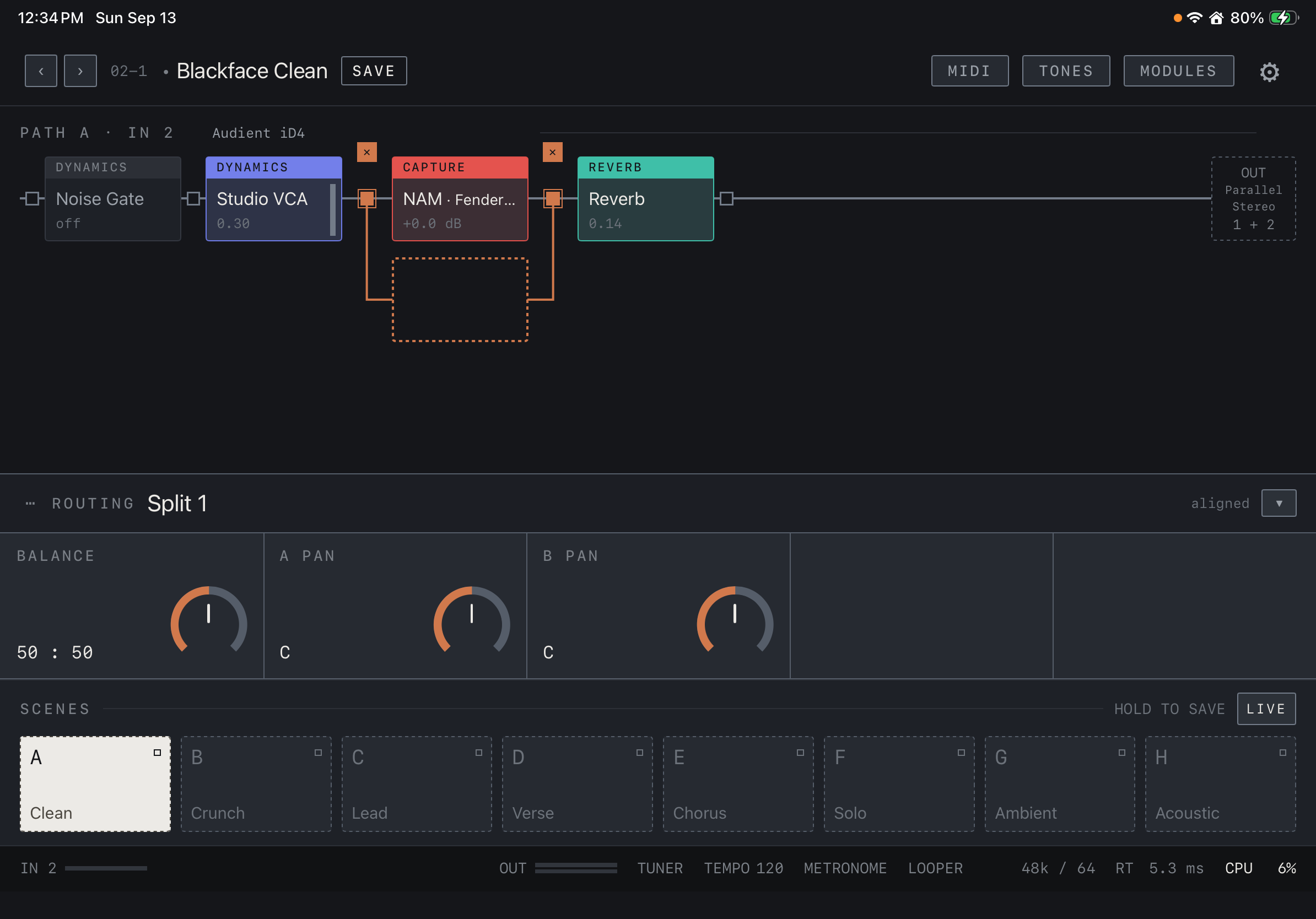
Create a split at a chain connection and place different effects on each lane. Use merge balance and pan to blend the lanes. Differences in phase or latency between parallel lanes can change the combined sound, so check the result in mono too.
Find it on screen
- The orange connections mark the selected parallel split. Add another effect in the dashed slot below.
- Use BALANCE, A PAN and B PAN in the ROUTING panel to adjust the blend and stereo placement.
Choose the output
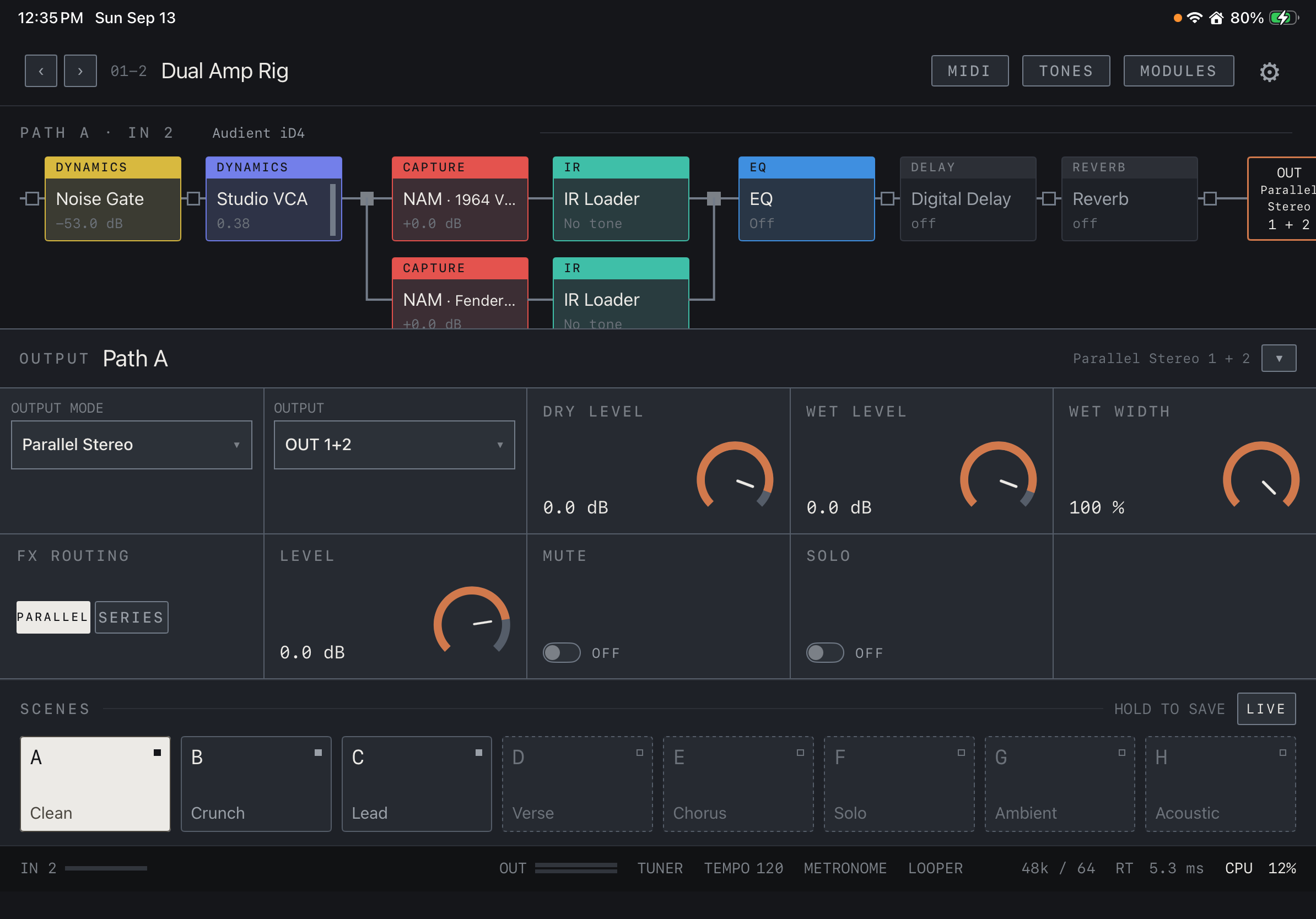
Select output connectors in each Path’s Output controls. Available channels come from the connected device. The looper, drums and click use OUT 1/2. Check the interface’s own settings to see which USB output pair feeds its headphone socket.
Find it on screen
- Select OUT at the end of the chain to open that Path’s OUTPUT panel.
- Choose the mode under OUTPUT MODE and the physical channels under OUTPUT. This example uses OUT 1+2.
- Adjust LEVEL, MUTE, SOLO and the DRY / WET controls for your output setup.