
What Global EQ does
GLOBAL EQ in the bottom bar is one EQ on every output, after every preset. It is not saved in presets; it stays as a setting of this device, so you adjust it once for the speakers of a venue or rehearsal room and it applies whichever preset you open. On OUT 1/2 it also shapes the looper, drums and click. The FX Loop send is not affected. While it is on, GLOBAL EQ in the bottom bar is highlighted.
Find it on screen
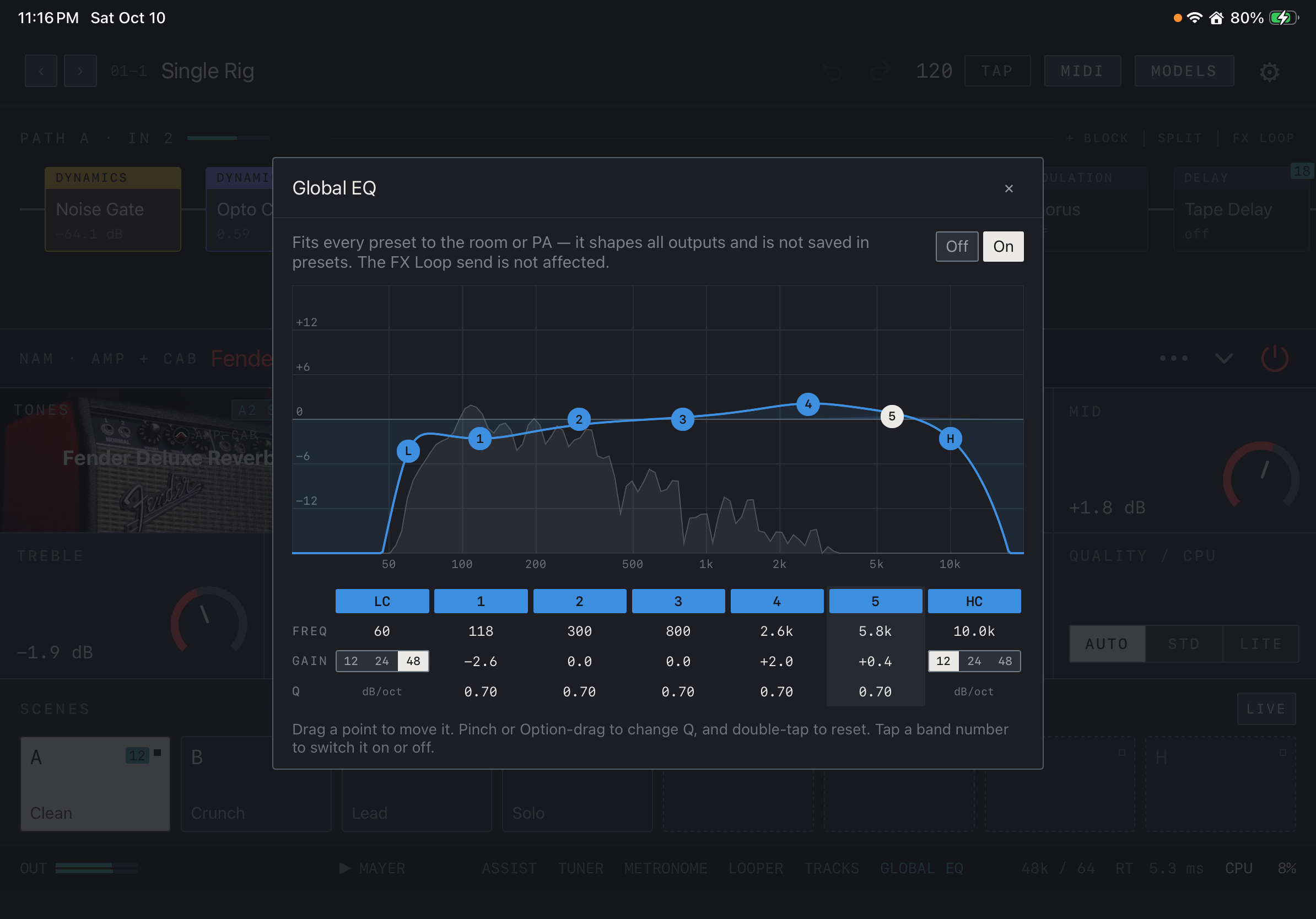
- As the text at the top says, Global EQ shapes all outputs and is not saved in presets.
- Switch it with Off / On at the top right. It is On in this example.
- Drag the L, 1–5 and H points on the curve to change frequency and gain. The white point is the selected band.
- The grey area behind the curve is the spectrum of the sound going out.
Find it on screen
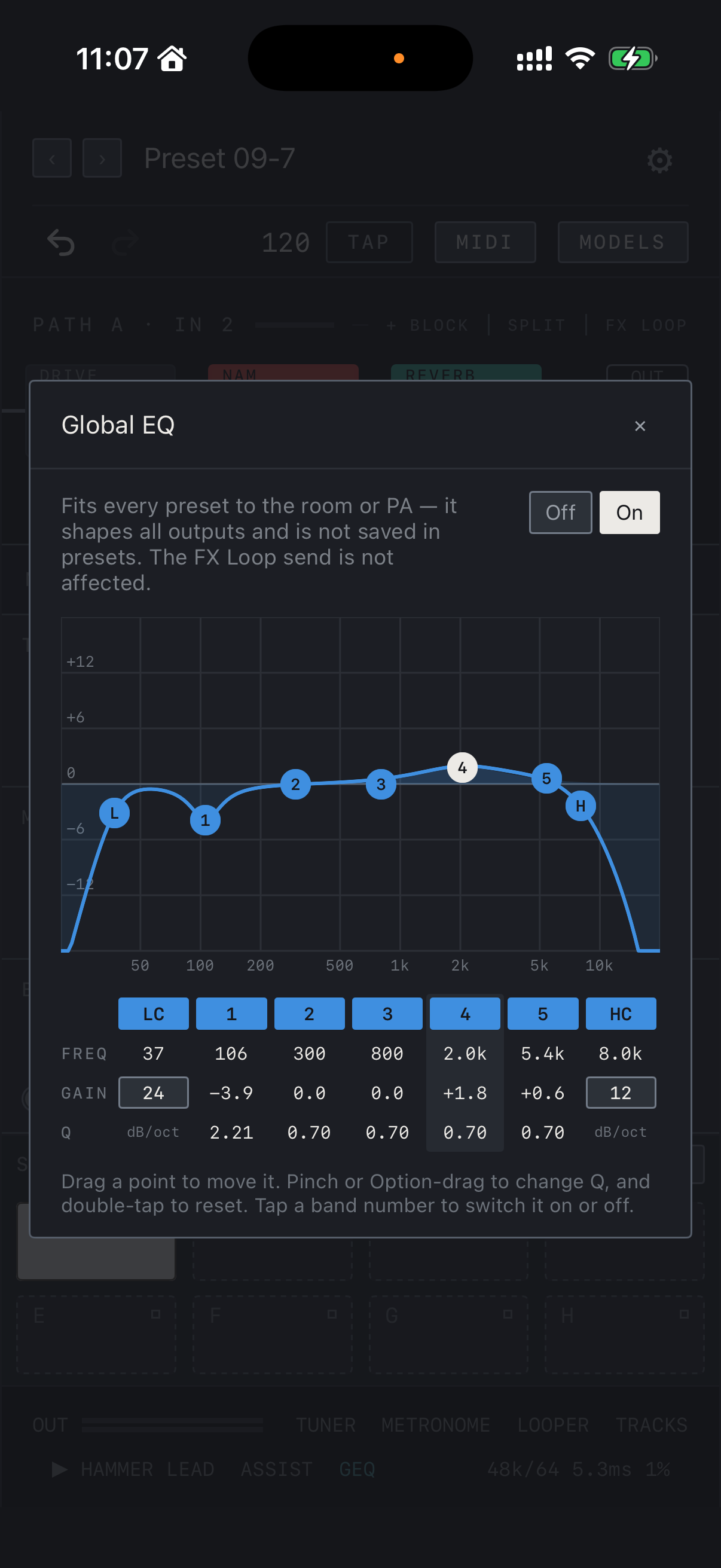
- As the text at the top says, Global EQ shapes all outputs and is not saved in presets.
- Switch it with Off / On at the top right. It is On in this example.
- Drag the L, 1–5 and H points on the curve to change frequency and gain. The white point is the selected band.
- The grey area behind the curve is the spectrum of the sound going out.
Find it on screen
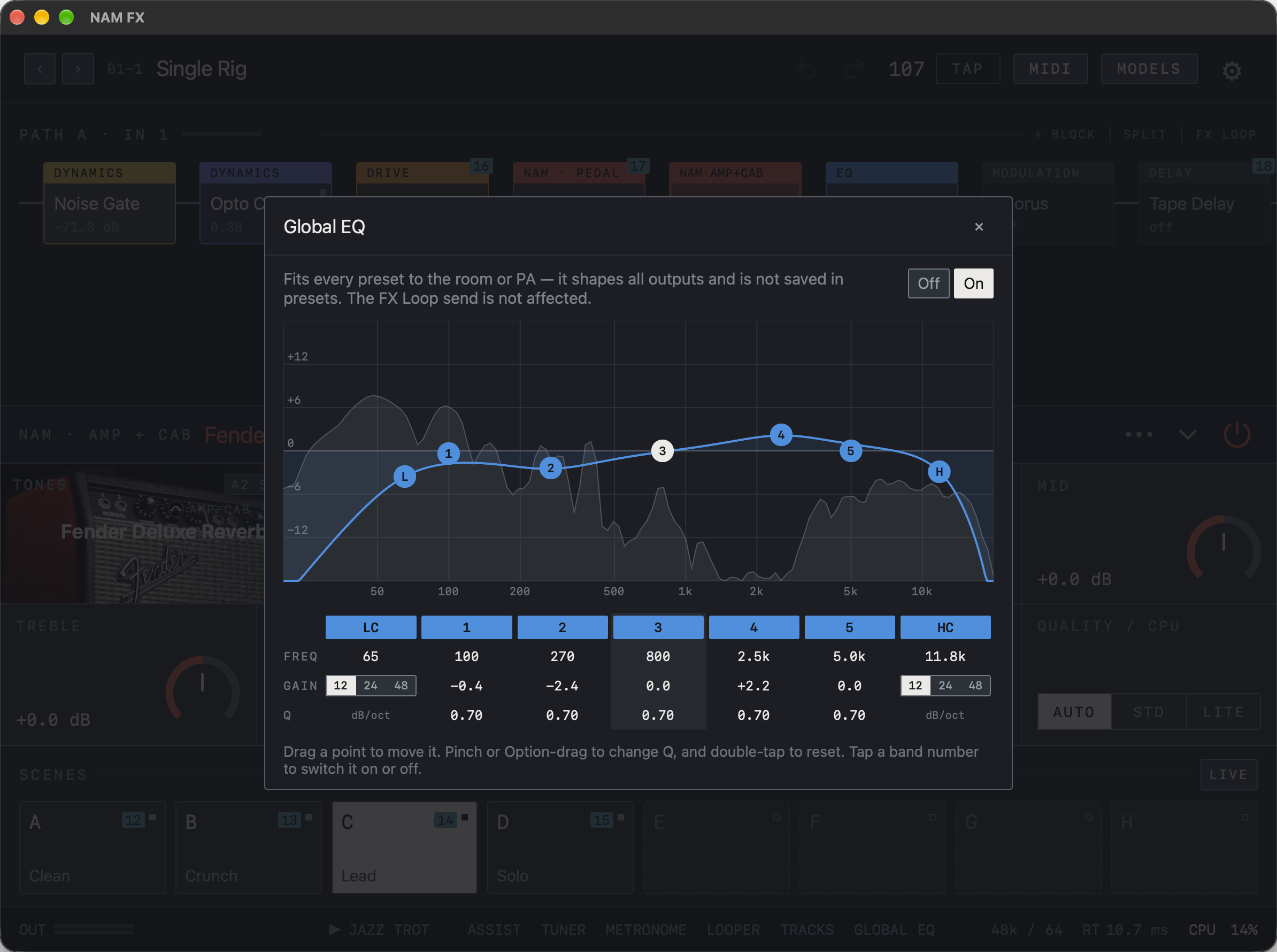
- As the text at the top says, Global EQ shapes all outputs and is not saved in presets.
- Switch it with Off / On at the top right. It is On in this example.
- Drag the L, 1–5 and H points on the curve to change frequency and gain. The white point is the selected band.
- The grey area behind the curve is the spectrum of the sound going out.
Shape the curve
- Tap On in the GLOBAL EQ window.
- Drag a point on the curve: horizontal is frequency, vertical is gain. 1–5 are bell bands; L and H are the low cut and high cut.
- Pinch (Option-drag on Mac) to change the Q of the selected band, and double-tap a point to reset it.
- Tap LC, 1–5 or HC in the table below to switch that band on or off. Drag the FREQ, GAIN and Q numbers up or down for fine adjustment.
- LC and HC offer slopes of 12, 24 or 48 dB/oct.
Mac On Mac, hold Option and drag to change Q in place of the pinch.

Find it on screen
- The table lists FREQ, GAIN and Q per band. Tap LC, 1–5 or HC to switch that band on or off.
- In the GAIN row, LC and HC hold the slopes 12, 24 and 48 dB/oct; the highlighted number is the chosen one.
- The column set apart by a darker background is the selected band.
Find it on screen
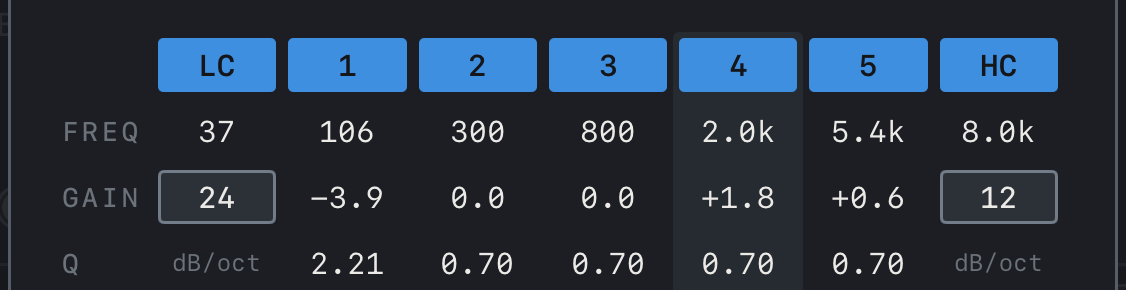
- The table lists FREQ, GAIN and Q per band. Tap LC, 1–5 or HC to switch that band on or off.
- On iPhone the LC and HC slopes are shown as a single value each (24 and 12 dB/oct here).
- The column set apart by a darker background is the selected band.

Find it on screen
- The table lists FREQ, GAIN and Q per band. Tap LC, 1–5 or HC to switch that band on or off.
- In the GAIN row, LC and HC hold the slopes 12, 24 and 48 dB/oct; the highlighted number is the chosen one.
- The column set apart by a darker background is the selected band.
When to use it
It is easier to manage if you build the tone itself with each preset’s EQ and amp controls and keep Global EQ for correcting a different place: turn on the low cut in a boomy room, or pull a high band down slightly on a harsh PA. When you move to another place, switch it Off and check the original sound first.
Caution Large boosts can push the output toward clipping, so keep an eye on the OUT meter.