
Read the screen
From top to bottom the editor shows the top bar, the chain, the selected block’s parameters, SCENES and the bottom bar. Tap a block in the chain to show its controls underneath. The bar beside PATH A · IN in the chain header is the input meter; + BLOCK, SPLIT and FX LOOP on the right add a block, a parallel split or a hardware loop to the chain.
iPhone In portrait on iPhone the top bar and bottom bar take two rows each, and you swipe the chain left and right.
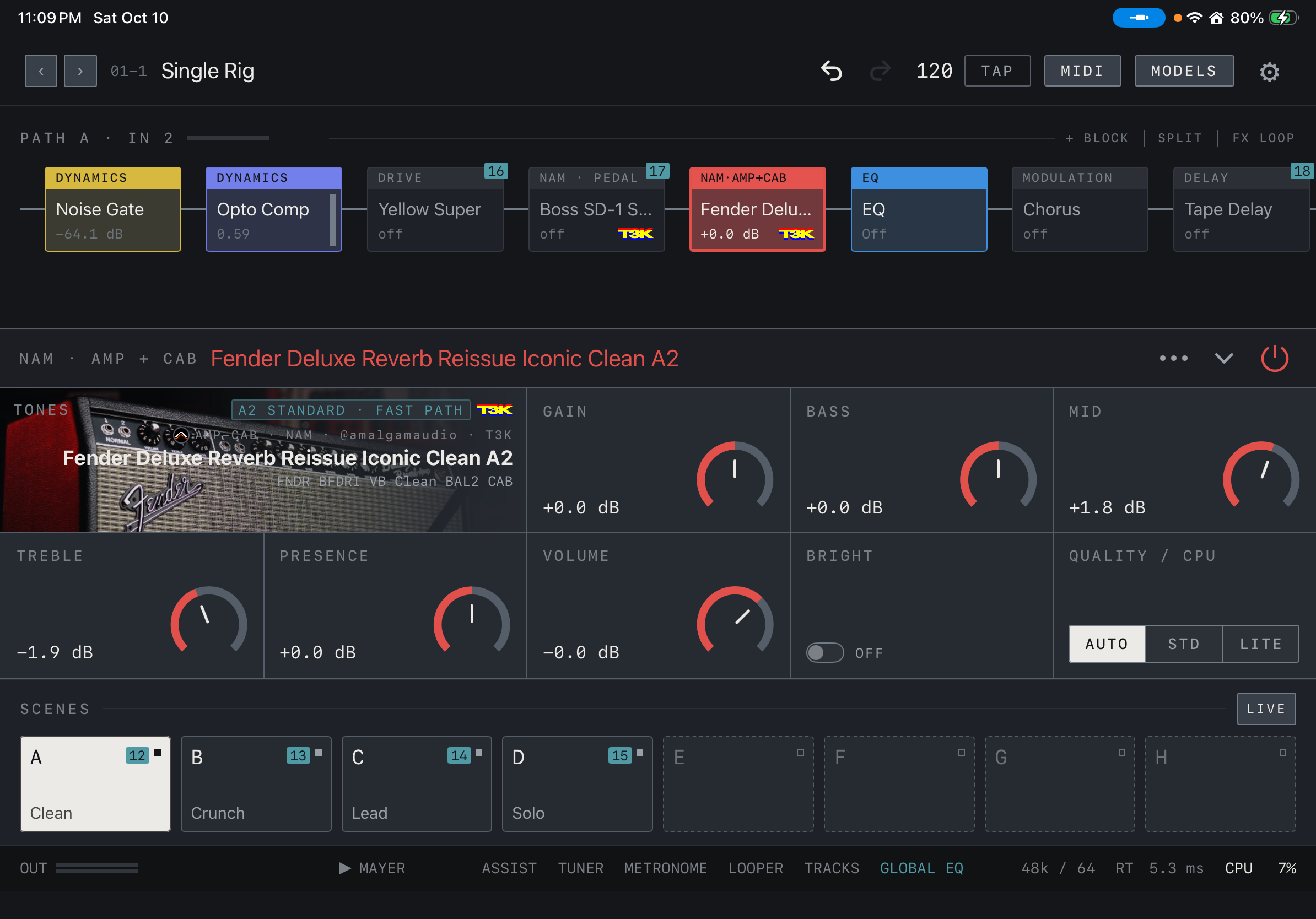
Find it on screen
- Top: preset stepping and name, undo/redo, tempo and TAP, MIDI, MODELS and Settings.
- Middle: the chain, with signal running left to right. Controls for the selected block appear below it.
- Lower area: SCENES A–H and LIVE. Bottom edge: the OUT meter and tools.
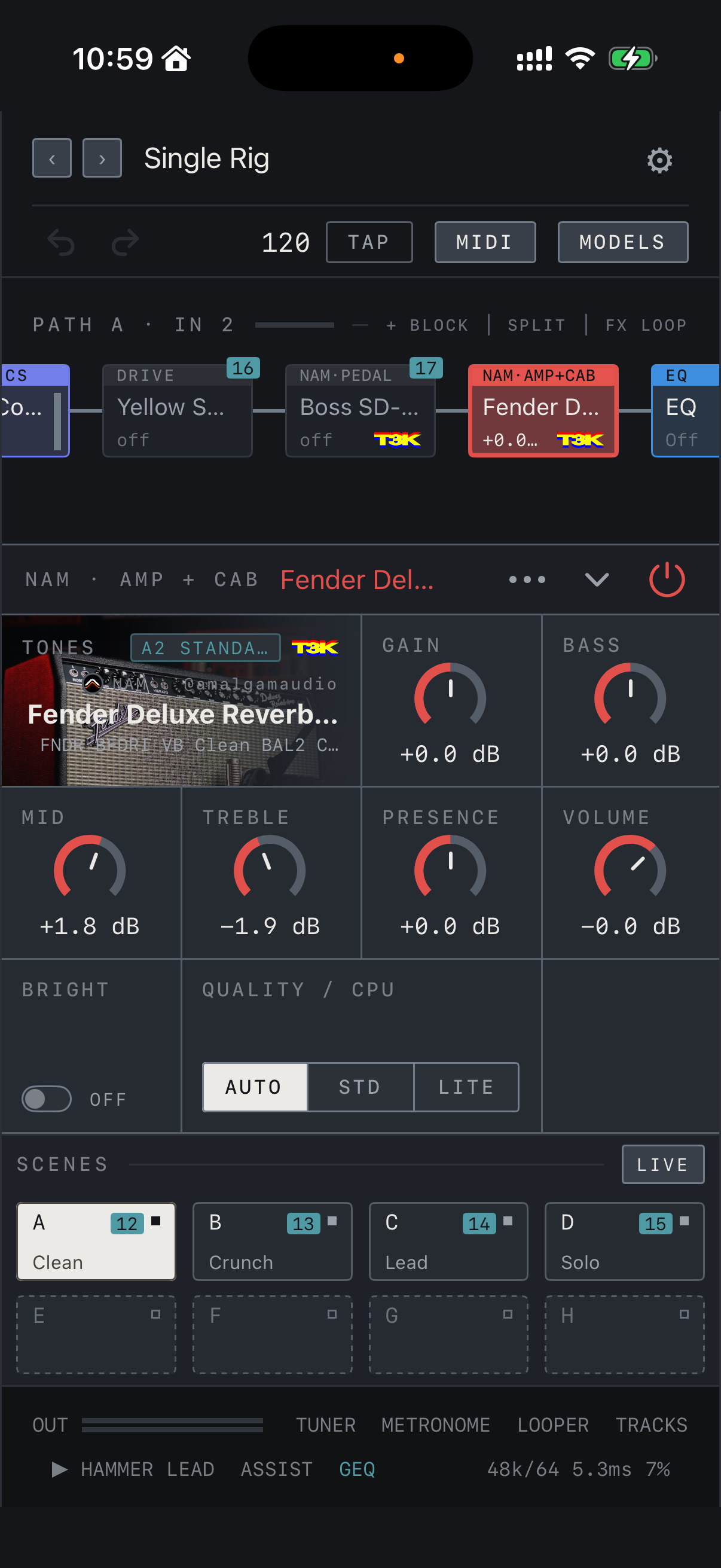
Find it on screen
- Top two rows: preset stepping, the name and Settings on the first; undo/redo, tempo and TAP, MIDI and MODELS on the second.
- Middle: swipe the chain left and right. Controls for the selected block sit below it, four to a row.
- Lower area: SCENES A–H in two rows, and the bottom bar in two rows as well.
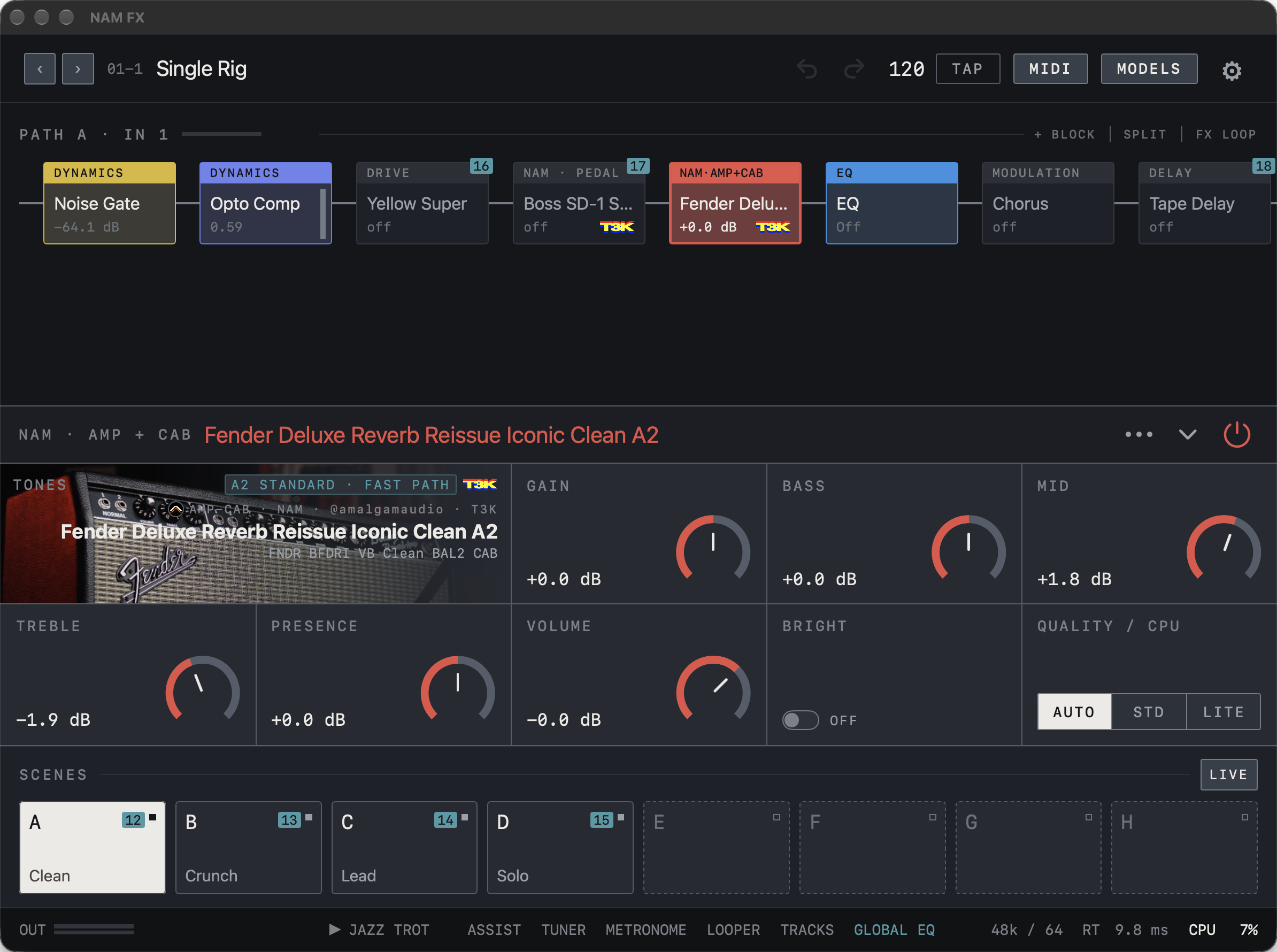
Find it on screen
- Top: preset stepping and name, undo/redo, tempo and TAP, MIDI, MODELS and Settings.
- Middle: the chain, with signal running left to right. Controls for the selected block appear below it.
- Lower area: SCENES A–H and LIVE. Bottom edge: the OUT meter and tools.
Top bar
‹ › step to the previous and next preset. Tap the preset name to open the preset window; when there are unsaved changes a dot appears before the name and SAVE appears after it. The two curved arrows undo and redo edits and are dimmed when there is nothing to undo. The number is the current tempo; tap TAP in time to change it. MIDI opens controller assignments, MODELS opens the tone, IR and effect lists, and the gear opens Settings.

Find it on screen
- Step through presets with ‹ › and tap the name to open the preset window. 01-1 is the bank and slot.
- The curved arrows are undo and redo; here only undo is lit.
- 120 is the tempo; tap TAP in time to change it.
- MIDI, MODELS and the Settings gear follow on the right.
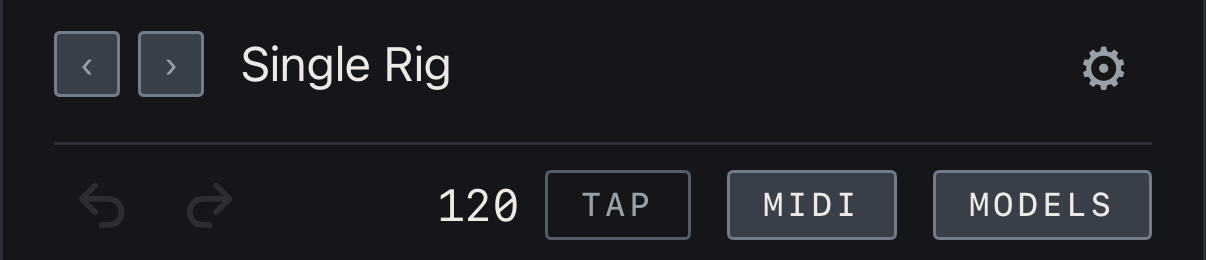
Find it on screen
- First row: ‹ › and the preset name, with the Settings gear at the right end.
- Second row: undo and redo, the tempo 120 with TAP, MIDI and MODELS.
- Both arrows are dimmed here because there is nothing to undo.

Find it on screen
- Step through presets with ‹ › and click the name to open the preset window. 01-1 is the bank and slot.
- The curved arrows are undo and redo; here they are dimmed because there is nothing to undo.
- 120 is the tempo; click TAP in time to change it. MIDI, MODELS and Settings follow on the right.
Blocks and parameters
Drag a knob to change its value; use the displayed value or selector for discrete options. The power button at the right of the parameter panel bypasses the selected block. The ⌄ beside it folds the panel to leave more room for the chain; tap it again to unfold. A bypassed block stays in the chain so you can turn it on again. The ⋯ menu lets you remove the block from the chain or assign an expression pedal. Undo remembers up to 100 steps of parameter changes, tone swaps, adding, removing or moving blocks, on/off switching and tempo changes; opening another preset clears the history.
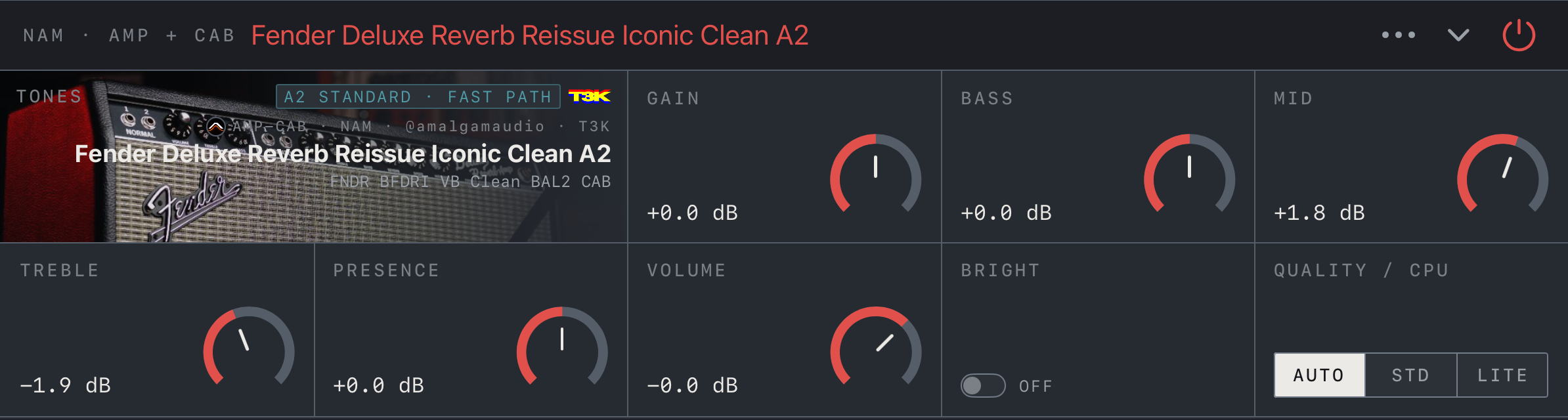
Find it on screen
- The block type (NAM · AMP + CAB) and loaded tone name are at the top left; the ⋯ menu, the ⌄ that folds the panel and the power button are on the right.
- The TONES cell shows the type, creator and format of the loaded capture. T3K marks a tone downloaded from TONE3000.
- Drag knobs such as GAIN, BASS and MID, and choose AUTO, STD or LITE under QUALITY / CPU.
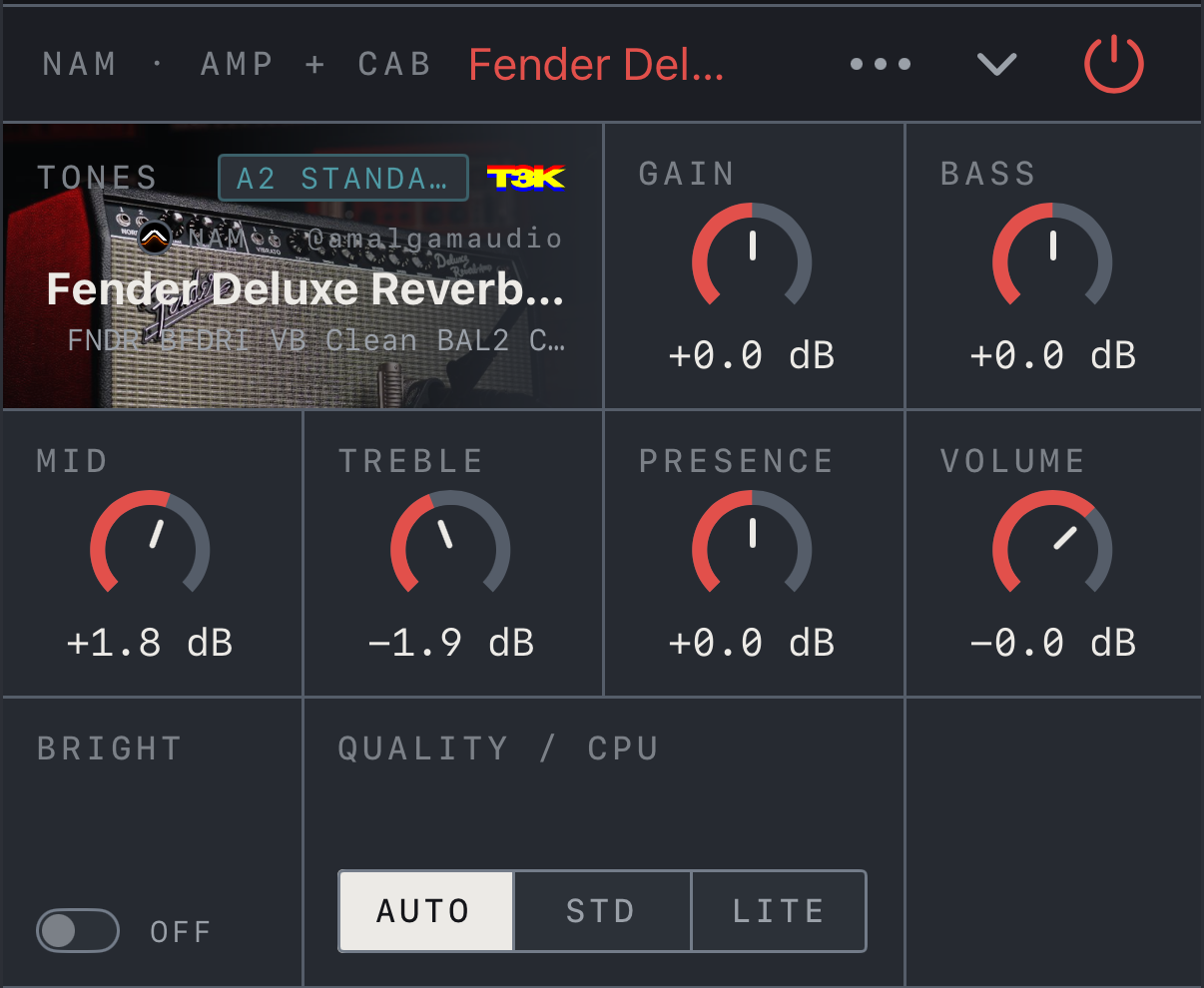
Find it on screen
- The block type (NAM · AMP + CAB) and loaded tone name are at the top left; the ⋯ menu, the ⌄ that folds the panel and the power button are on the right.
- The TONES cell shows the type, creator and format of the loaded capture. T3K marks a tone downloaded from TONE3000.
- Drag knobs such as GAIN, BASS and MID, and choose AUTO, STD or LITE under QUALITY / CPU.
- In portrait on iPhone the controls sit four to a row.
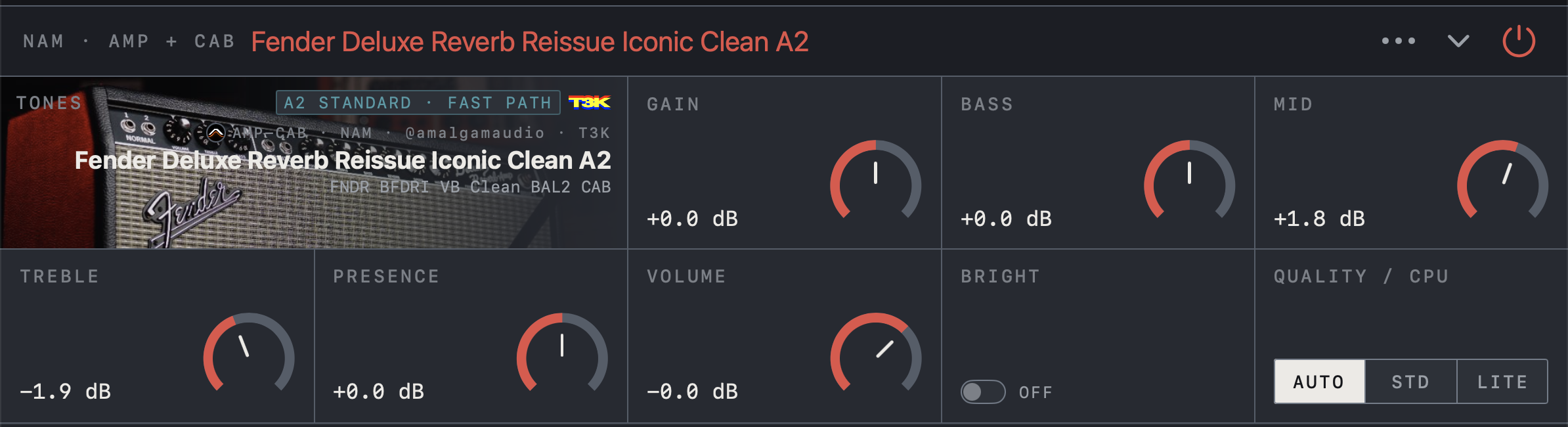
Find it on screen
- The block type (NAM · AMP + CAB) and loaded tone name are at the top left; the ⋯ menu, the ⌄ that folds the panel and the power button are on the right.
- The TONES cell shows the type, creator and format of the loaded capture. T3K marks a tone downloaded from TONE3000.
- Drag knobs such as GAIN, BASS and MID, and choose AUTO, STD or LITE under QUALITY / CPU.
Bottom bar
The OUT meter shows signal leaving the app. ▶ and the name beside it are the demo DI: tap ▶ to run a recorded guitar part through the chain in place of the selected Path’s input, so you can check a tone without a guitar, and tap the name to pick another DI. ASSIST, TUNER, METRONOME, LOOPER, TRACKS and GLOBAL EQ open their tool windows. Sample rate / buffer, RT (round-trip latency) and CPU on the right describe the current device and rig.
Note A moving OUT meter does not guarantee audible output if physical routing or the interface monitor mix is incorrect.
Note The color of the CPU number shows processing headroom. On iPad and Mac it turns yellow above 20% and red from 40%; on iPhone it turns yellow from 45% and red from 55%. iPhone runs the short, repeating audio work at a lower speed, so the same rig reads higher there and the thresholds differ. If it stays red, switch QUALITY / CPU on NAM blocks to LITE, use fewer effects or raise the buffer.
iPhone On iPhone GLOBAL EQ is shortened to GEQ, and the numbers on the right are sample rate / buffer, round-trip latency and CPU, in that order.

Find it on screen
- The OUT meter on the left shows signal leaving the app.
- ▶ and the name beside it are the demo DI; ASSIST, TUNER, METRONOME, LOOPER, TRACKS and GLOBAL EQ open their tools. A highlighted GLOBAL EQ means it is on.
- On the right are sample rate / buffer, RT (round-trip latency) and CPU.

Find it on screen
- First row: the OUT meter and TUNER, METRONOME, LOOPER and TRACKS.
- Second row: ▶ with the demo DI name, ASSIST and GEQ (GLOBAL EQ). A highlighted GEQ means it is on.
- 48k/64 · 5.3ms · 7% at the bottom right are sample rate / buffer, round-trip latency and CPU.

Find it on screen
- The OUT meter on the left shows signal leaving the app.
- ▶ and the name beside it are the demo DI; ASSIST, TUNER, METRONOME, LOOPER, TRACKS and GLOBAL EQ open their tools. A highlighted GLOBAL EQ means it is on.
- On the right are sample rate / buffer, RT (round-trip latency) and CPU.
Language and orientation
Language in Settings applies to the Settings screen and help text. Names on the main screen such as SCENES, MODELS and LOOPER, along with effect and parameter labels, stay in English. When renaming, the editor accommodates the on-screen keyboard. Dismiss the keyboard when you finish to regain the full workspace.