
Load it in a host
The AUv3 plug-in puts NAM FX on a track in an AUv3 host such as Logic Pro or Loopy Pro.
Note Run the NAM FX app once first, then choose NAM FX from the host’s list of Audio Unit effects.
Two entries appear: NAM FX and NAM FX MIDI. Use NAM FX as an ordinary audio effect, and NAM FX MIDI when you want to control it by MIDI from a foot controller through the host. Each instance keeps its own preset state, saved with the host session.
Find it on screen
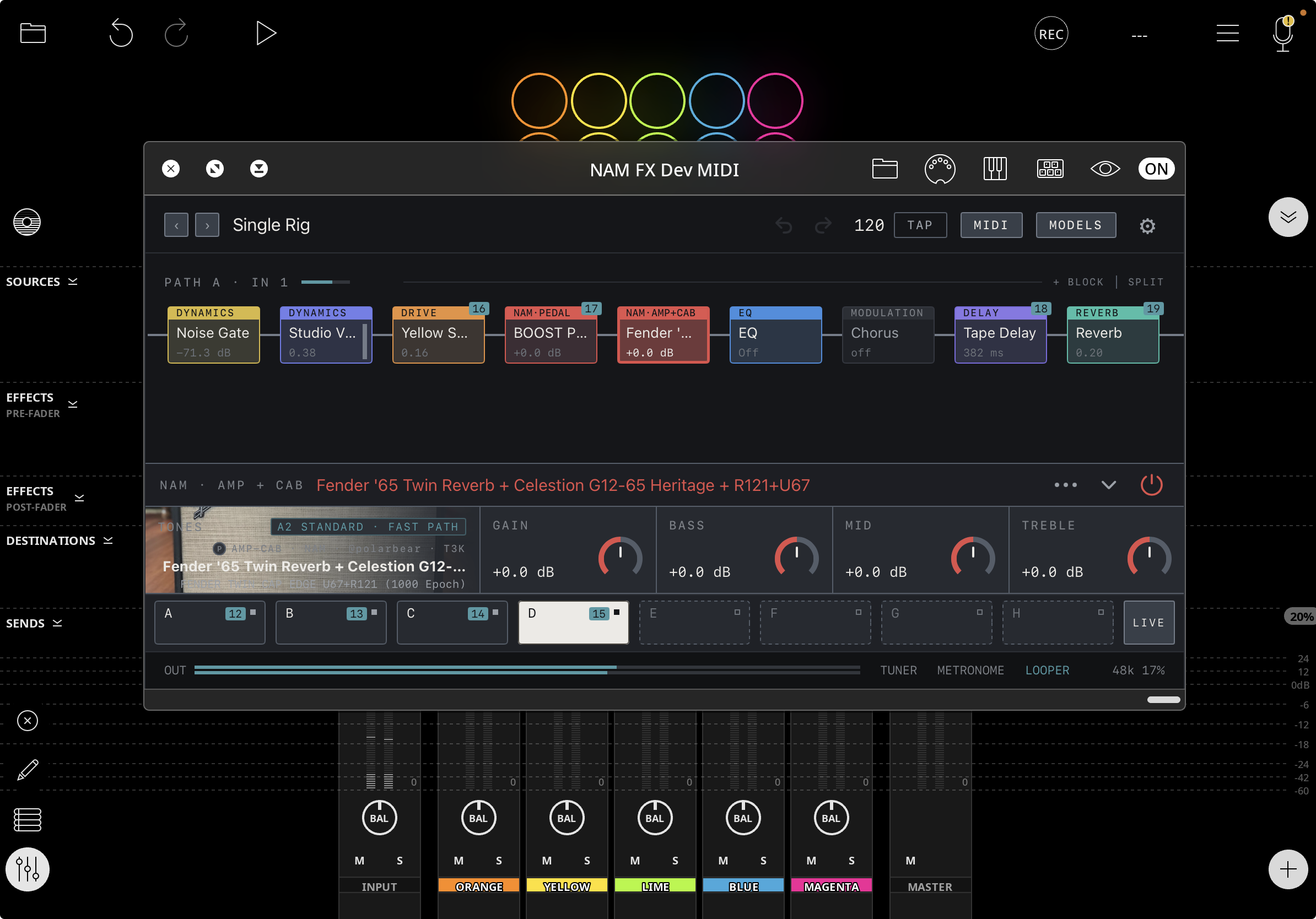
- NAM FX MIDI loaded in Loopy Pro. The top row is the host’s plug-in window header; NAM FX starts below it.
- Preset stepping, tempo and TAP, MIDI, MODELS, Settings, the chain, parameters and SCENES sit where they do in the app.
- The chain header has + BLOCK and SPLIT only; there is no FX LOOP.
- The tones shown were downloaded separately and are not included with the app.
Find it on screen
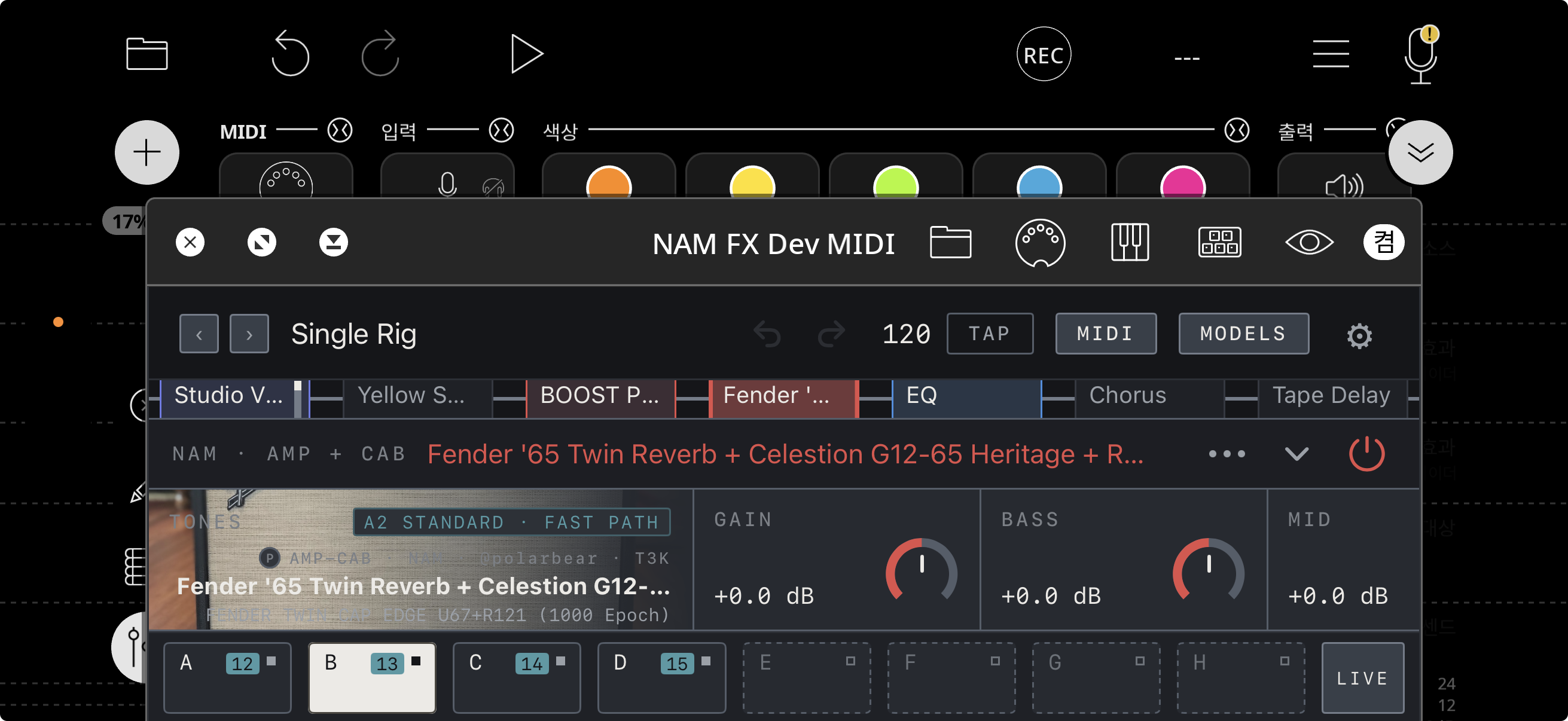
- NAM FX MIDI loaded in Loopy Pro on a landscape iPhone. The top row is the host’s plug-in window header.
- The chain is a single row of block names. The filled Fender ’… is the selected block, and its controls are shown below.
- SCENES A–H and LIVE are at the bottom. The numbers 12–15 beside the scene letters are the assigned MIDI CC numbers.
- The tones shown were downloaded separately and are not included with the app.
Find it on screen
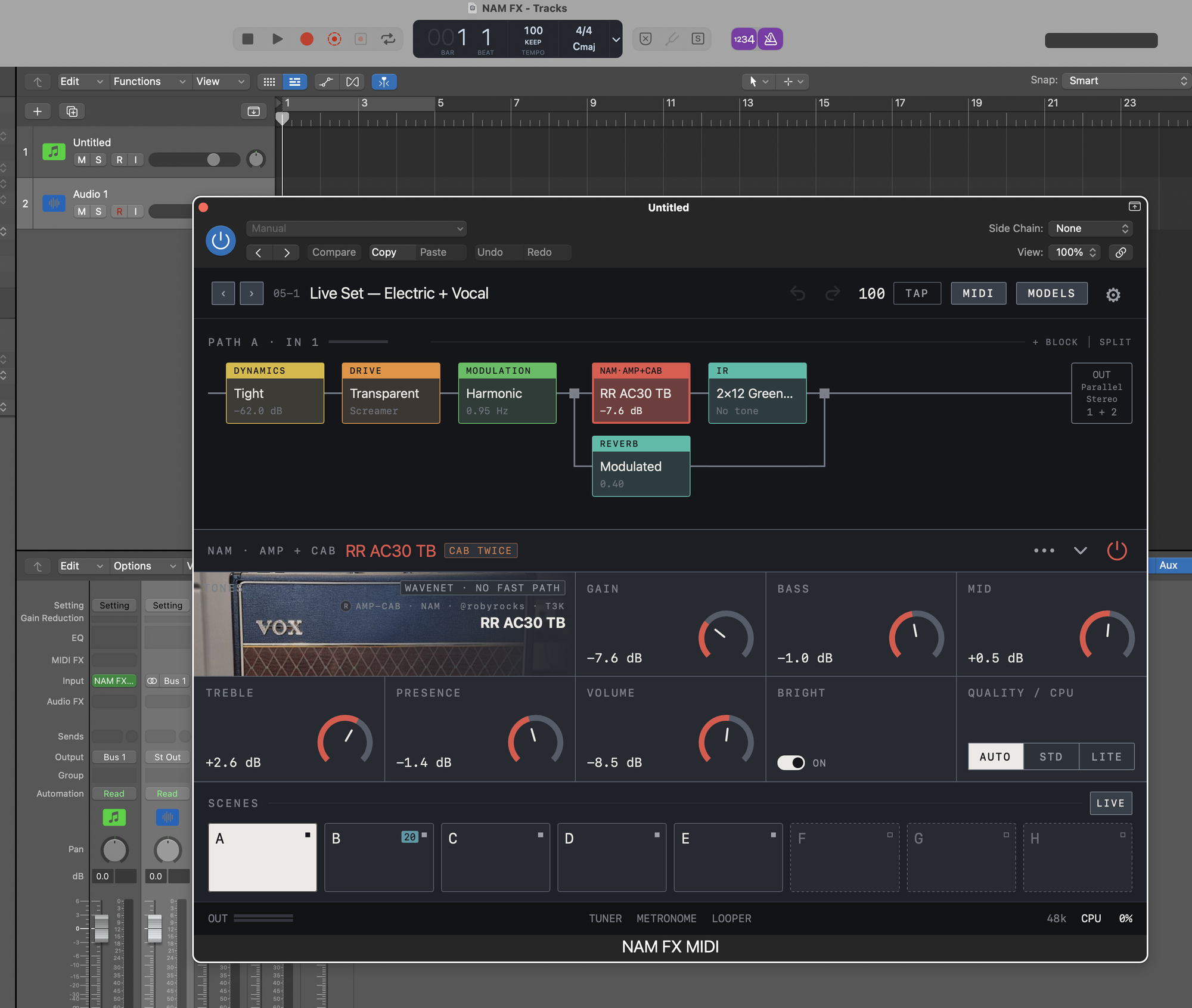
- NAM FX MIDI open in Logic Pro on Mac. The rows with Side Chain and View at the top belong to Logic’s plug-in window; NAM FX starts below them.
- In this example the chain splits after MODULATION with REVERB on the lower lane, and OUT at the end reads Parallel Stereo 1 + 2.
- The chain header has + BLOCK and SPLIT only; there is no FX LOOP.
- The tones shown were downloaded separately and are not included with the app.
What differs from the app
The plug-in window shows the same chain, parameters and scenes as the editor and uses the tones, IRs and presets you have in the app. Tones are added in the NAM FX app, not in the plug-in. The host decides the audio device, buffer and input channels, so the plug-in’s Settings show only Language and About. The input is whatever the host track sends; choose the connector to listen to on the host track’s input.
Note The bottom bar has TUNER, METRONOME and LOOPER only; the demo DI, ASSIST, TRACKS, GLOBAL EQ, FX LOOP and PLUG-IN for hosting other AUv3s are available in the standalone app.

Find it on screen
This item is shown on iPad.
- The bottom bar has TUNER, METRONOME and LOOPER only.
- Only the sample rate (48k) and CPU are shown at the right end; the host decides the buffer.

Find it on screen
- The bottom bar has TUNER, METRONOME and LOOPER only.
- Only the sample rate (48k) and CPU are shown at the right end; the host decides the buffer.
Tempo and MIDI
In the plug-in the host tempo wins, so tempo-synced delay and modulation follow the host project. Scenes and the main controls are published to the host as parameters, so you can drive them with the host’s automation or MIDI mapping. Under MIDI source in the plug-in’s MIDI window, choose Host (MIDI sent by the host) or Direct (controllers connect straight to the plug-in).
Caution Receiving the same controller both ways makes one press act twice, so use one at a time.
Switch to Direct in hosts that never send MIDI to audio effects. Backing Tracks controls are not part of the plug-in.
NAM FX MIDI in Logic Pro on Mac
- In Logic Pro on Mac, NAM FX MIDI is listed under AU MIDI-controlled Effects. Create a software instrument track and put it in the instrument slot.
- In the plug-in window’s Side Chain menu, choose the input your guitar is connected to (for example Input 1) directly. Caution Choosing an audio track that only has input monitoring on brings in no sound.
- Record-enable that instrument track so it receives MIDI.
- An instrument track does not record audio, so to keep the processed sound, send the instrument track’s output to a bus and record on an audio track whose input is that bus.