
What you need
You need an instrument or microphone, a compatible USB audio interface, a data cable, and headphones or speakers. Connect a guitar to a Hi-Z/instrument input. USB-C devices may connect directly; Lightning devices require a compatible adapter. Use a powered hub or external interface power when bus power is insufficient.
Note The built-in microphone is not used as a guitar input.
Cables, adapters and power
- Devices with a USB-C port (iPhone 15 and later, USB-C iPad models, Mac) connect to the interface directly with a USB-C cable. Caution A charge-only cable carries no data and the interface will not be recognized, so use the cable supplied with the interface or another data cable.
- Devices with a Lightning port (iPhone 14 and earlier, iPad models with a Home button and others) need an Apple Lightning to USB Camera Adapter. Caution A regular Lightning charging cable cannot connect a USB audio interface.
- When a Lightning device needs power. If the interface runs only on USB bus power, the power available from the Lightning port is usually not enough. Use the Lightning to USB 3 Camera Adapter, which has a charging port, and connect a charger to that port. The charger helps power the interface and charges the device at the same time. With the Lightning to USB Camera Adapter that has no charging port, you need an interface with its own power supply or a powered USB hub.
- Signs of too little power. The device shows a notice that the accessory uses too much power, the interface's indicator does not light or turns off again, or the interface name does not appear under Audio device in Settings. Dropouts or disconnections while playing can have the same cause.
- USB-C devices may need power too. Interfaces with many inputs and outputs, microphone inputs with 48V phantom power on, and loud headphone levels can draw more than the device supplies. Connect the interface's power adapter, or put a USB-C hub with a charger input in between.
- For long sessions. The device battery drains faster while it powers an interface. For rehearsals and shows, connect through an adapter or hub that lets you charge while you play.
- If the interface is not recognized, unplug everything, connect the charger to the adapter or hub first, then the interface, and plug into the device last. Power needs and supported connections differ between interfaces, so also check the manufacturer's instructions for iPhone and iPad.
Connect and listen
- Turn down monitor volume, then connect the interface.
- Open NAM FX and allow microphone access. Note USB audio input needs this permission too.
- Open Settings with the gear at the top right and check the interface name and channel counts under Audio device.
- Under Input channels, select the physical IN used by PATH A.
- Close Settings, play, and watch the input meter beside PATH A · IN. If CLIP appears, lower the input gain on the interface.
- Check the OUT meter at the bottom and your output connections, then raise monitor volume gradually.
Find it on screen
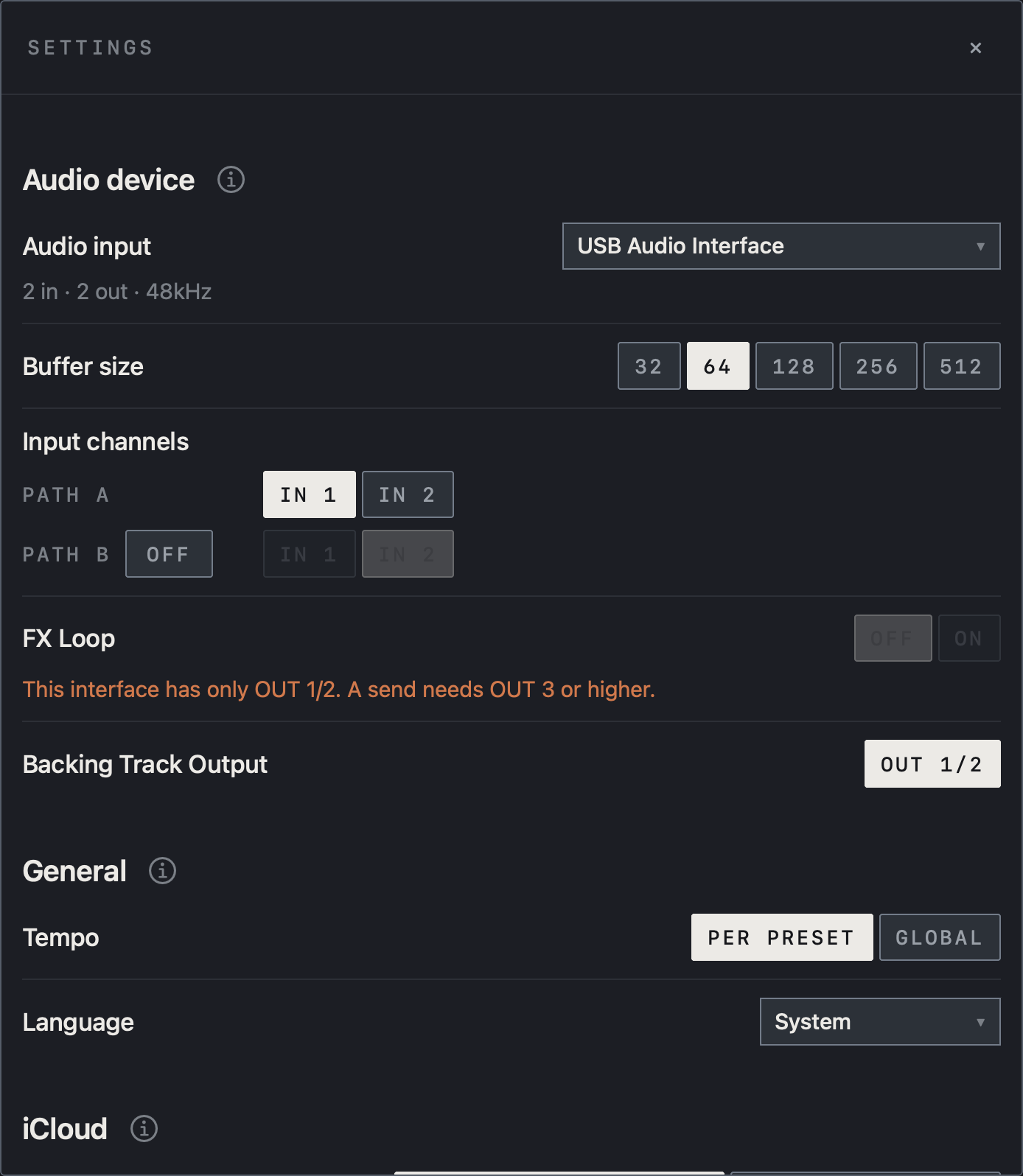
- Under Audio device, check the connected interface beside Audio input and the channel counts and sample rate below it.
- Under Input channels, choose the physical IN used by PATH A. This example uses IN 1.
- With PATH B OFF, the IN buttons on its row are dimmed.
Find it on screen
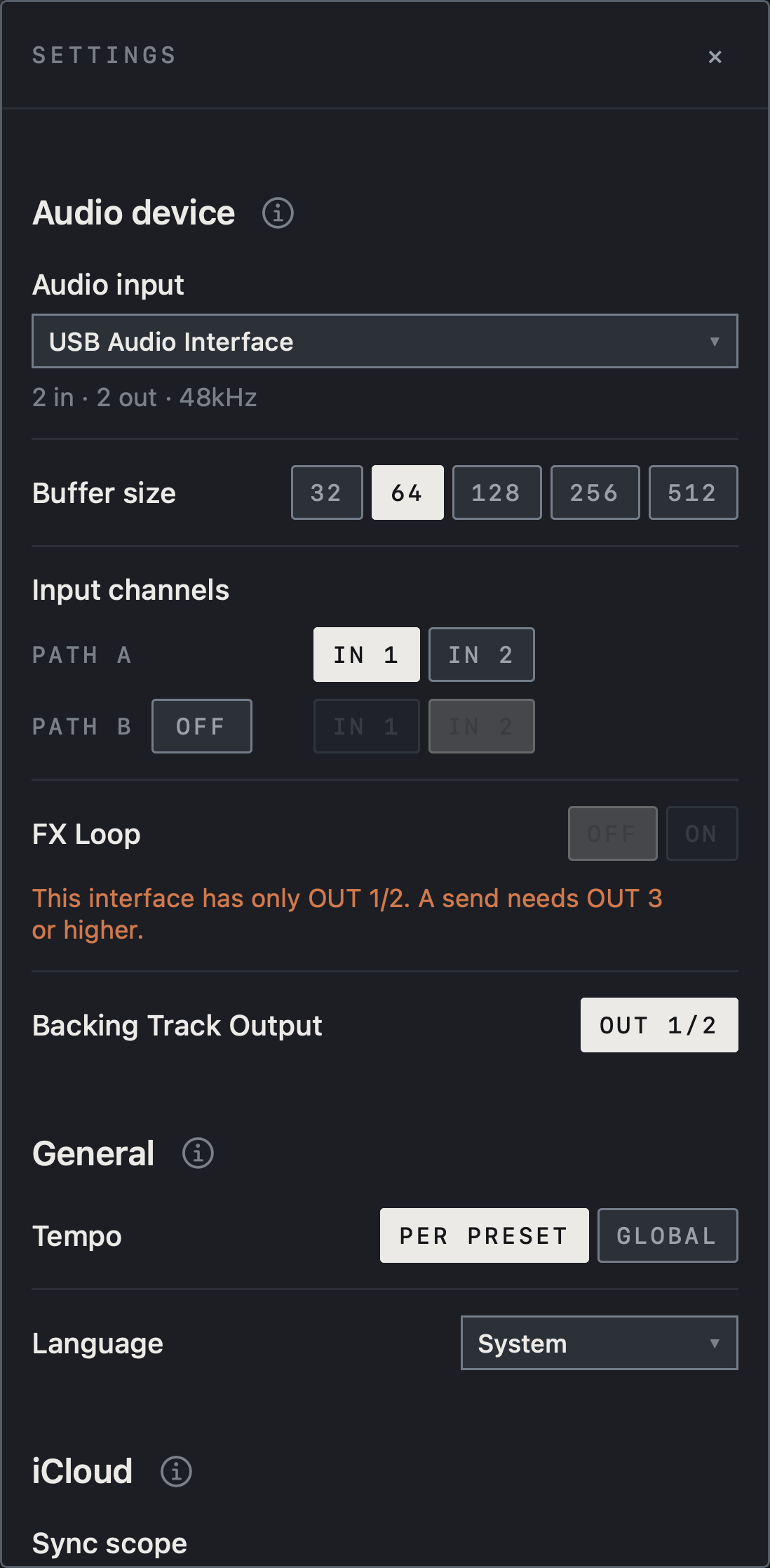
- Under Audio device, check the connected interface beside Audio input and the channel counts and sample rate below it.
- Under Input channels, choose the physical IN used by PATH A. This example uses IN 1.
- With PATH B OFF, the IN buttons on its row are dimmed.
Find it on screen
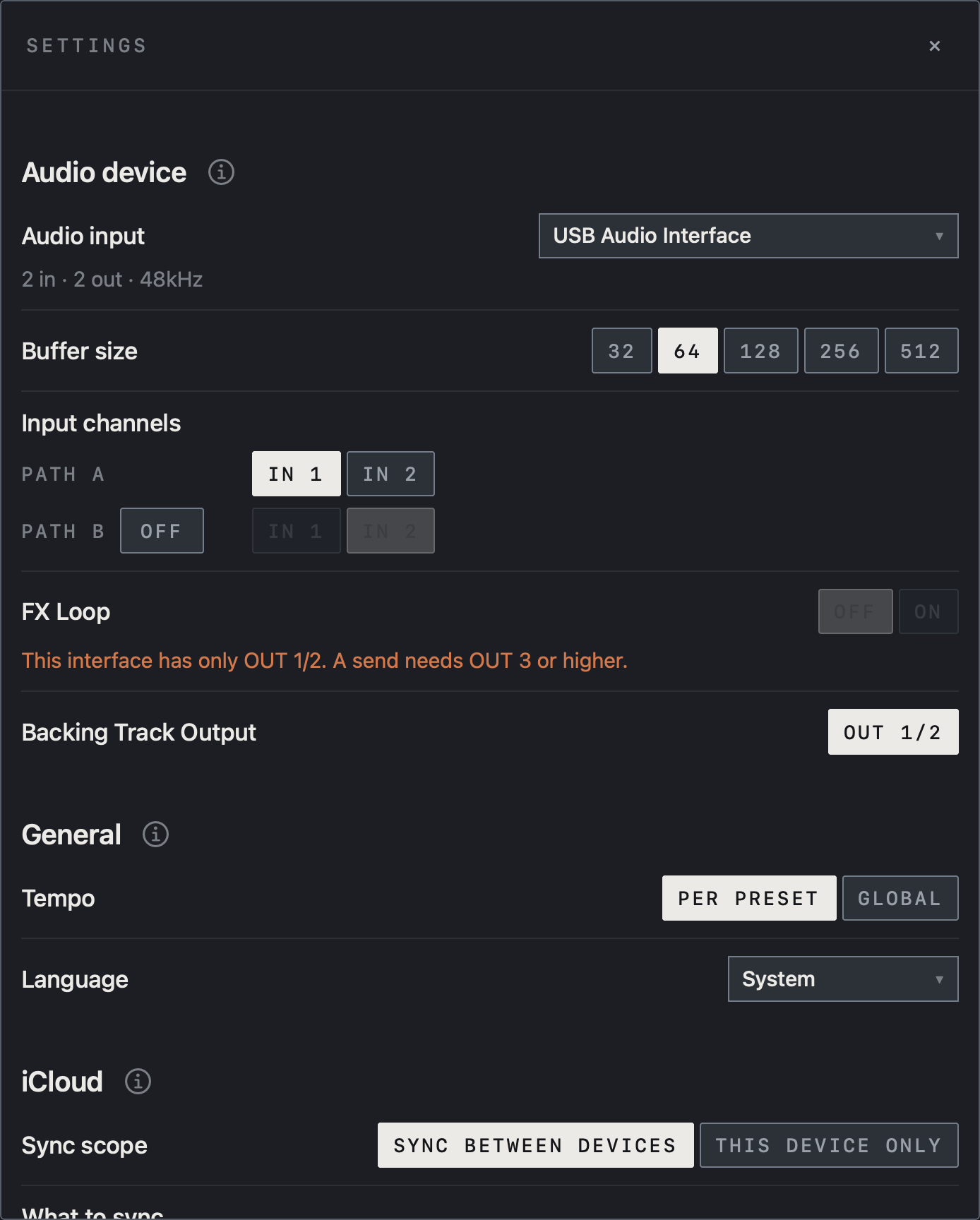
- Under Audio device, check the connected interface beside Audio input and the channel counts and sample rate below it.
- Under Input channels, choose the physical IN used by PATH A. This example uses IN 1.
- With PATH B OFF, the IN buttons on its row are dimmed.
Start with a simple chain
First verify input and output with built-in effects, without a NAM capture or IR.
Note Amp capture files are not included with the app.
A NAM block that reads No tone has no amp sound loaded yet. With no interface connected, choosing Play without interface in the notice opens output only, so you can audition the chain with the demo DI in the bottom bar and the metronome.
Caution If Resume appears after an interruption, check your connections and monitor level before tapping it.
Platform differences
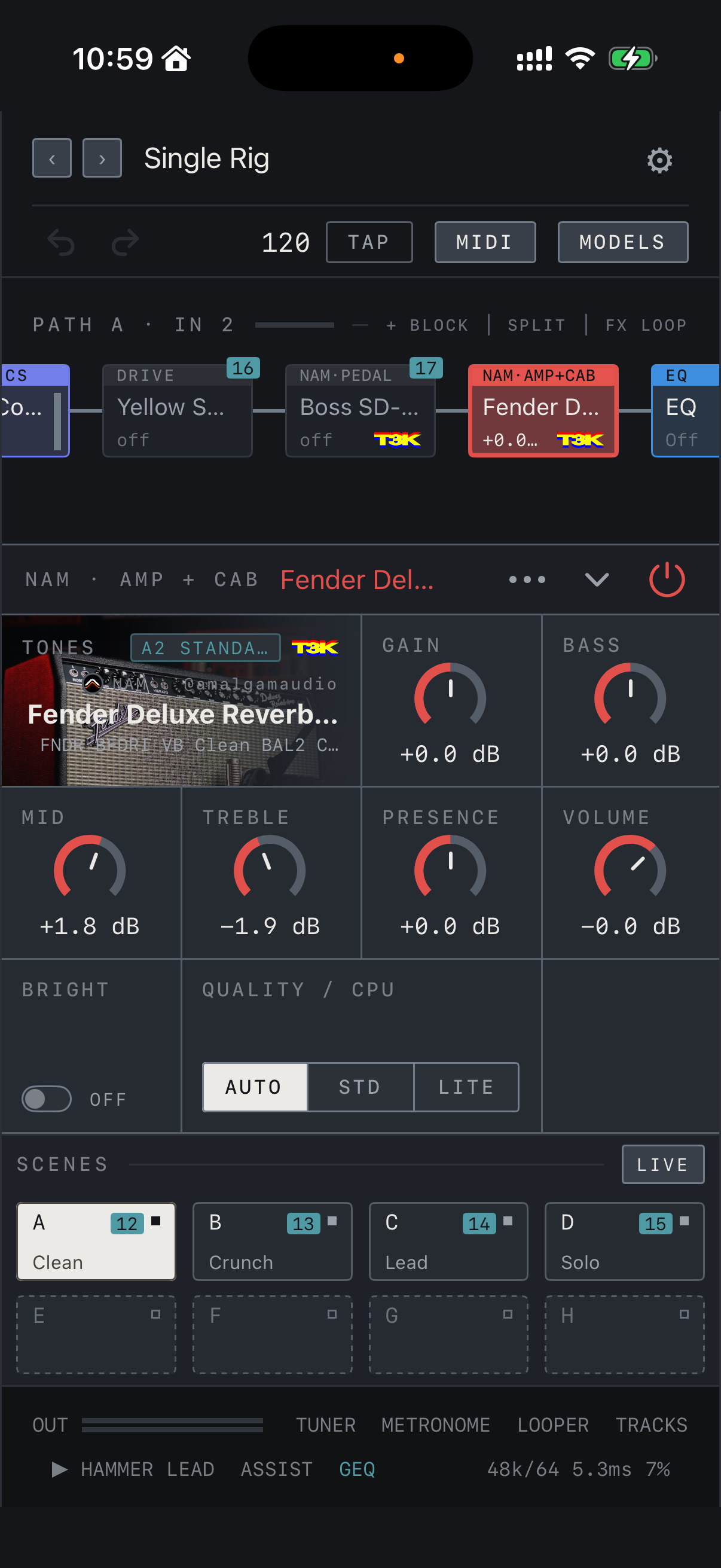
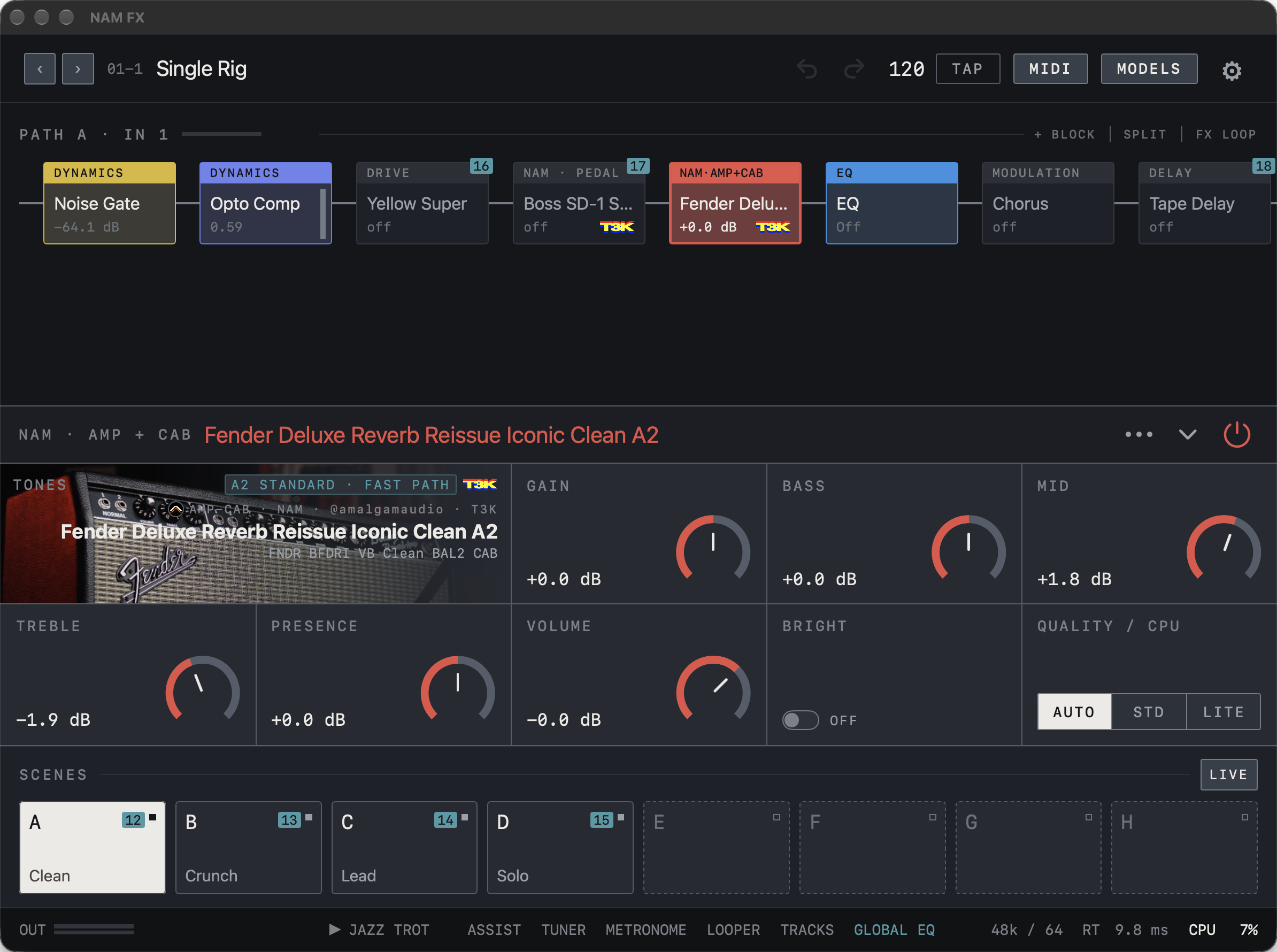
Pick iPad, iPhone or Mac at the top of the manual and it shows that device’s screens. Where a device has no screen of its own, the iPad screen is shown; names and functions are the same. iPad’s large workspace supports chain editing and LIVE controls in landscape and portrait. iPhone also rearranges controls for portrait and landscape, and some tools move to a second row or a folded list. Mac runs a native standalone app; choose the device under Audio input in Settings.
Caution On Mac the input and output must belong to one device, so use the same interface for both.
Find it on screen
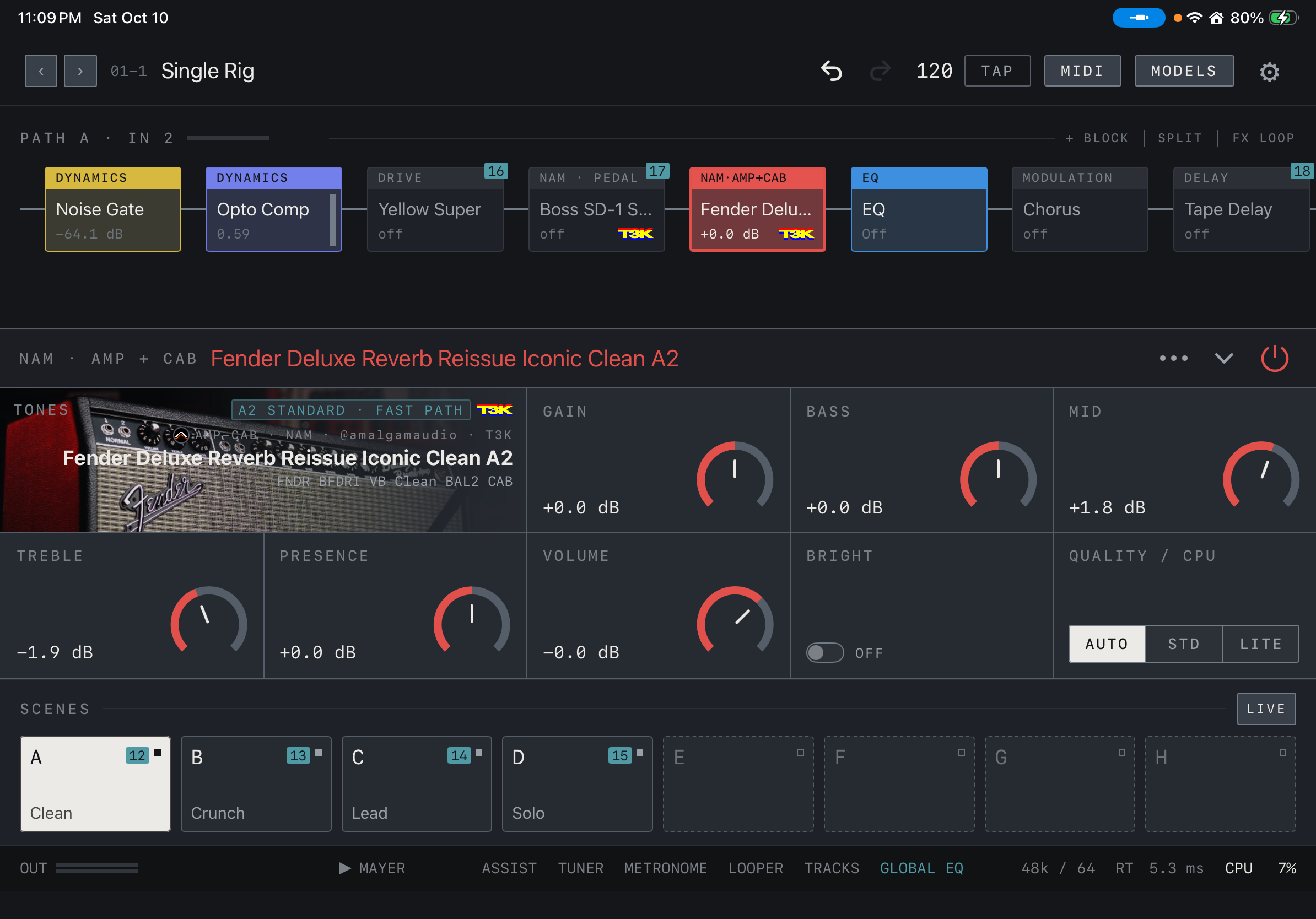
- The landscape iPad view shows the top bar, chain, parameters, SCENES and bottom bar together.
- PATH A · IN 2 in the chain header means PATH A listens to IN 2 of the interface.
- The tones shown were downloaded separately and are not included with the app.
Find it on screen
- In portrait on iPhone the same areas stack from top to bottom, and the top bar and bottom bar take two rows each.
- PATH A · IN 2 in the chain header means PATH A listens to IN 2 of the interface.
- The tones shown were downloaded separately and are not included with the app.
Find it on screen
- The Mac window is laid out like the landscape iPad view.
- PATH A · IN 1 in the chain header means PATH A listens to IN 1 of the interface.
- The tones shown were downloaded separately and are not included with the app.