Add songs and play
- Tap TRACKS in the bottom bar to open the BACKING TRACKS window.
- Tap + ADD SONGS and choose audio files in Files. You can add several at once; songs are copied into the app.
- Pick a song under SONGS on the left and play it with ▶. ❚❚ pauses, ■ stops and returns to the start, and |◀ goes back to the start.
- Tap or drag on the waveform to move to another position.
- Set the backing level with LEVEL. The meter beside it shows the backing track only.
- EDIT beside SONGS lets you reorder or delete songs. Note The track keeps playing when you close the window.
iPhone On iPhone, pick a song from the Songs menu; there is no SONGS list on the left.
Find it on screen
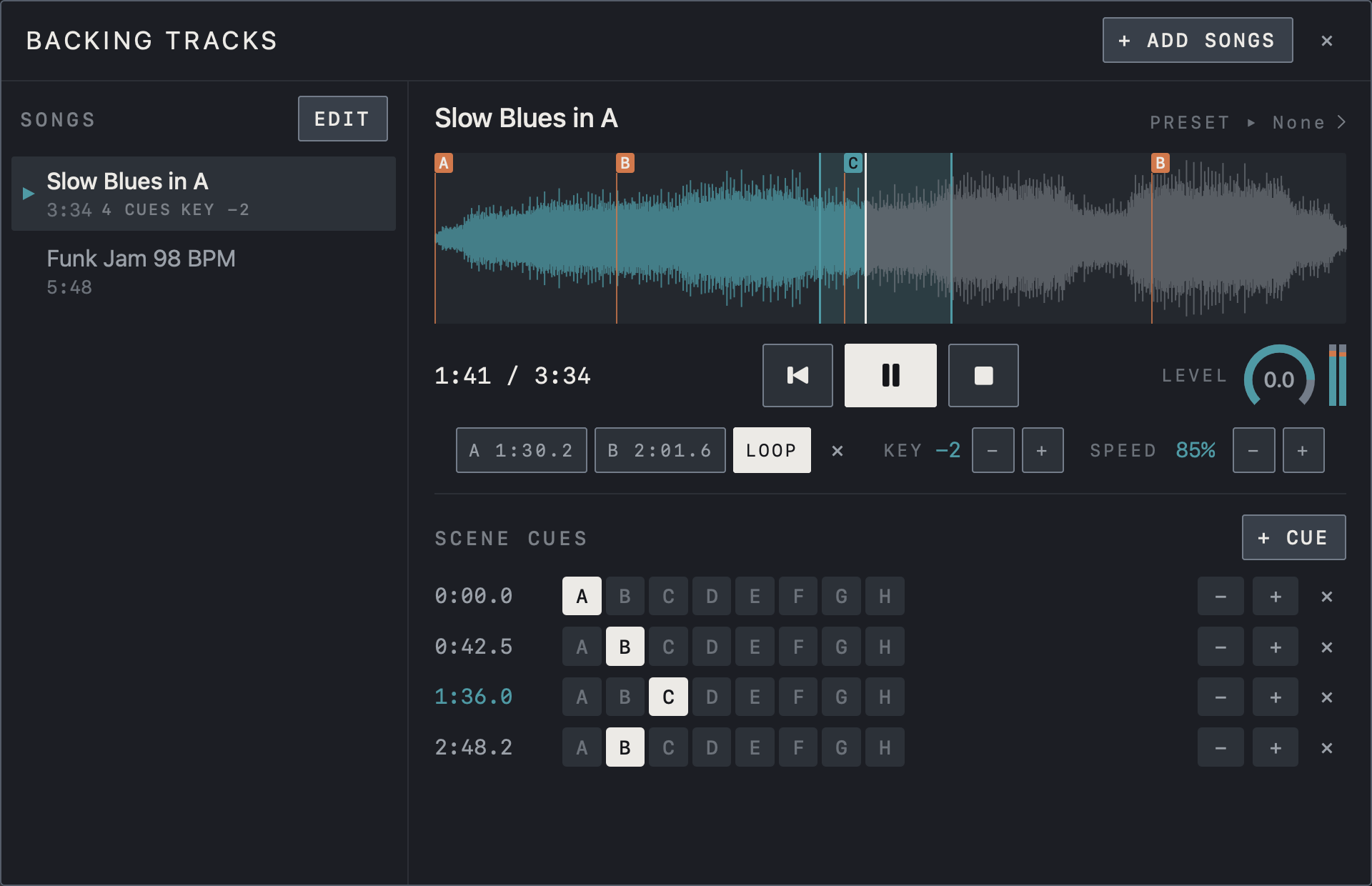
- Pick a song under SONGS on the left. Its length, number of cues and transposed KEY are shown under the name.
- Below the waveform are the position / song length, the back-to-start, pause and stop buttons, and LEVEL.
- Add songs with + ADD SONGS at the top right, and tidy the list with EDIT beside SONGS.
Find it on screen
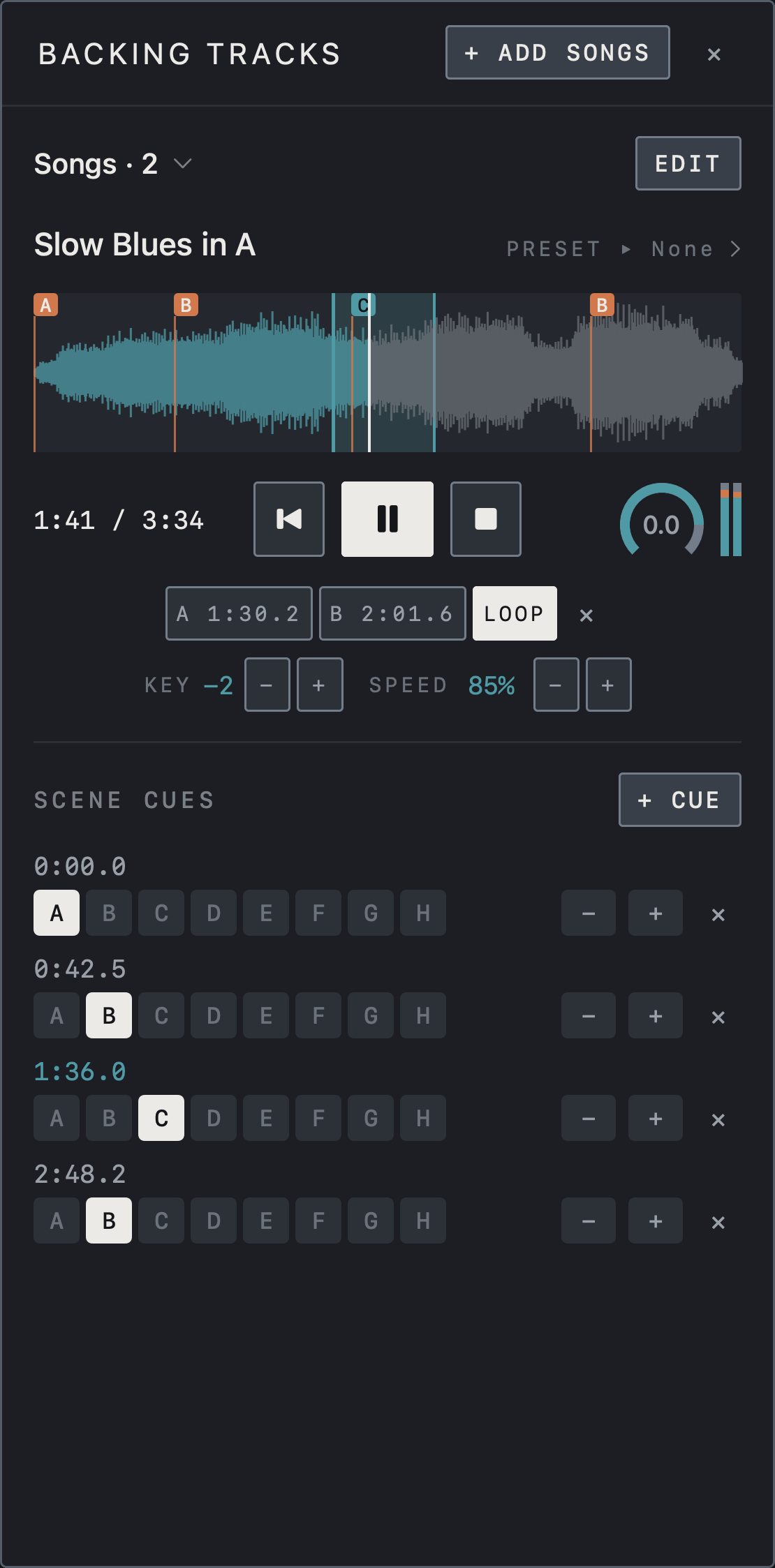
- On iPhone the song list folds into the Songs menu. Tap it to pick a song.
- Below the waveform are the position / song length, the back-to-start, pause and stop buttons, and LEVEL.
- Add songs with + ADD SONGS at the top right and tidy the list with EDIT.
Find it on screen
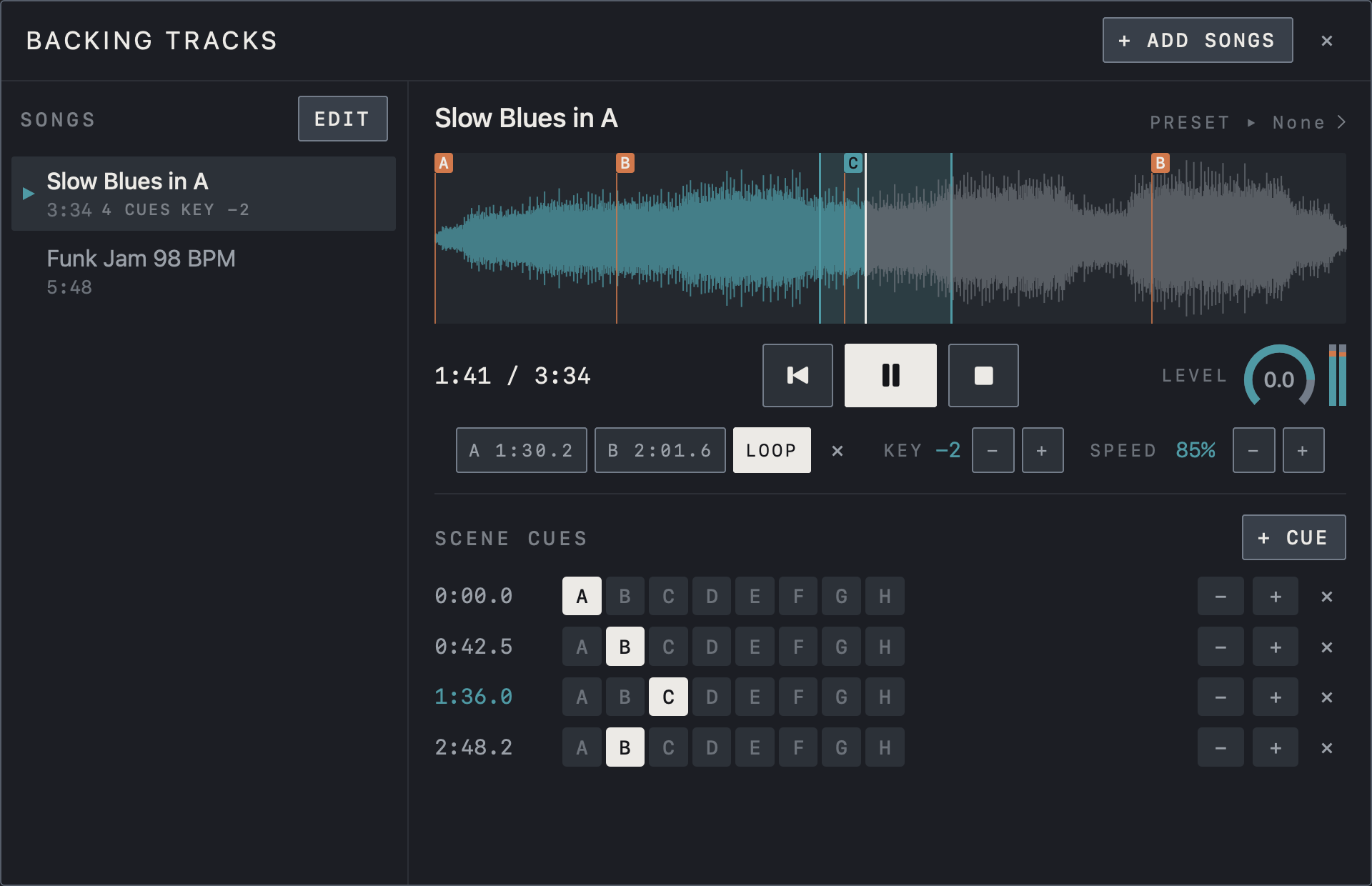
- Pick a song under SONGS on the left. Its length, number of cues and transposed KEY are shown under the name.
- Below the waveform are the position / song length, the back-to-start, pause and stop buttons, and LEVEL.
- Add songs with + ADD SONGS at the top right, and tidy the list with EDIT beside SONGS.
A–B loop, KEY and SPEED
Tap A at the start of a section and B at its end, then turn LOOP on to repeat only that section. ✕ clears the section. − and + beside KEY transpose in semitones, up to ±6, without changing the tempo; the key is stored with the song and shown in the song list. − and + beside SPEED change the speed between 50% and 125% without changing the pitch.
Note Speed is a practice value and returns to 100% when you pick another song.
Tap a value to return to the original key or to 100%.
Find it on screen
- The A and B buttons show the section’s start and end times; with LOOP on, that section repeats. ✕ clears it.
- KEY −2 means two semitones down and SPEED 85% means slowed playback. Change each with − and +.
Find it on screen
- The A and B buttons show the section’s start and end times; with LOOP on, that section repeats. ✕ clears it.
- KEY −2 means two semitones down and SPEED 85% means slowed playback. Change each with − and +.
Find it on screen
- The A and B buttons show the section’s start and end times; with LOOP on, that section repeats. ✕ clears it.
- KEY −2 means two semitones down and SPEED 85% means slowed playback. Change each with − and +.
Scene cues
- Build the scenes (A–H) for the song in the editor first and save the preset.
- Play or move to the point where the sound should change, then tap + CUE. A cue with the current scene is created there.
- Choose the scene to recall on the cue’s A–H row. − and + move the cue 0.1 seconds earlier or later, and ✕ removes it. Tap the time to jump to that point.
- When playback passes a cue, the scene changes on its own. Starting in the middle of a song applies the scene of the last cue before that point.
Find it on screen
- Each row under SCENE CUES is a cue time and the scene (A–H) it recalls. The highlighted letter is the chosen scene.
- + CUE adds a cue at the current position; − and + at the end of a row move it earlier or later, and ✕ removes it.
- The blue 1:36.0 is the cue in effect at the current position (1:41).
Find it on screen
- Each row under SCENE CUES is a cue time and the scene (A–H) it recalls. The highlighted letter is the chosen scene.
- + CUE adds a cue at the current position; − and + at the end of a row move it earlier or later, and ✕ removes it.
- The blue 1:36.0 is the cue in effect at the current position (1:41).
Find it on screen
- Each row under SCENE CUES is a cue time and the scene (A–H) it recalls. The highlighted letter is the chosen scene.
- + CUE adds a cue at the current position; − and + at the end of a row move it earlier or later, and ✕ removes it.
- The blue 1:36.0 is the cue in effect at the current position (1:41).
Linked preset and output
Tap PRESET ▸ at the right of the song title and choose a bank and preset to link a preset to the song; picking the song then opens that preset too. None removes the link. Opening a preset does not change the song. Backing tracks play on the output pair chosen under Backing Track Output in Settings; on an interface with four or more outputs you can choose OUT 3/4 to send them to the PA separately from the guitar. With MR on under iCloud, songs and cues sync to your other devices together with their audio.
Caution Only add recordings you have the right to use.
Find it on screen
- PRESET ▸ None at the right of the song title means no preset is linked to this song. Tap it to choose one.
Find it on screen
- PRESET ▸ None at the right of the song title means no preset is linked to this song. Tap it to choose one.
Find it on screen
- PRESET ▸ None at the right of the song title means no preset is linked to this song. Tap it to choose one.