Open ASSIST
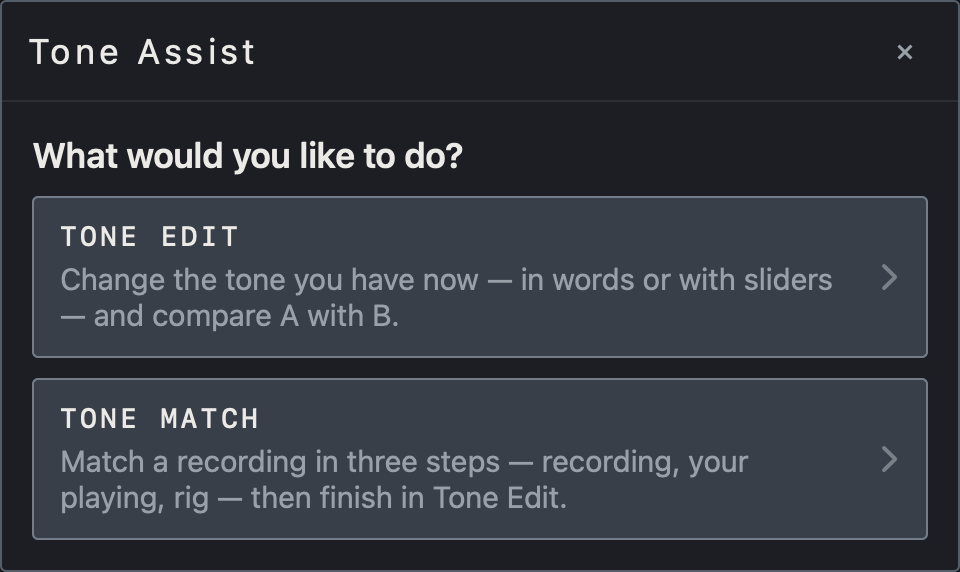
Tap ASSIST in the bottom bar to open the Tone Assist window and choose one of two tasks. TONE EDIT changes the tone you have now, in words or with sliders, and compares A with B. TONE MATCH matches a recording in three steps (recording, your playing, rig) and then finishes in Tone Edit.
Note Both are used in the standalone app.
Find it on screen
- Choose TONE EDIT or TONE MATCH in the Tone Assist window.
- The line under each card says what that task does.
Find it on screen
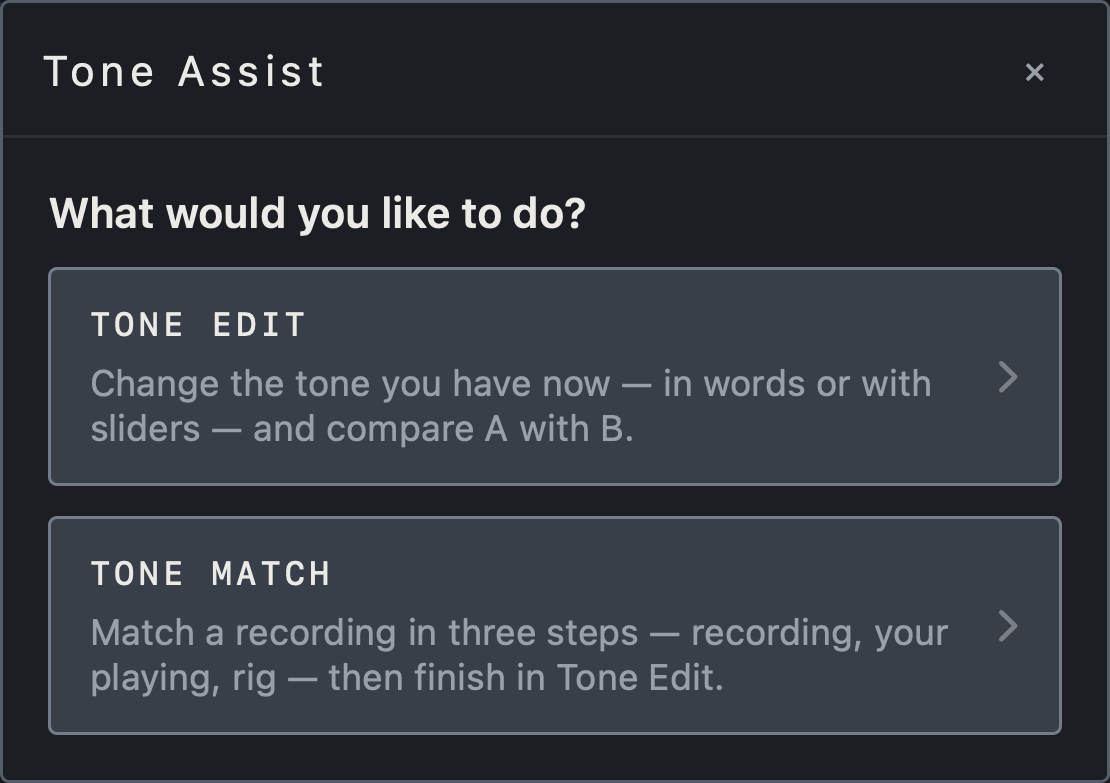
- Choose TONE EDIT or TONE MATCH in the Tone Assist window.
- The line under each card says what that task does.
Find it on screen
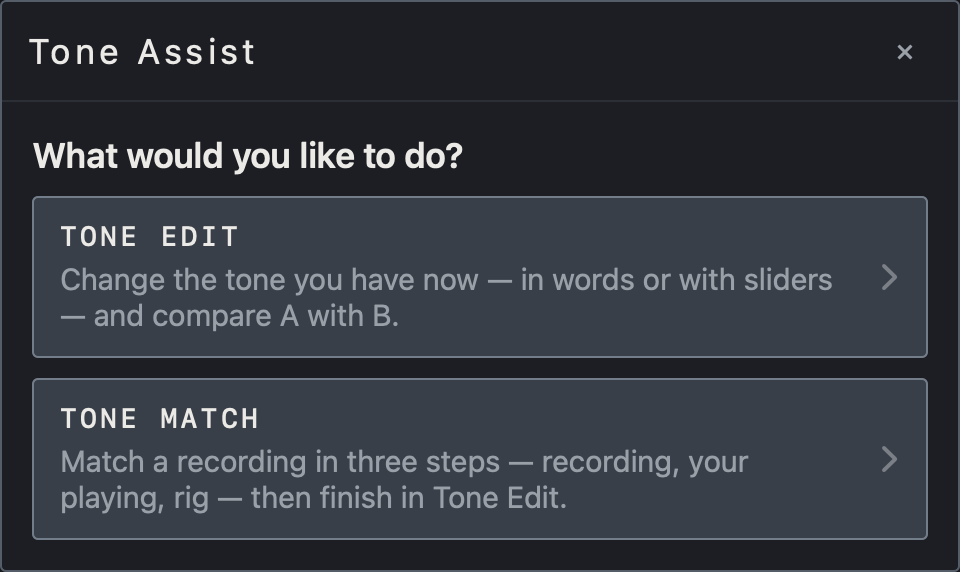
- Choose TONE EDIT or TONE MATCH in the Tone Assist window.
- The line under each card says what that task does.
Change a tone with Tone Edit
- At the top left of the Tone Edit window, type the change you want or pick an example, then tap Go. For example: cut through the band more.
- Or move the Blurred–Clear, Dark–Bright, Clean–Gain, Dry–Space, Thin–Thick, Narrow–Wide and Soft–Punch sliders yourself. The sliders follow what you write. Double-tap a slider to return it to 0.
- Suggestions appear on the right; the top one marked AUTO is the automatic pick. Tap another suggestion to try it.
- CHANGES shows what changes and by how much. Tap a value to fine-tune it in place.
Find it on screen
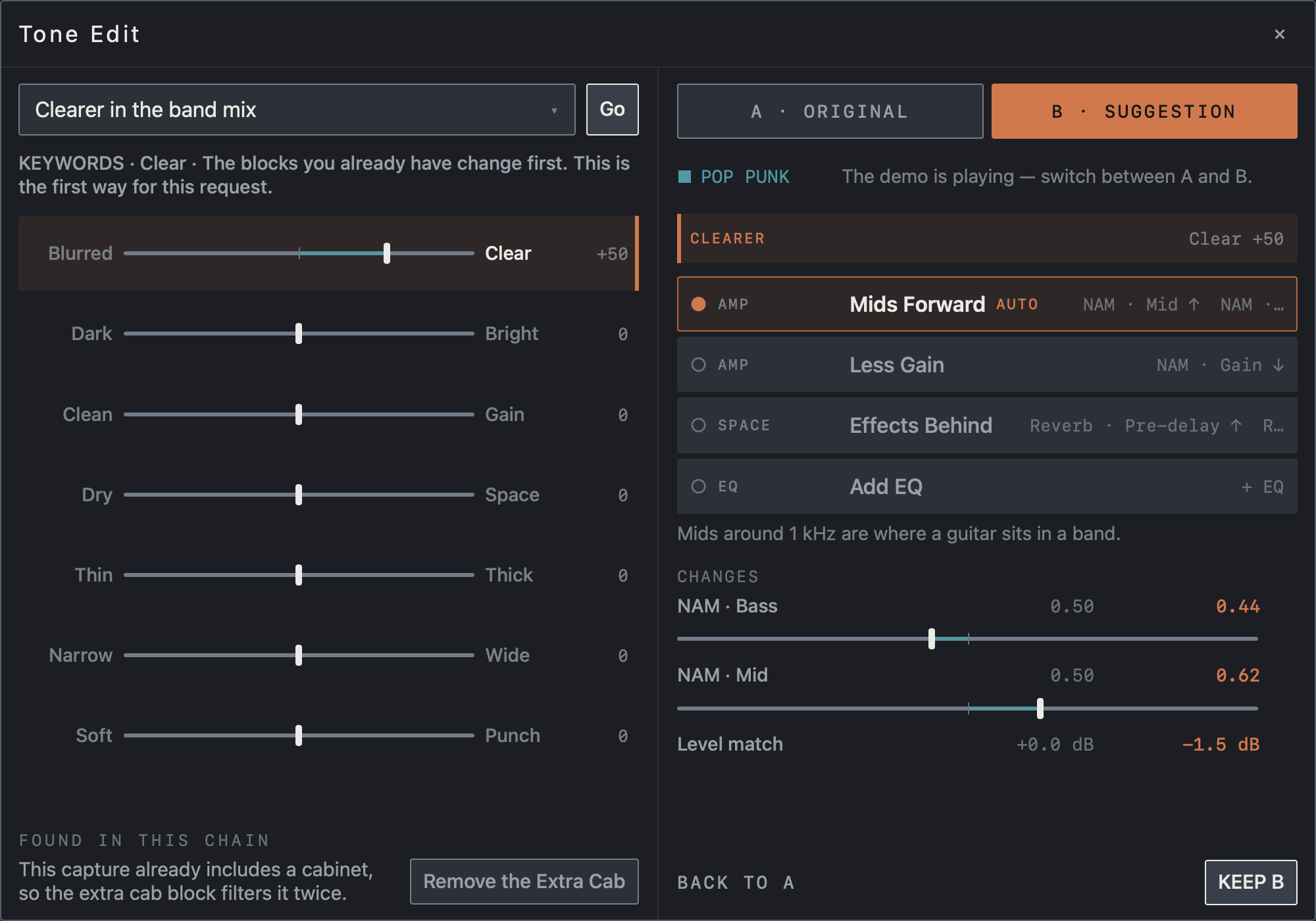
- Type or pick a request in the top-left field and tap Go. Of the sliders below, Blurred–Clear has moved to +50.
- The list on the right holds the suggestions; Mids Forward marked AUTO is the automatic pick, and the sentence below explains why.
- CHANGES shows each value before and after. In this example the NAM block’s Bass and Mid change.
- FOUND IN THIS CHAIN at the bottom left shows a problem found in the chain with a button to fix it.
Find it on screen
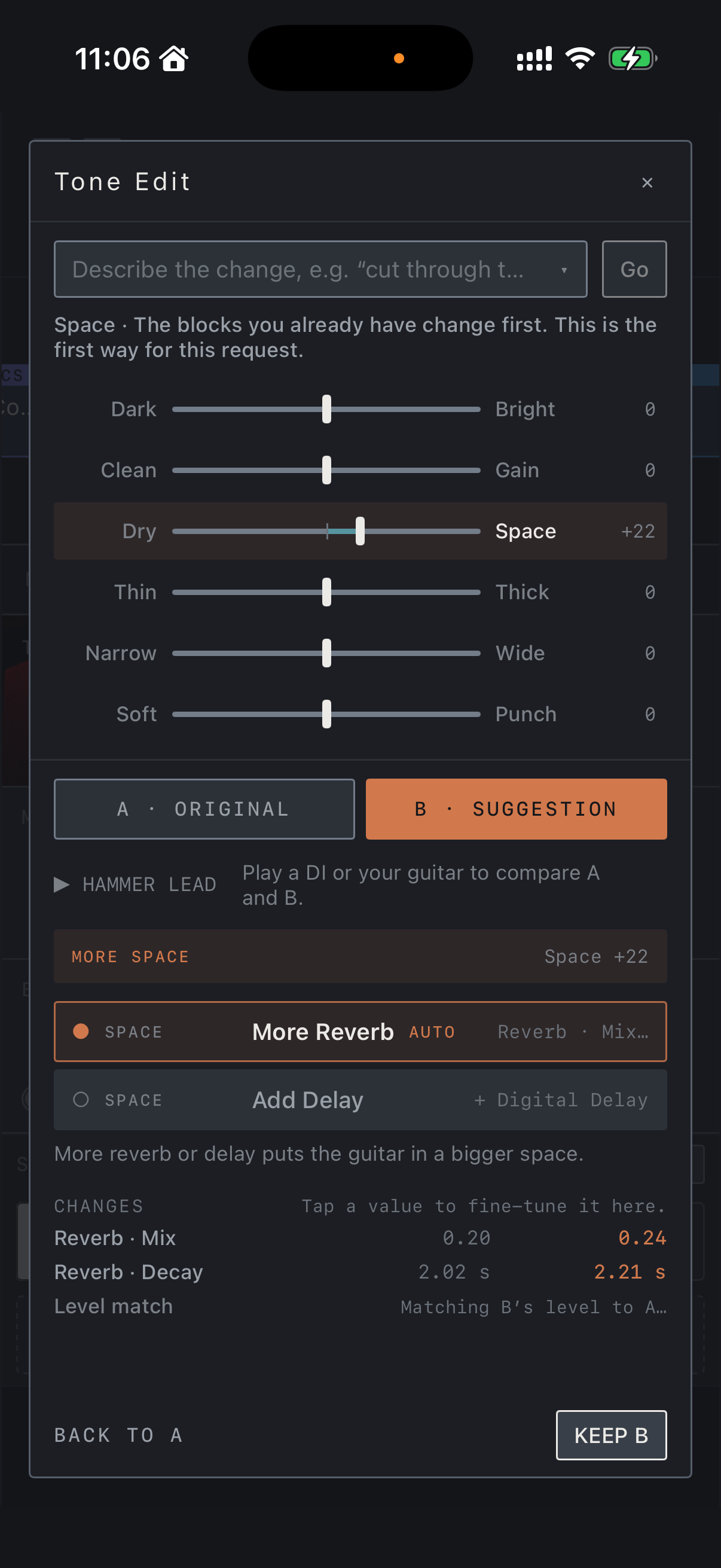
- Type or pick a request in the field at the top and tap Go. Of the sliders below, Dry–Space has moved to +22.
- The suggestions are listed below the A and B buttons; More Reverb marked AUTO is the automatic pick, and the sentence below explains why.
- CHANGES shows each value before and after. In this example the Reverb block’s Mix and Decay change.
Find it on screen
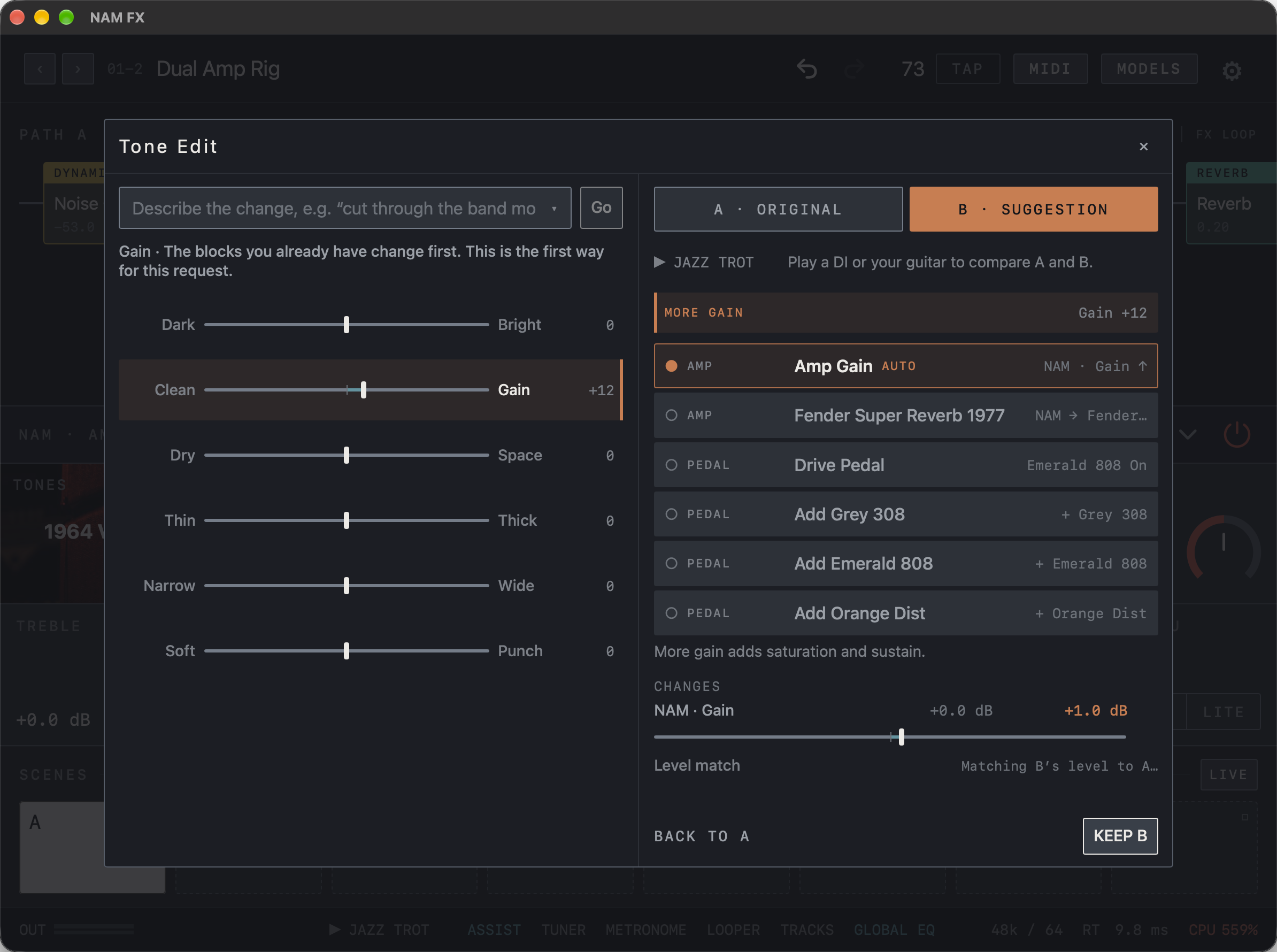
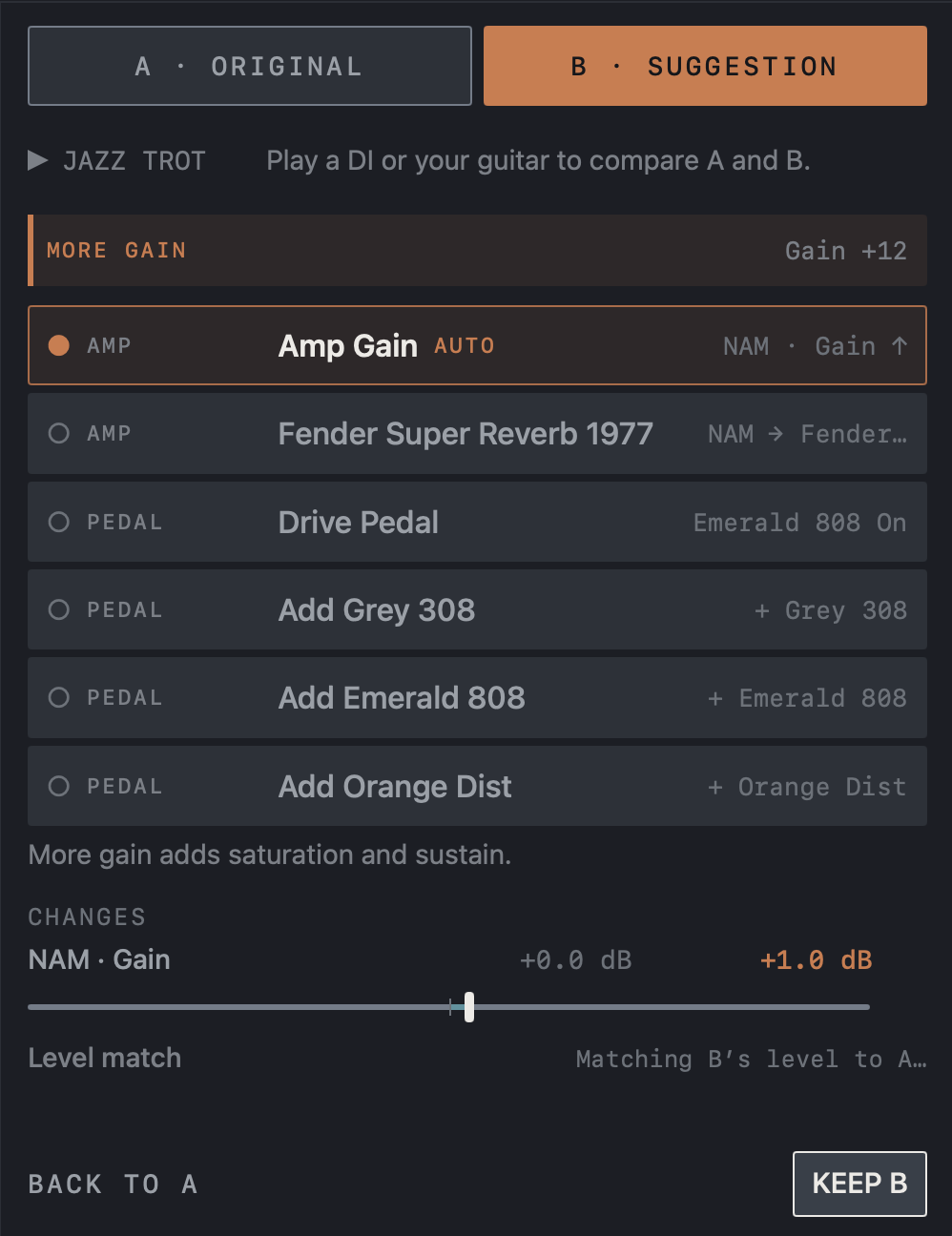
- Type or pick a request in the top-left field and click Go. Of the sliders below, Clean–Gain has moved to +12.
- The list on the right holds the suggestions; Amp Gain marked AUTO is the automatic pick, and the sentence below explains why.
- CHANGES shows each value before and after. In this example the NAM block’s Gain goes from +0.0 dB to +1.0 dB.
Compare A/B and keep
Switch between A · ORIGINAL and B · SUGGESTION while you play your guitar or the demo DI. B’s level is matched to A, so you compare without the louder side simply sounding better; the Level match row shows the correction. With live input the level is matched roughly. Suggestions that swap the amp capture take a moment to switch because the capture has to load. Tap KEEP B to apply the change, or BACK TO A to return to your original tone.
Caution After keeping a change, SAVE the preset.
Find it on screen
- Tap A · ORIGINAL and B · SUGGESTION at the top to switch between them. B is selected here.
- The Level match row is the correction applied to bring B’s level to A’s.
- KEEP B at the bottom applies the change; BACK TO A returns to the original tone.
Find it on screen
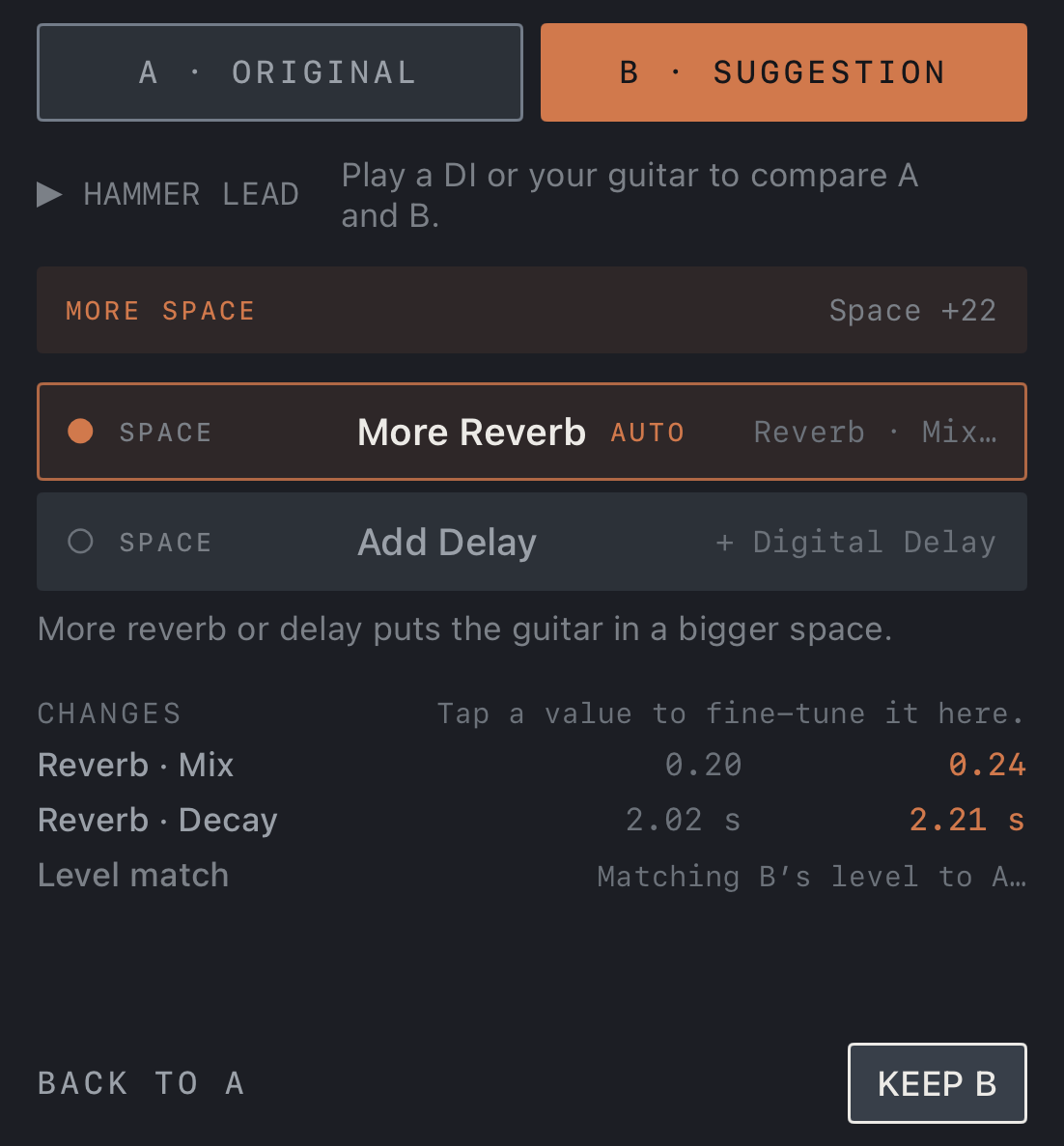
- Tap A · ORIGINAL and B · SUGGESTION to switch between them. B is selected here.
- The Level match row shows the correction that brings B’s level to A’s.
- KEEP B at the bottom applies the change; BACK TO A returns to the original tone.
Find it on screen
- Tap A · ORIGINAL and B · SUGGESTION to switch between them. B is selected here.
- The Level match row shows the correction that brings B’s level to A’s.
- KEEP B at the bottom applies the change; BACK TO A returns to the original tone.
Match a recording with Tone Match
- When you start Tone Match, it asks whether to match in a new preset. Caution Tone Match changes the amp and its tone, so starting in a new preset keeps the current one as it is.
- RECORDING: choose the recording whose tone you want. It needs at least 5 seconds of guitar.
- YOUR PLAYING: tap Record and play for about 6 seconds, close to what is in the recording.
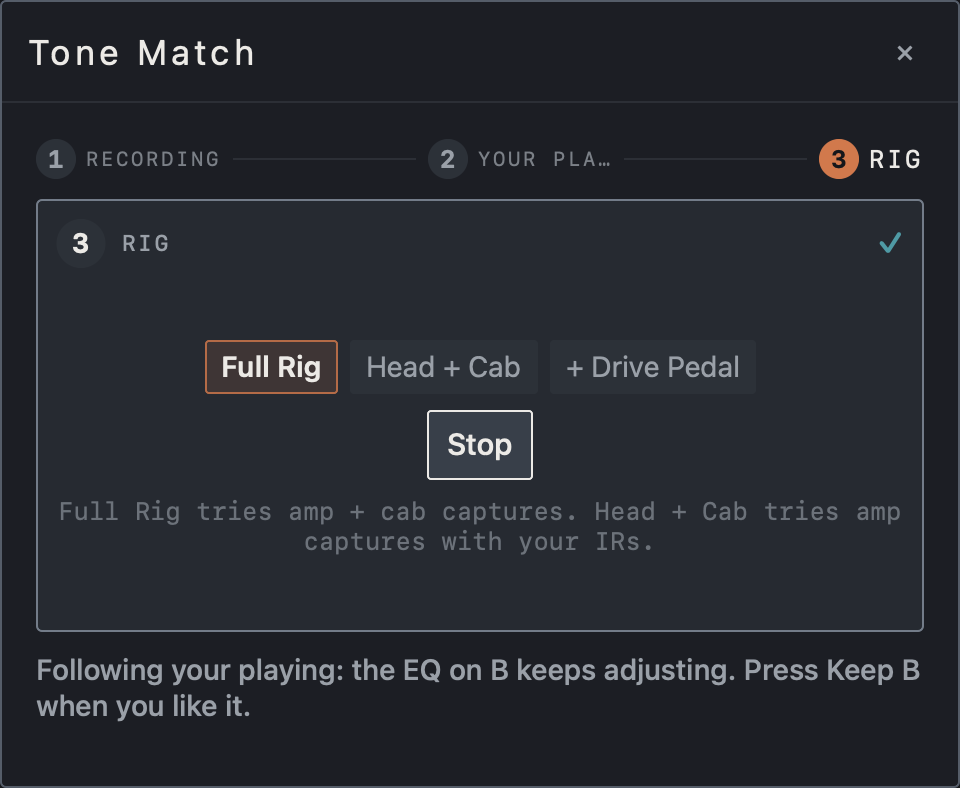
- RIG: choose Full Rig (amp + cab captures) or Head + Cab (amp captures with your IRs), add + Drive Pedal if needed, then tap Match. You can change the rig as often as you like without playing again.
- The app compares the captures in your library, loads the closest one on B and covers the remaining difference with EQ. Keep playing and the EQ on B keeps adjusting; tap Keep B when you like it.
Find it on screen
- 1 RECORDING, 2 YOUR PLAYING and 3 RIG at the top are the three steps. This screen is step 3.
- Choose the rig from Full Rig, Head + Cab and + Drive Pedal. The sentence below explains the two rigs.
- The note at the bottom says the EQ on B keeps following your playing, and to press Keep B when you like it.
Find it on screen
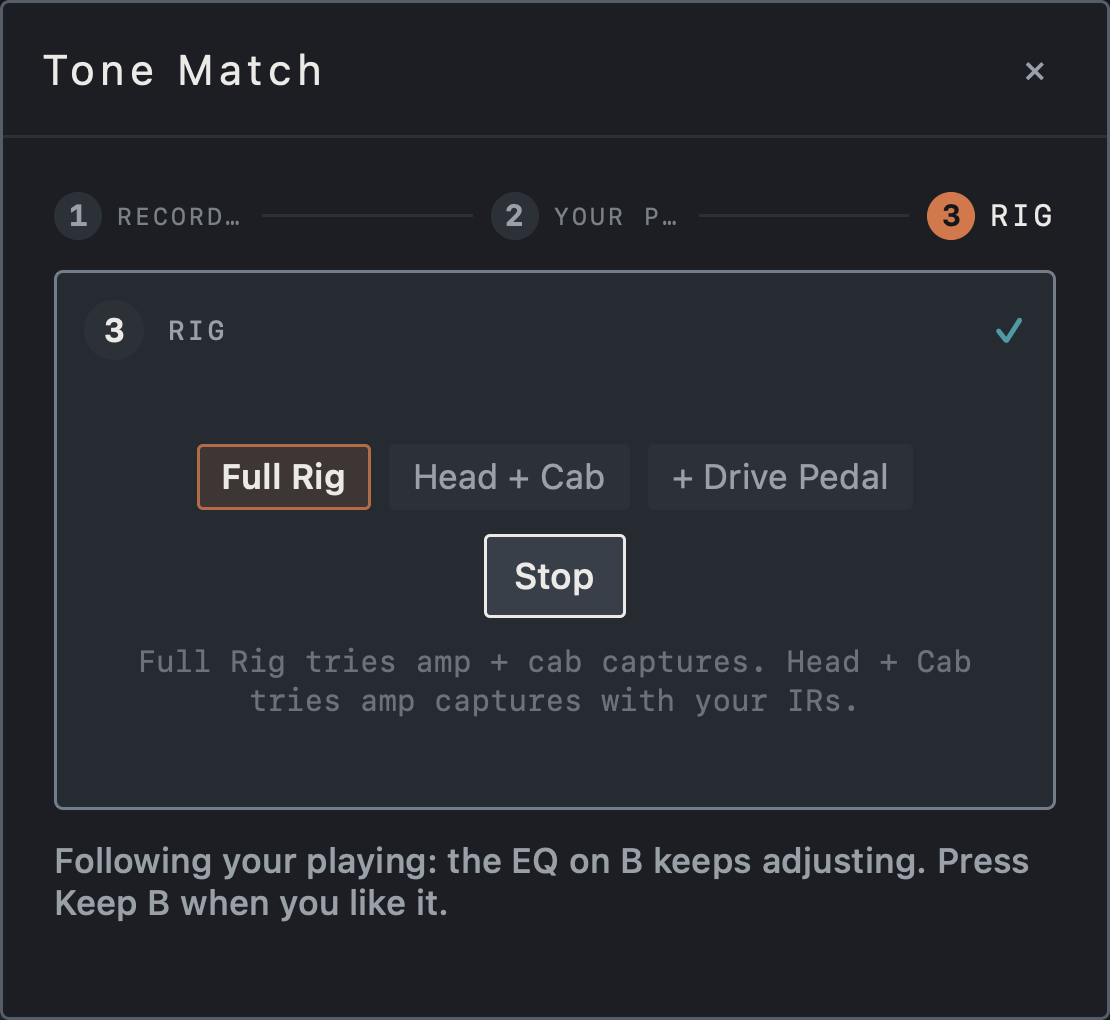
- 1 RECORDING, 2 YOUR PLAYING and 3 RIG at the top are the three steps. This screen is step 3.
- Choose the rig from Full Rig, Head + Cab and + Drive Pedal. The sentence below explains the two rigs.
- The note at the bottom says the EQ on B keeps following your playing, and to press Keep B when you like it.
Find it on screen
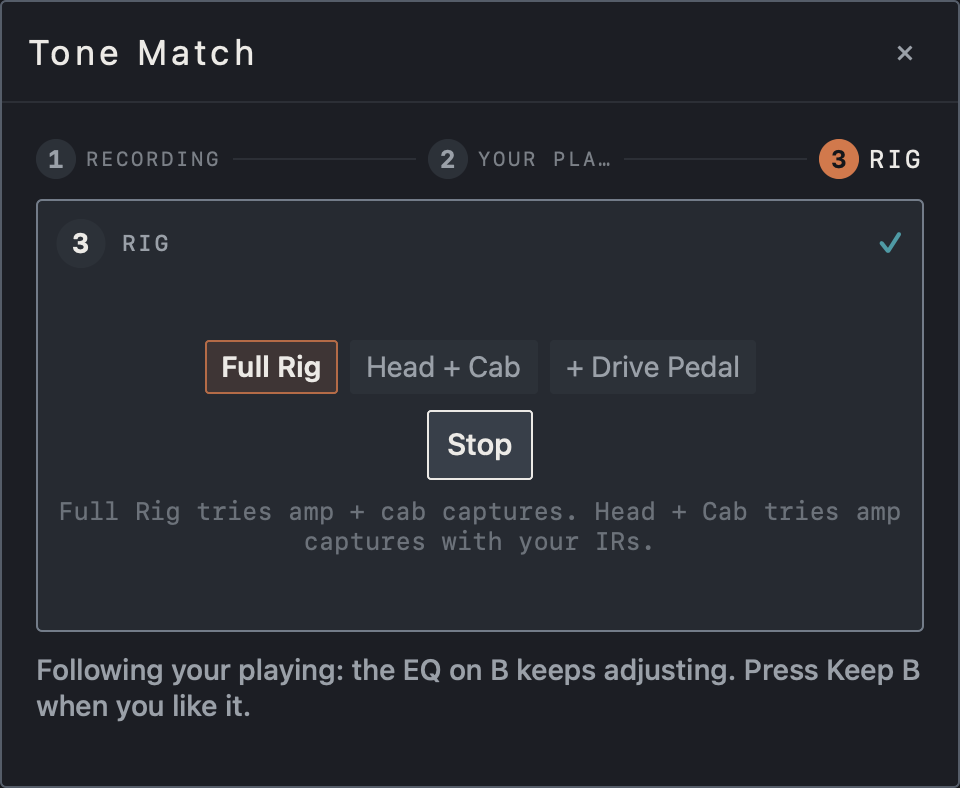
- 1 RECORDING, 2 YOUR PLAYING and 3 RIG at the top are the three steps. This screen is step 3.
- Choose the rig from Full Rig, Head + Cab and + Drive Pedal. The sentence below explains the two rigs.
- The note at the bottom says the EQ on B keeps following your playing, and to press Keep B when you like it.
Getting a good match
Tone Match chooses among the captures and IRs in this device’s library. When nothing is close it says so; import more captures of a similar character and match again.
Note An isolated guitar track works best: with a full mix the EQ chases the bass and drums.
Written requests are understood by keywords, in English and Korean. On devices where Apple Intelligence is available, on-device AI helps interpret them; About › Tone Assist in Settings shows which method is in use.