
What the FX Loop needs
The FX Loop sends signal out of a spare interface output (Send) and takes it back on a spare input (Return), so an outboard pedal sits anywhere in the chain.
Caution You need an interface with at least two inputs and four outputs (2 in / 4 out). One input is for the guitar and one for the return from the pedal; OUT 1/2 carry the final sound to your speakers, so the send to the pedal has to be OUT 3 or higher. That is why it cannot be turned on with a 2 in / 2 out interface.
Caution Use a low-latency interface. The sound makes the trip through the interface twice: once when the guitar comes in and goes out to the pedal, and once when it comes back from the pedal and goes out to the speakers. That adds a second round trip of latency, so on an interface with high latency the playing feel is noticeably late even at a small buffer. What the block measures and lines up is the offset between the dry signal and the pedal; it cannot remove the added latency itself.
You can place one per Path; a loop on PATH B opens only when two spare sends and two spare inputs are available. It works in the standalone app only and is not part of the AUv3 plug-in.
Wire it in Settings
- Turn the monitor volume down.
- Cable the interface output you will use as the send to the pedal’s input, and the pedal’s output to the interface input you will use as the return.
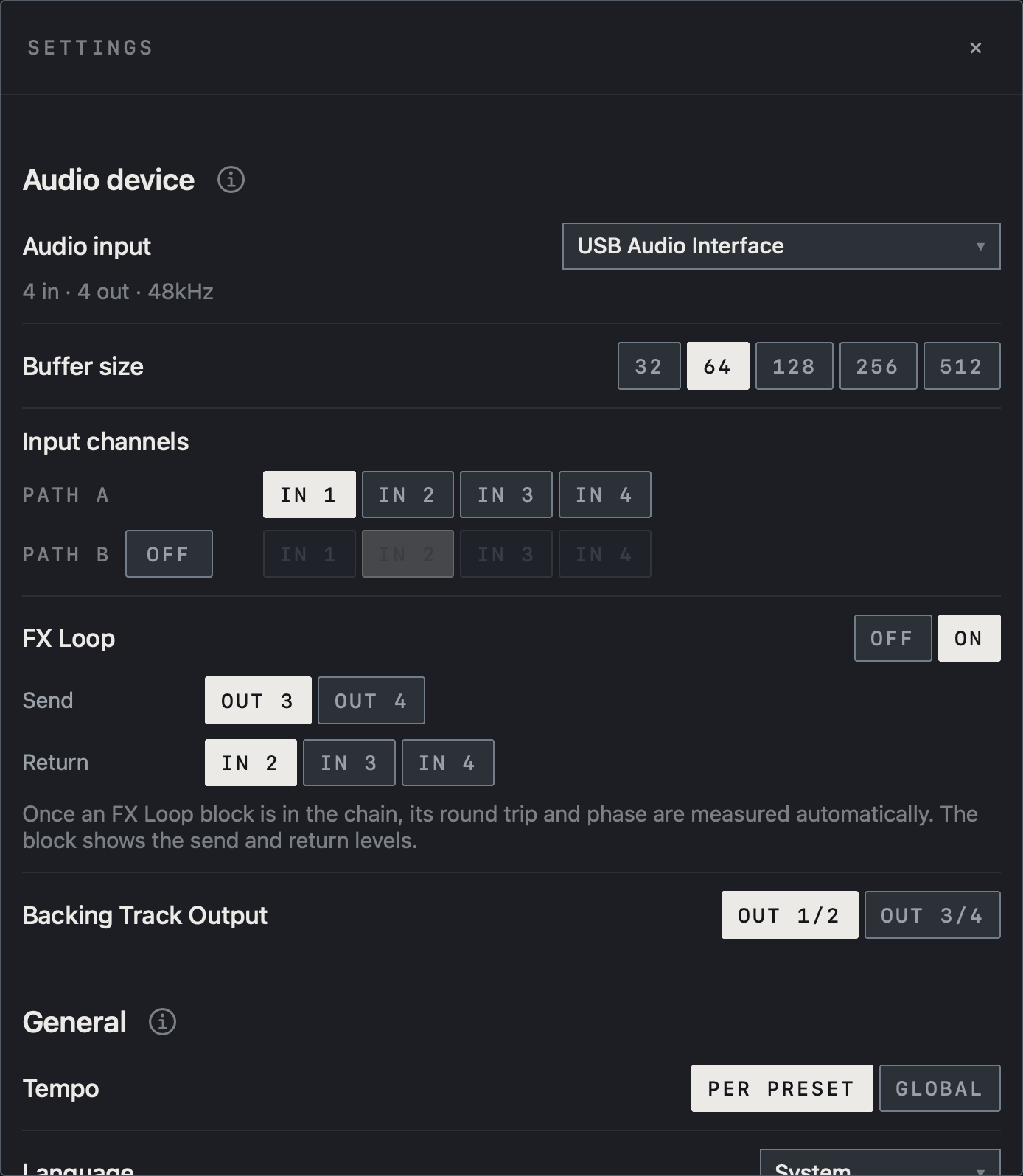
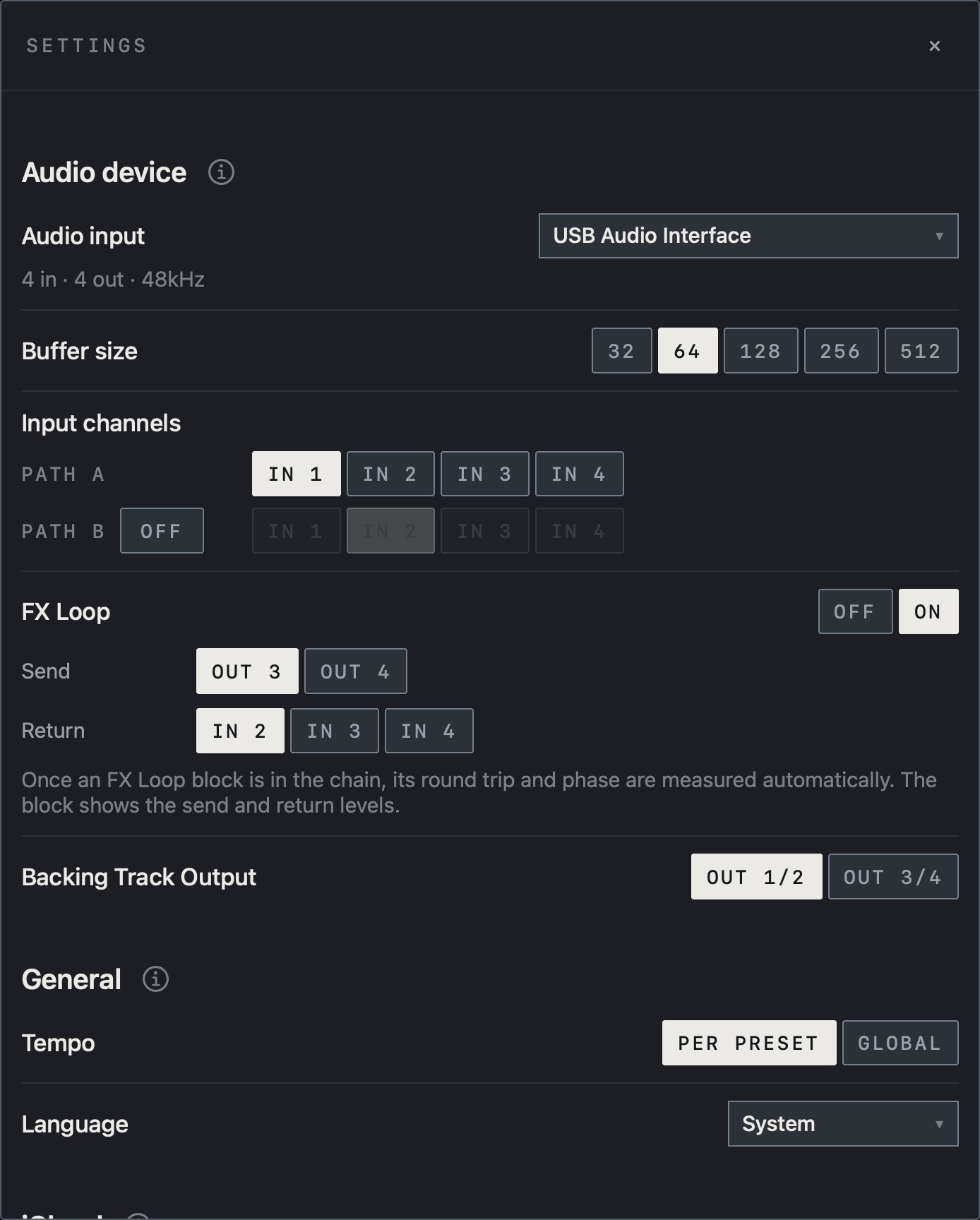
- Under Audio device in Settings, switch FX Loop to ON.
- Choose the OUT that feeds the pedal under Send and the IN that comes back from it under Return. Connectors used by a Path output or by the other loop cannot be chosen.
Find it on screen
This item is shown on iPad.
- This example uses an interface with four inputs and four outputs. With FX Loop ON, the Send and Return rows appear.
- OUT 3 is selected for Send and IN 2 for Return. IN 1, used by PATH A, is not offered for Return.
- As the sentence below says, the round trip and phase are measured automatically once a block is in the chain.
- Backing Track Output offers both OUT 1/2 and OUT 3/4.
Find it on screen
- This example uses an interface with four inputs and four outputs. With FX Loop ON, the Send and Return rows appear.
- OUT 3 is selected for Send and IN 2 for Return. IN 1, used by PATH A, is not offered for Return.
- As the sentence below says, the round trip and phase are measured automatically once a block is in the chain.
- Backing Track Output offers both OUT 1/2 and OUT 3/4.
The FX Loop block
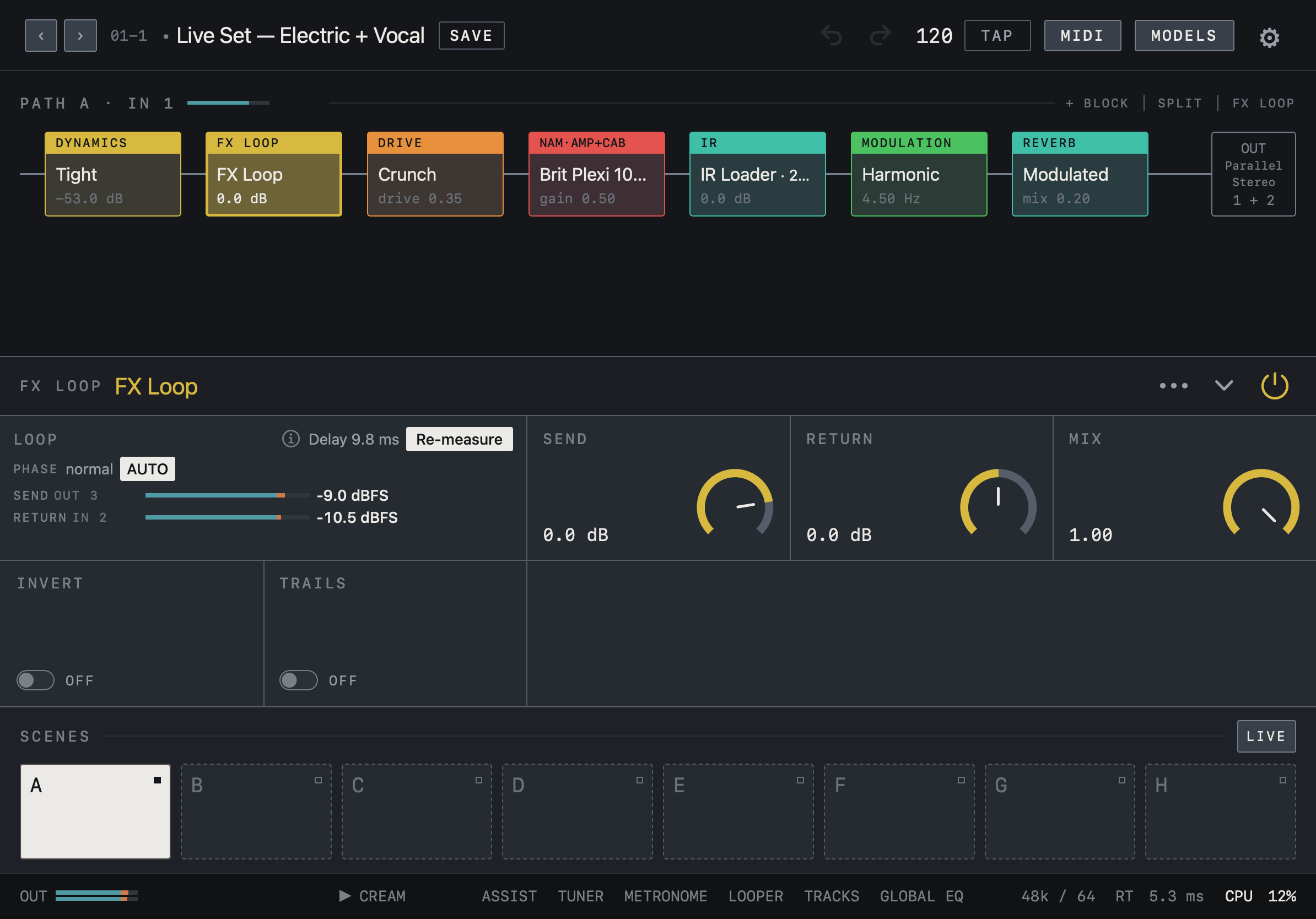
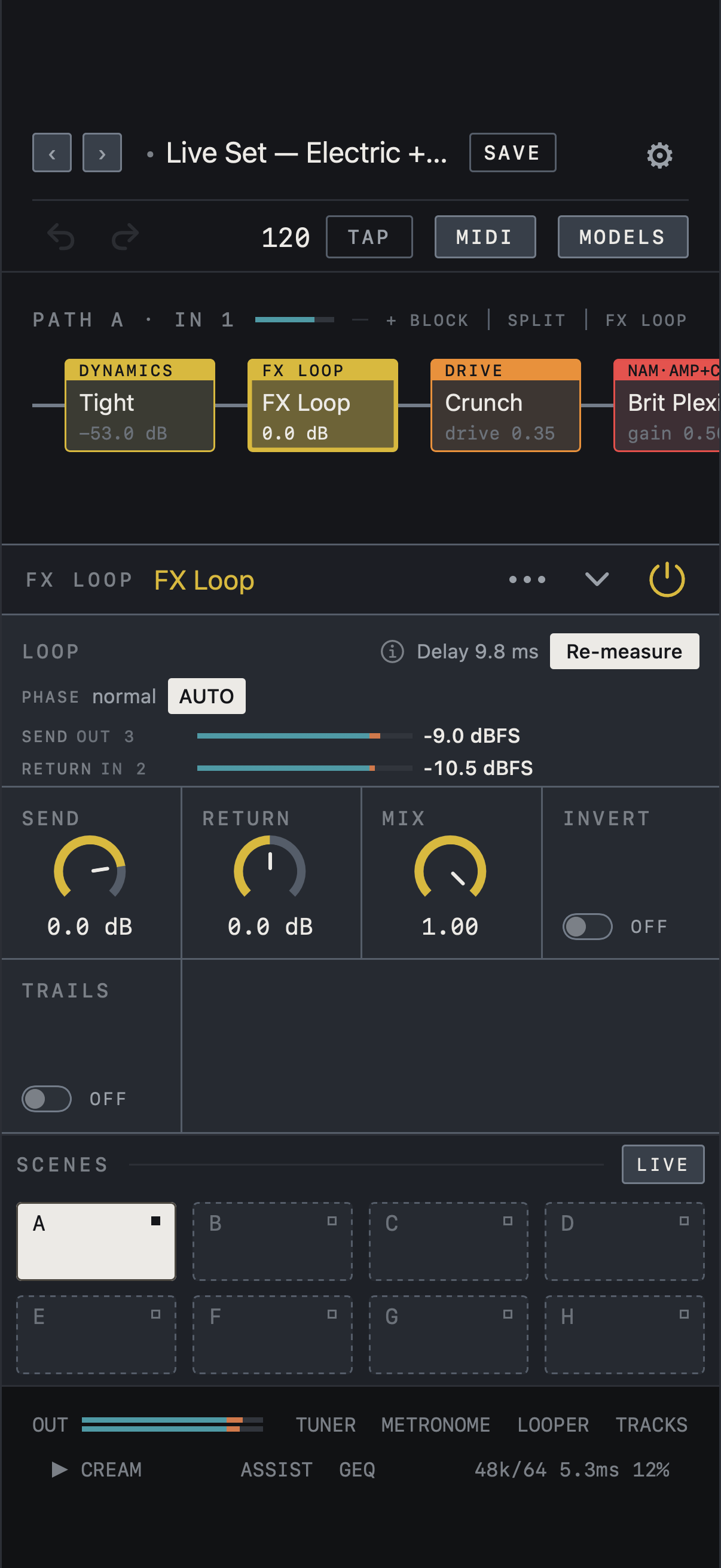
Tap FX LOOP in the chain header to add the block, then drag it where you want it, before or after the amp. Once the block is in the chain, the round trip and phase are measured automatically and lined up with the dry signal.
Caution A short signal goes out of the send during the measurement, so keep monitors down.
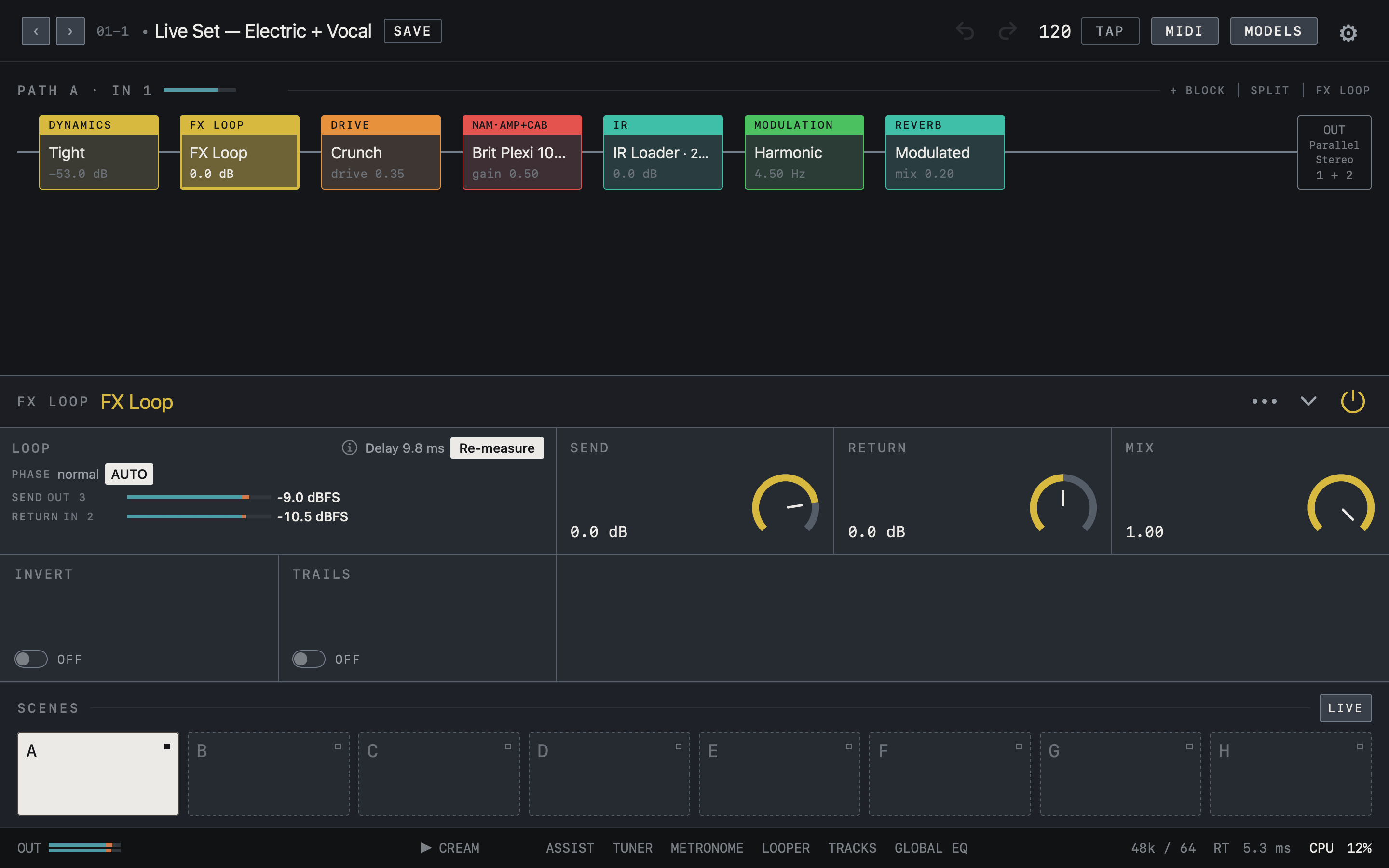
The LOOP cell shows the measured Delay, the PHASE state and the SEND OUT and RETURN IN levels. Tap Re-measure after changing the pedal or a cable. SEND and RETURN set the levels and MIX sets how much of the pedal you hear. INVERT is for pedals that flip the phase, and TRAILS lets the tails of an outboard delay or reverb ring on when the block is bypassed.
Find it on screen
- In the chain, the FX Loop block sits between Tight and Crunch.
- The LOOP cell shows the measured Delay, the PHASE state and the levels of SEND OUT 3 and RETURN IN 2. Re-measure measures again.
- The SEND, RETURN and MIX knobs and the INVERT and TRAILS switches are the block’s controls.
Find it on screen
- In the chain, the FX Loop block sits between Tight and Crunch.
- The LOOP cell shows the measured Delay, the PHASE state and the levels of SEND OUT 3 and RETURN IN 2. Re-measure measures again.
- The SEND, RETURN and MIX knobs and the INVERT and TRAILS switches are the block’s controls.
Find it on screen
- In the chain, the FX Loop block sits between Tight and Crunch.
- The LOOP cell shows the measured Delay, the PHASE state and the levels of SEND OUT 3 and RETURN IN 2. Re-measure measures again.
- The SEND, RETURN and MIX knobs and the INVERT and TRAILS switches are the block’s controls.
Wet / Dry / Wet output
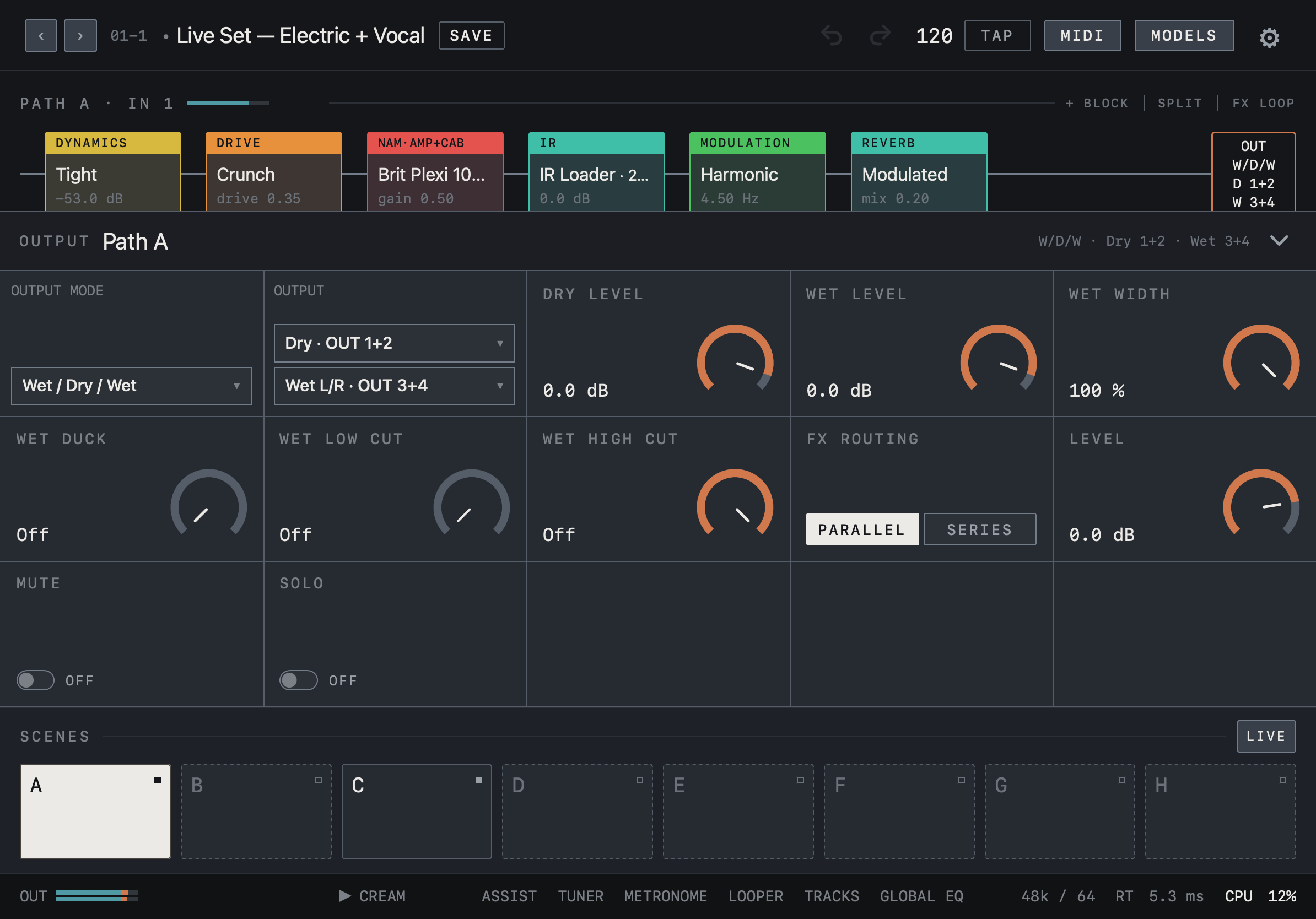
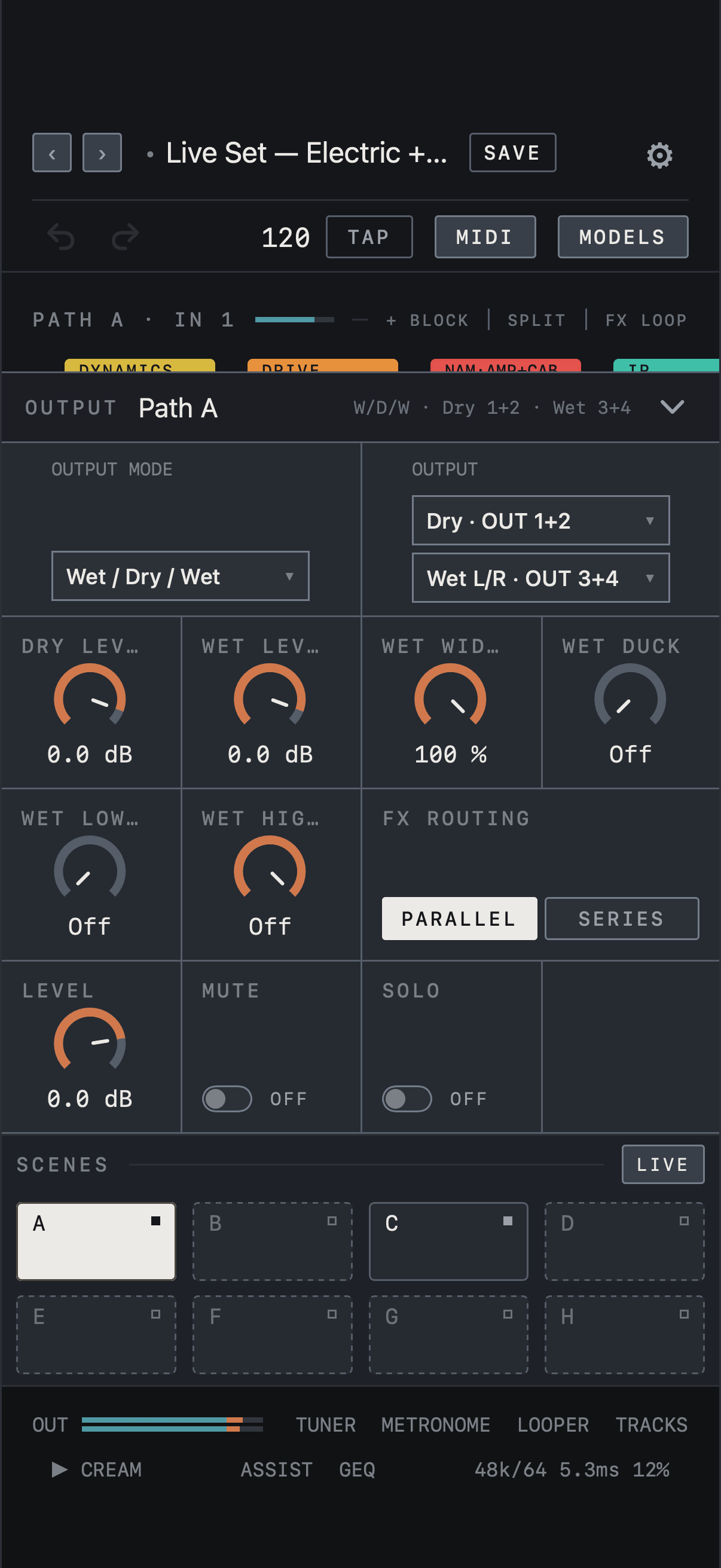
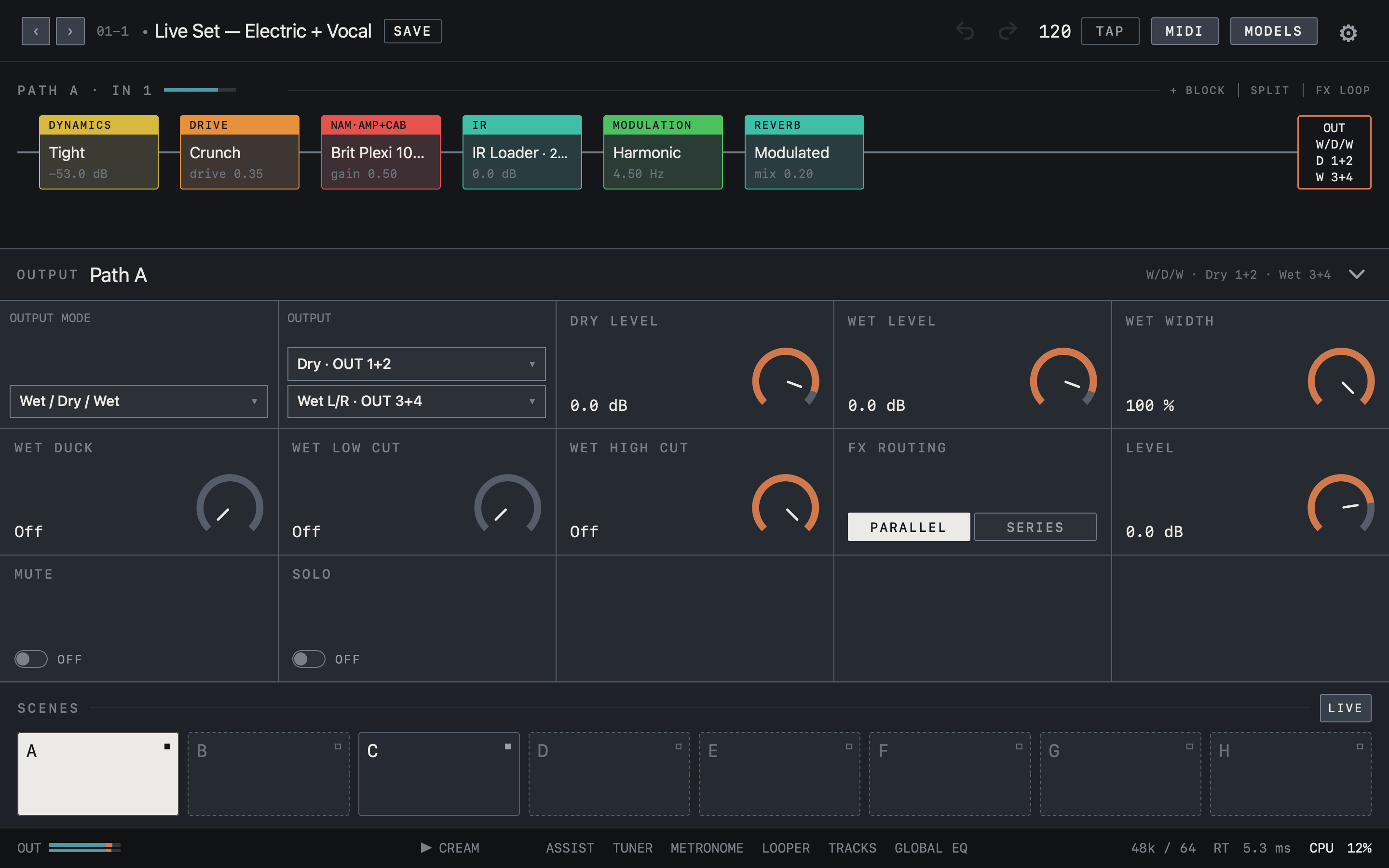
Choosing Wet / Dry / Wet under OUTPUT MODE in the OUTPUT panel sends the dry signal and the time-based effects (wet) to different outputs. The two OUTPUT menus select the connectors for Dry and Wet L/R; they start as Dry on OUT 1+2 and Wet on OUT 3+4.
Note It needs at least three physical outputs that do not overlap.
DRY LEVEL and WET LEVEL set the two levels and WET WIDTH sets the stereo width of the wet side. Parallel Stereo is the same structure on one stereo pair. Under FX ROUTING, PARALLEL adds the time-based effects alongside the dry signal, while SERIES processes them in chain order.
Find it on screen
- With OUTPUT MODE set to Wet / Dry / Wet, OUTPUT shows two menus, Dry and Wet L/R. Here they are Dry · OUT 1+2 and Wet L/R · OUT 3+4.
- The OUT block at the end of the chain also reads W/D/W with D 1+2 and W 3+4.
- Balance the two sides with DRY LEVEL, WET LEVEL and WET WIDTH.
Find it on screen
- With OUTPUT MODE set to Wet / Dry / Wet, OUTPUT shows two menus, Dry and Wet L/R. Here they are Dry · OUT 1+2 and Wet L/R · OUT 3+4.
- The panel header also reads W/D/W · Dry 1+2 · Wet 3+4.
- Balance the two sides with DRY LEVEL, WET LEVEL and WET WIDTH.
Find it on screen
- With OUTPUT MODE set to Wet / Dry / Wet, OUTPUT shows two menus, Dry and Wet L/R. Here they are Dry · OUT 1+2 and Wet L/R · OUT 3+4.
- The OUT block at the end of the chain also reads W/D/W with D 1+2 and W 3+4.
- Balance the two sides with DRY LEVEL, WET LEVEL and WET WIDTH.
Wet Duck and wet filters
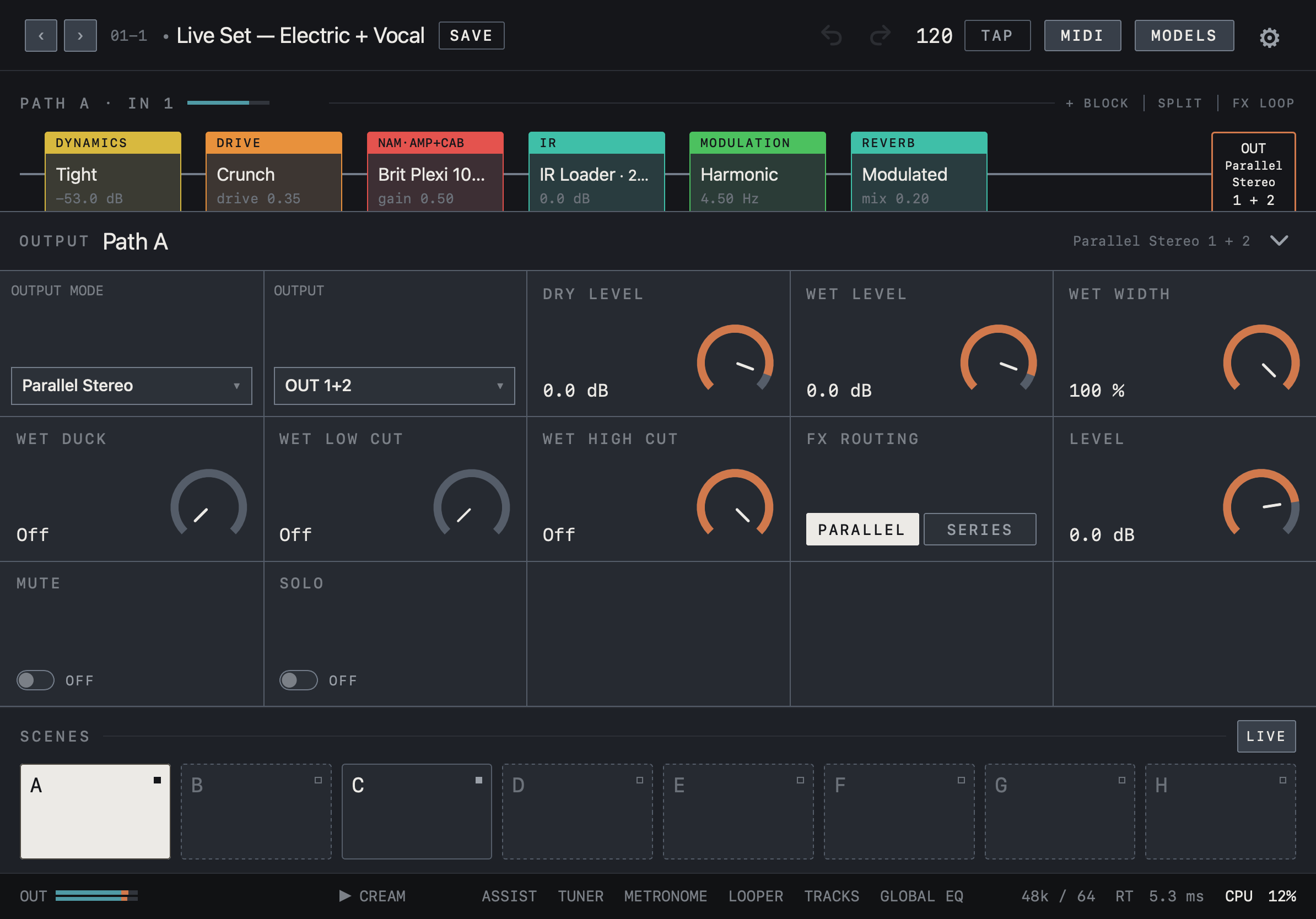
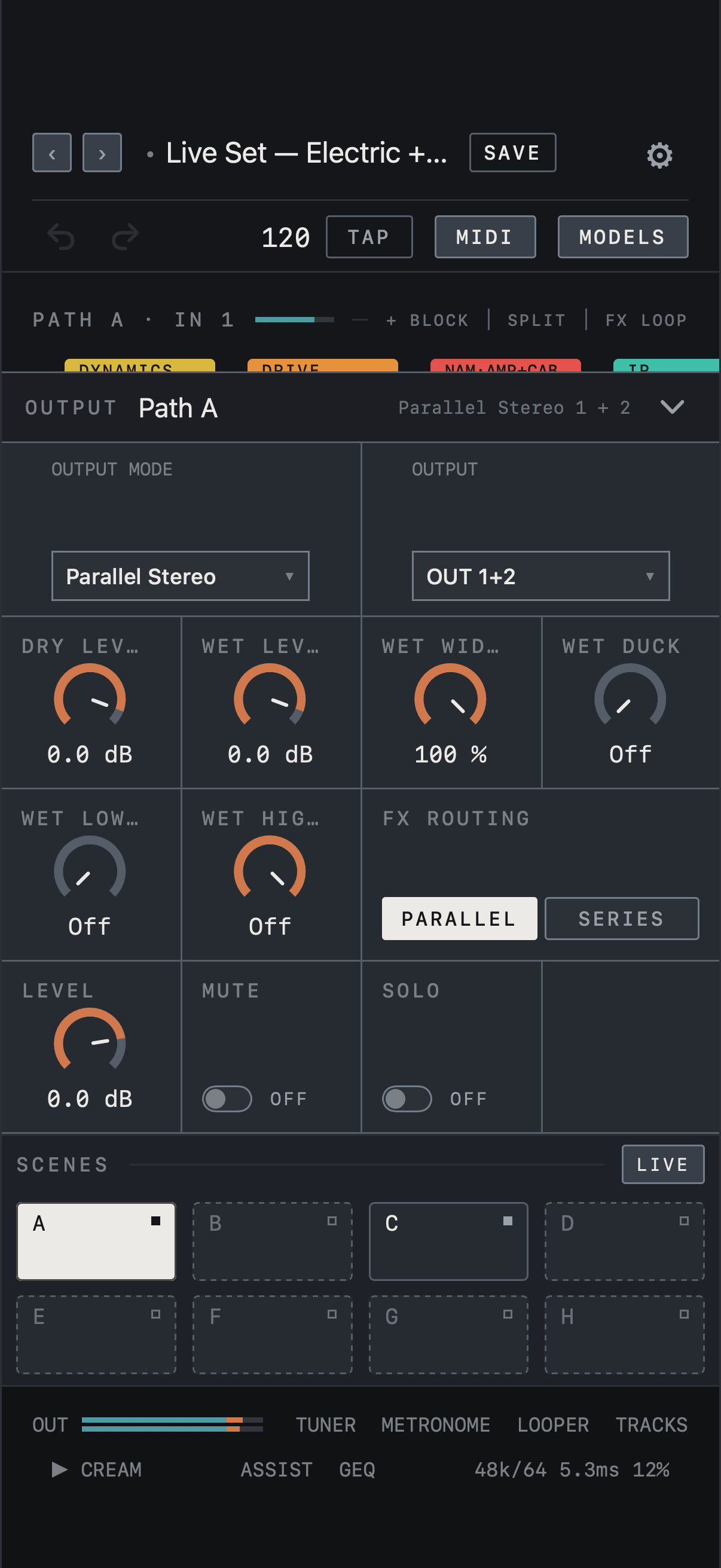
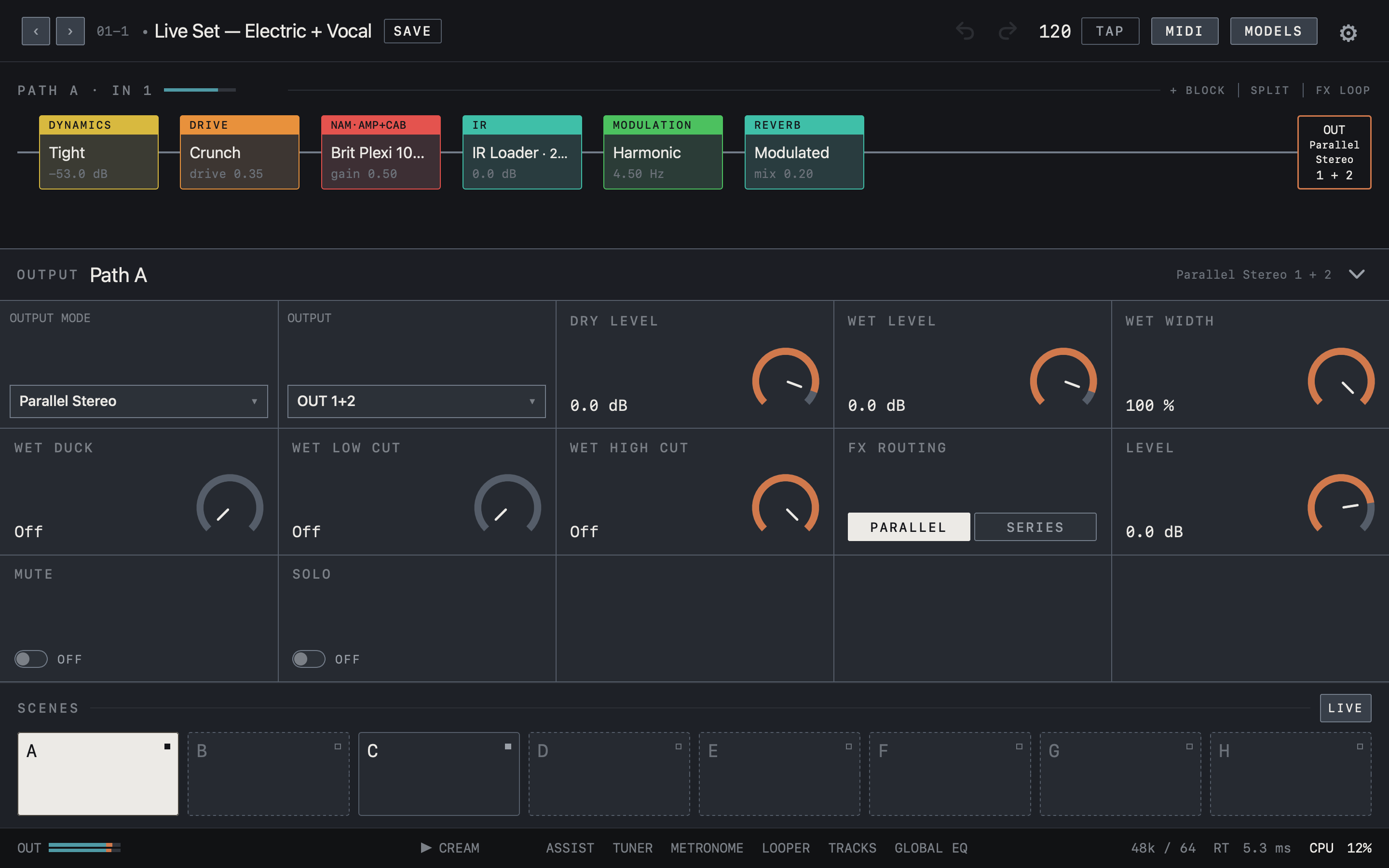
WET DUCK holds reverb and delay down while you play and lets them come back in the gaps, so fast phrases are not buried in the tail. Higher values duck more; Off is the default. The Wet Duck value is saved in the preset. WET LOW CUT and WET HIGH CUT remove lows and highs from the wet side only and are available to everyone. At Off, none of the three changes the sound.
Find it on screen
- WET DUCK, WET LOW CUT and WET HIGH CUT are on the second row of the OUTPUT panel. All three are Off in this example.
- Choose PARALLEL or SERIES under FX ROUTING.
Find it on screen
- WET DUCK, WET LOW CUT and WET HIGH CUT are in the OUTPUT panel. All three are Off in this example.
- Choose PARALLEL or SERIES under FX ROUTING.
Find it on screen
- WET DUCK, WET LOW CUT and WET HIGH CUT are on the second row of the OUTPUT panel. All three are Off in this example.
- Choose PARALLEL or SERIES under FX ROUTING.