What it does
AUv3 Hosting puts the other AUv3 effects installed on your device (compressors, reverbs, EQs and so on) into the NAM FX chain as blocks. Like any other block you can drag it to a new place, switch it on and off and store it in scenes. It is a Pro feature and works in the standalone app only; it is not there when NAM FX itself runs as an AUv3 plug-in inside another host. Only audio effects are listed, not instruments or MIDI plug-ins. On the Mac, plug-ins that have to open in a separate process, such as UAD, work too.
Note If a plug-in you just installed is not in the list, run that plug-in’s app once and open the picker again.
Caution The plug-in’s processing time is counted inside the NAM FX buffer. If several heavy plug-ins make the sound crackle or drop out, raise the buffer one step in Settings.
Add a block and choose a plug-in
- Tap PLUG-IN in the chain header. Lime + marks appear in the gaps between blocks.
- Tap the + where you want it; an AUv3 block goes in and the plug-in picker opens.
- Pick from RECENT (the ones you chose lately), ALL or a maker on the left, or type a plug-in or maker name in the search field at the top.
- Once you choose a plug-in, its window opens as soon as the plug-in is ready.
The plug-in window
Tap OPEN in the block’s controller and the plug-in’s own screen opens in a floating window. Each block has its own window, so several plug-ins can stay open together, and the editor behind them still works. The header shows the PLUG-IN tag, the plug-in and maker names and the latency the plug-in reports; on the right, the power button switches the block on and off, the next button toggles full screen and ✕ closes. Drag the header to move the window and use the grip at the bottom right to size it. The size and position are remembered for each plug-in. Plug-ins with a fixed size have no grip or full screen. Settings you change inside the plug-in are saved when you save the preset.
Find it on screen
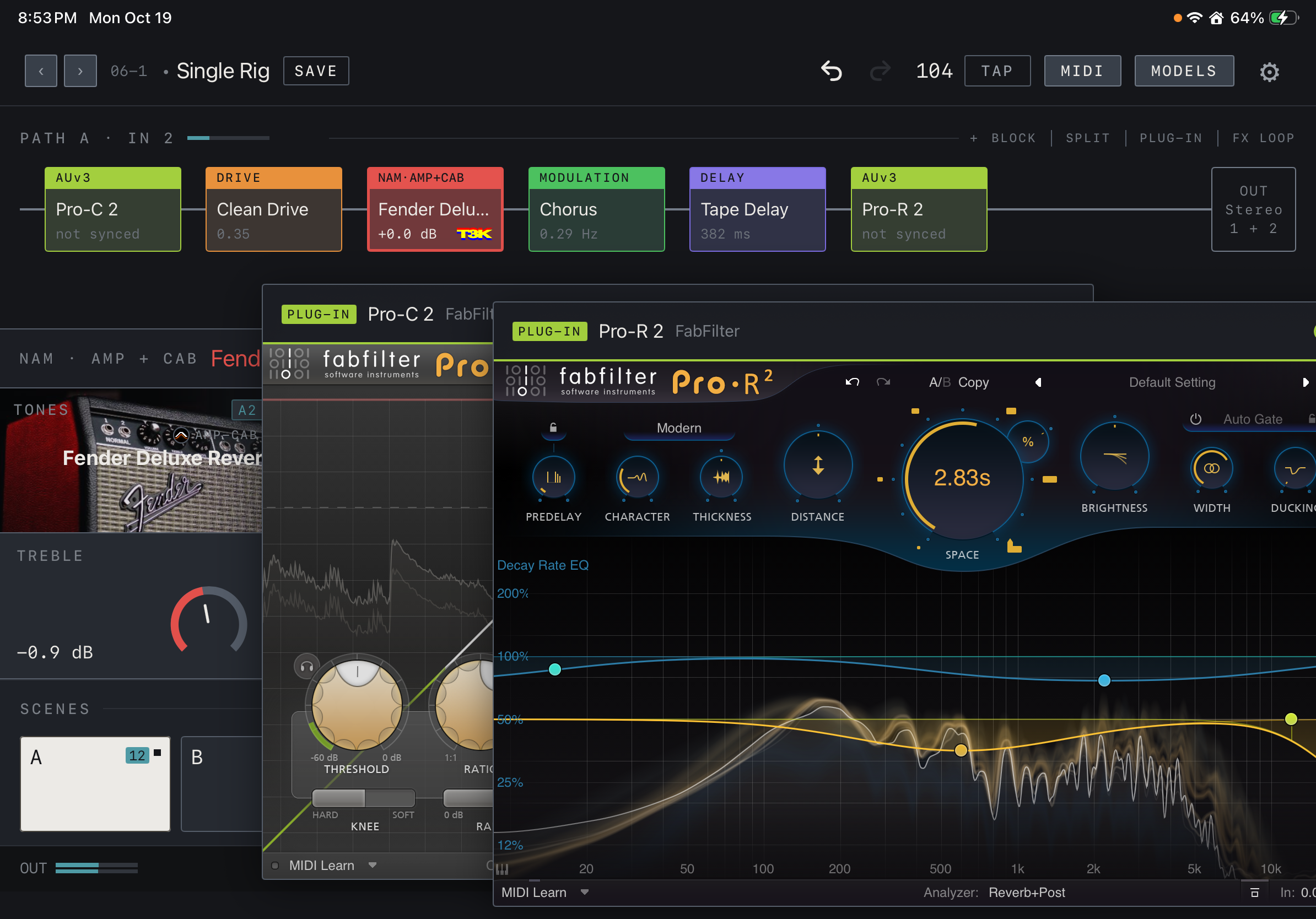
- Two AUv3 blocks (Pro-C 2 and Pro-R 2) sit at the start and end of the chain, and both plug-in windows are open together. Pro-R 2, opened last, is on top.
- The window header carries the lime PLUG-IN tag, the plug-in name and the maker. Below it is the plug-in’s own screen.
- PLUG-IN at the right of the chain header is the mode that adds these blocks.
Find it on screen
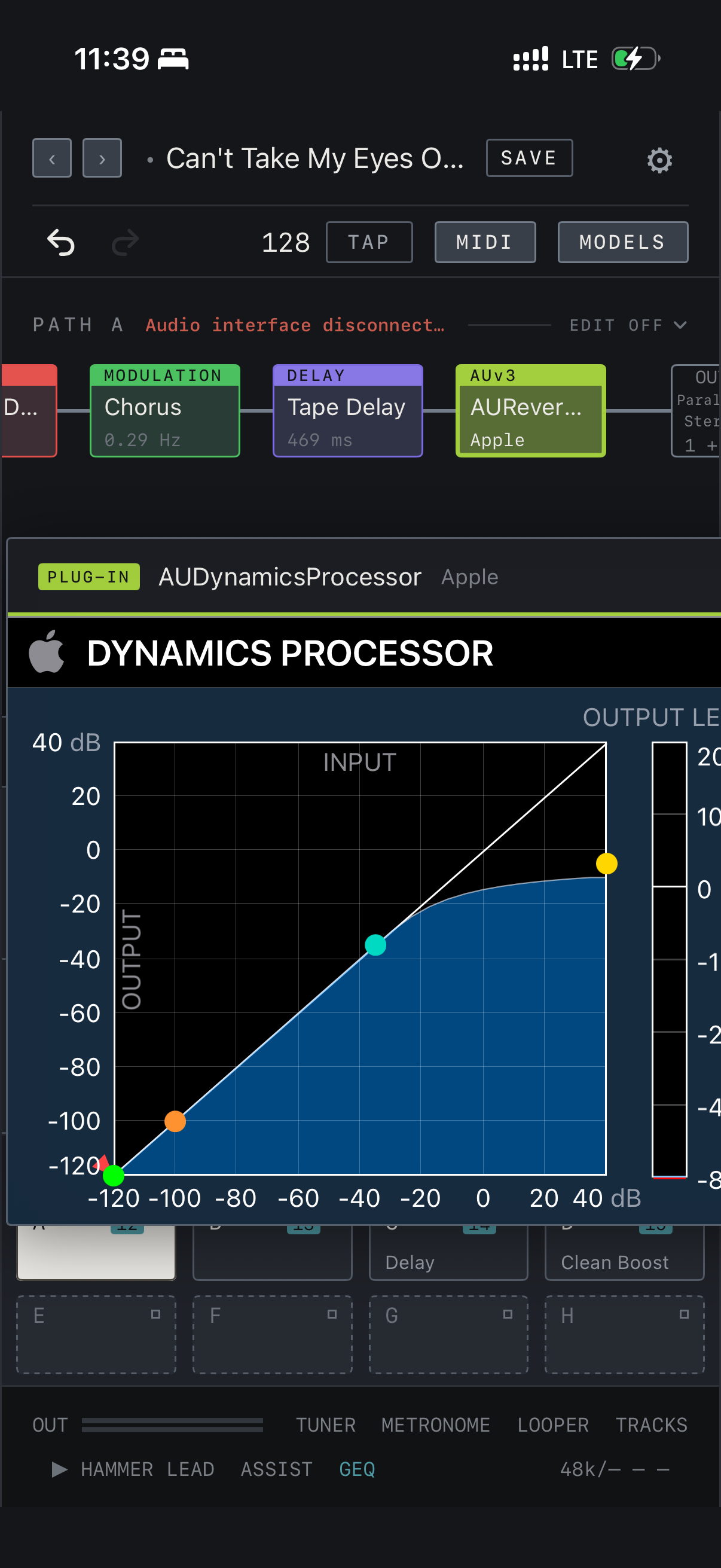
- The AUv3 block at the end of the chain runs Apple’s AUDynamicsProcessor, and its window floats in the middle of the screen.
- On iPhone the plug-in opens at the size it asks for. If it is wider than the screen, drag the header to see the side; if it is taller, scroll inside the window.
- In portrait on iPhone, tap EDIT OFF in the chain header to choose the PLUG-IN mode.
Find it on screen
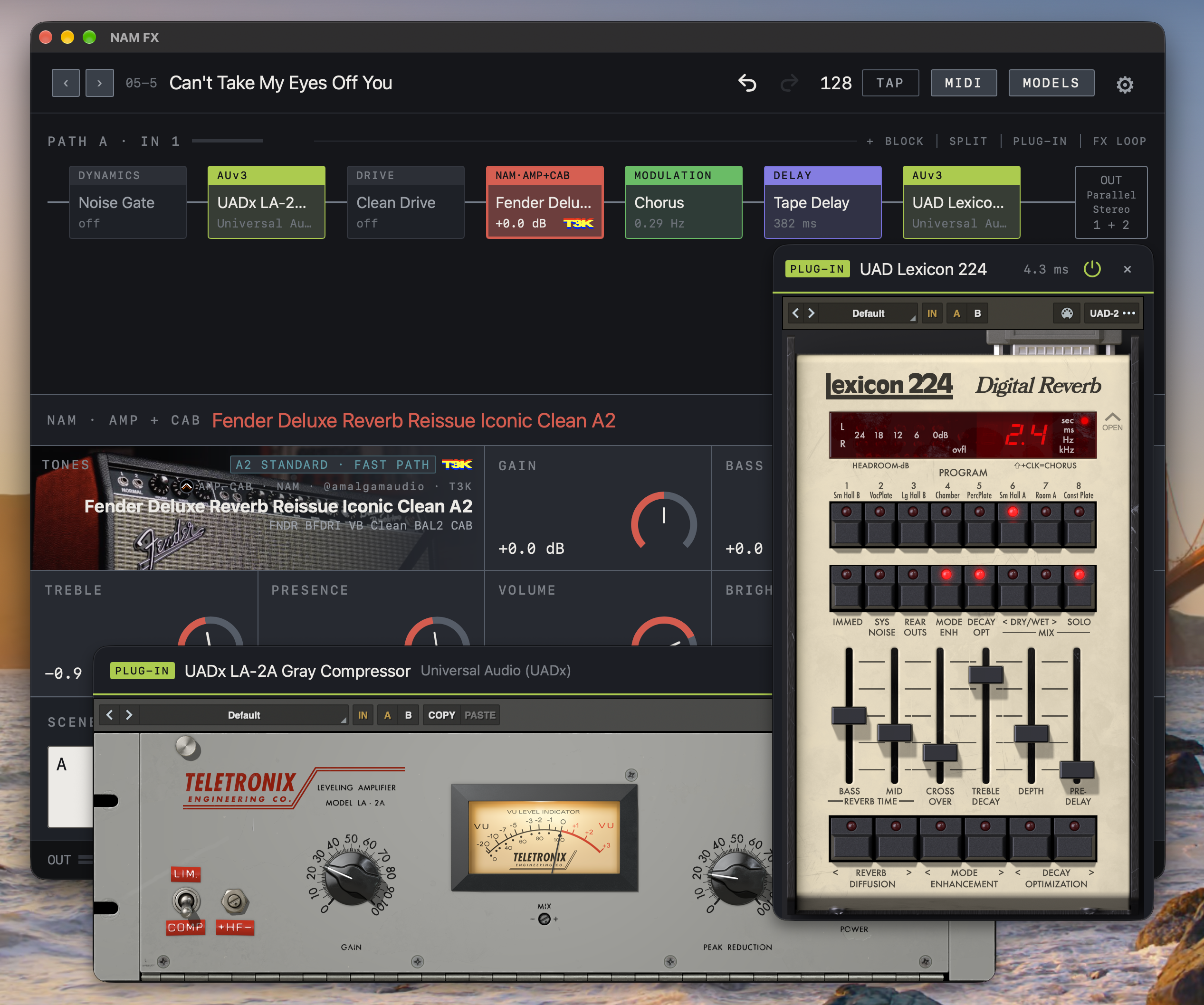
- On the Mac the plug-in window is a separate window you can move outside the app window. Here UADx LA-2A and UAD Lexicon 224 are open together.
- The 4.3 ms in the Lexicon window header is the latency the plug-in reports, and the power button beside it switches the block on and off.
- UAD plug-ins open in a separate process; they have a fixed size, so there is no grip or full-screen button.
Insert and Send
Choose Insert or Send under Mode in the controller. Insert is an ordinary effect the chain runs through, and Level raises or lowers what the plug-in puts out by −12 to +12 dB. Send passes the sound at the block’s position to the Space return by the Send amount and hands the chain sound on to the next block unchanged, the way you would add a reverb or delay on a DAW send. The Send knob starts at −∞, reaches 0 dB at two o’clock and +6 dB at the end. With Trails on, switching the block off closes only the send and the plug-in’s tail rings out.
Caution When you use Send, set the plug-in’s Mix to 100% wet. If it mixes in the dry sound, the dry signal is added twice.
Note The Space return exists in Parallel Stereo and Wet / Dry / Wet output. In Stereo output there is no separate return, so the Send sound is mixed straight into the output, and the controller says so.
Scenes and presets
Switching the block on and off and Mode, Level, Send and Trails are stored per scene, like any other block’s values. Plug-in knobs you turn in a scene while the plug-in window is open also become that scene’s values. The first time you turn a knob, the other scenes keep the value from before, so going to another scene brings back the original sound. Knobs you never turn stay the same in every scene. Choose “Same plug-in knobs in every scene” in the block menu to release the per-scene knobs while keeping the current sound.
Note Settings that are not exposed as knobs, such as a loaded IR or model file, cannot change by scene. Use separate presets for those.
A different plug-in on each device
Installed plug-ins differ from device to device, so an AUv3 block remembers a plug-in and its settings separately for iPhone, iPad and Mac. With Device Sync the block’s position, order and on/off are shared, while each device runs the plug-in chosen on it. When other devices use a different plug-in, the controller lists them under “Other devices use a different plug-in:”, one line per device, with this device’s plug-in below. If the block’s value line reads not synced, the plug-in chosen on another device is not installed here: install the same plug-in, or tap CHOOSE to pick one for this device. not installed means the plug-in chosen on this device has been removed. In both cases the block passes the sound through unchanged.
Note While Pro is locked, AUv3 blocks cannot be added and existing ones pass the dry sound through. The chosen plug-ins and their settings are kept.